GETTING STARTED
WORKFLOWS
Pro Features
Invoices
Invoices and payments
Requires FlyCRM Pro.
Pro adds the money side of the CRM: invoices raised from your quotes, a product catalog to build them from, online and manual payment methods, and a transactions ledger. This page covers all four.
CRM concept: A quote proposes a price. An invoice asks for payment once the customer agrees. A transaction is one payment received against an invoice.
Pro adds three menu items to FlyCRM: Invoices, Products, and Transactions. In the free plugin these appear as locked previews that link to an upgrade.
Invoices
An invoice is a request for payment. Pro creates invoices, tracks what is paid and what is due, and records each payment.
Raise an invoice from a quote
- Open an accepted quote.
- Select Create invoice.
- Review the line items and the total.
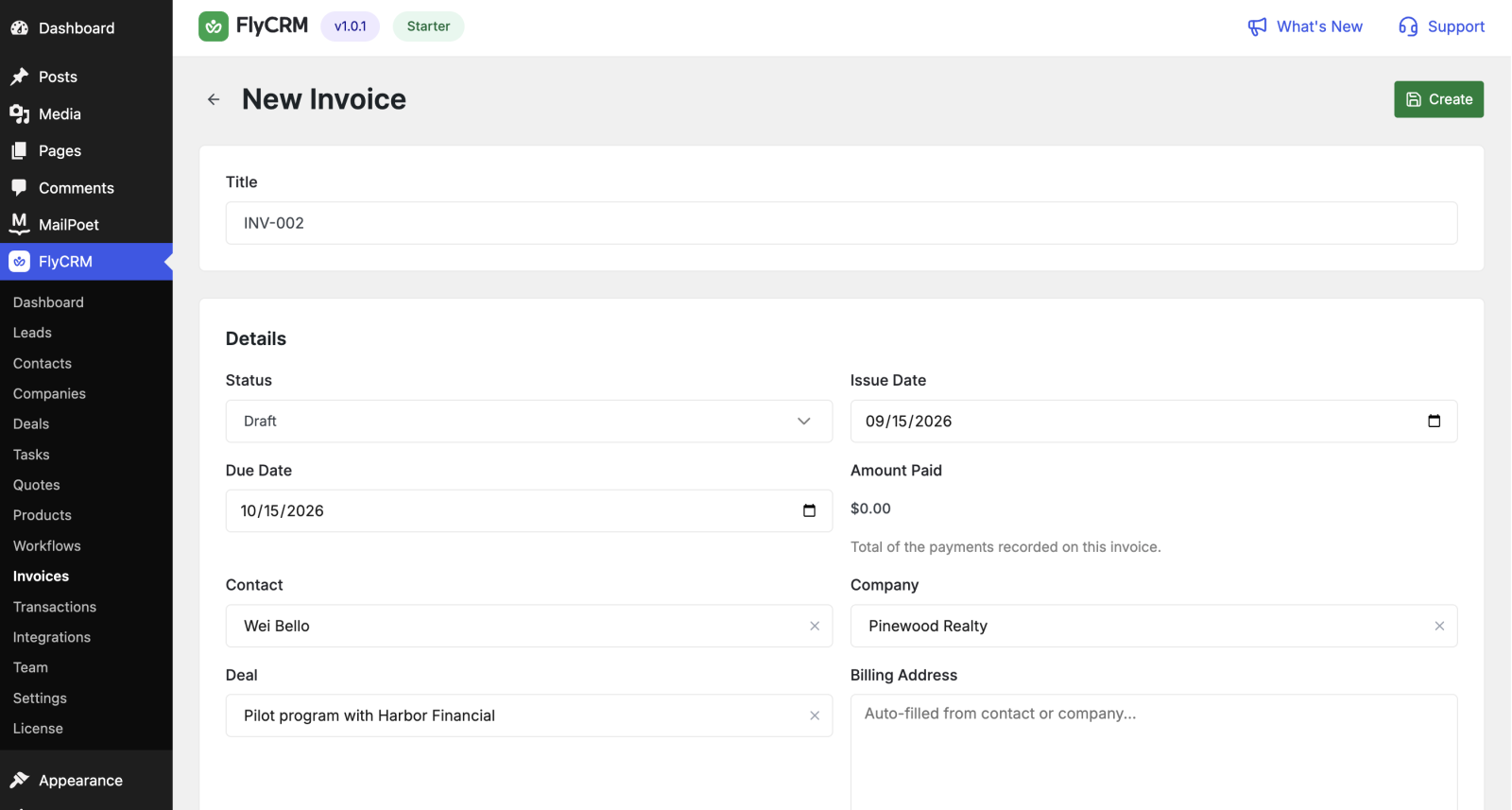
- Set the issue date and the due date.
- Select Save, then Send.
The invoice keeps a link back to its source quote and to the related deal.
Track payment
An invoice tracks the money against it:
- Amount paid — the total recorded so far.
- Balance due — what is still owed.
- Status — moves to Paid when the balance reaches zero.
Record a payment with Record Payment, or use Mark as Paid to settle the whole invoice at once. Partial payments are supported: record part of the amount and FlyCRM tracks the balance.
Payment methods
Pro supports five payment methods. Two collect money online; three are manual records.
- Stripe — card payments online.
- PayPal — PayPal and card payments online.
- Bank transfer — a manual method; show your bank details and record the payment yourself.
- Cash — a manual method for in-person payment.
- Cheque — a manual method for a mailed cheque.
Test before you go live
Both Stripe and PayPal offer a test mode. Enter your test keys, send yourself an invoice, and pay it with a test card. Make sure that the invoice moves to Paid. Switch to live keys only after the test works.
How a customer pays online
- You send an invoice.
- The customer opens the public invoice link.
- The customer selects a method and pays.
- The gateway confirms the payment.
- FlyCRM marks the invoice Paid and writes the payment to the transactions ledger.
Transactions
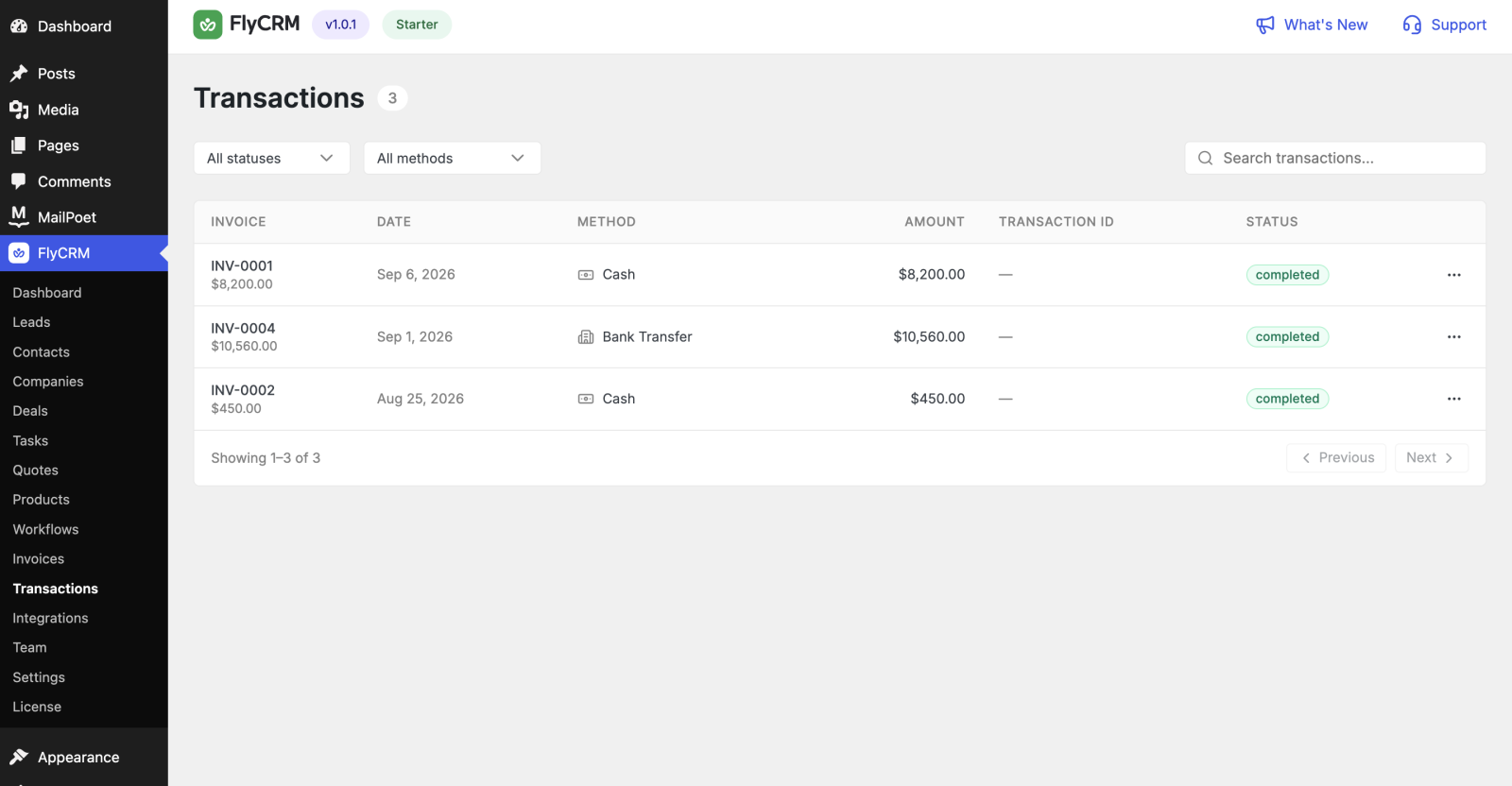
The transactions ledger lists every payment received across all invoices. Each transaction shows its method and its status.
- Method — Stripe, PayPal, bank transfer, cash, or cheque.
- Status — Completed, Pending, Failed, or Refunded.
Use the ledger to reconcile payments and to filter by method or status.