
GETTING STARTED
WORKFLOWS
WORKFLOWS
What is a workflow
A workflow does work for you in the background. It watches for an event in FlyCRM. When that event occurs, the workflow enrolls the record and runs your steps in order.
An example: a deal moves to a new stage. The workflow sends an email, waits three days, then creates a task for the deal owner. No person starts these actions.
Workflows are part of FlyCRM Pro. You find them in the FlyCRM menu, under Workflows.
The parts of a workflow
Each workflow has two parts:
- The trigger. One event that starts the workflow. Each workflow has exactly one trigger.
- The steps. The actions that run after the trigger. Steps run from top to bottom.
A step can also split the flow. An If / else step tests a condition. Records that match go down the Yes branch. The other records go down the No branch.
Workflow status
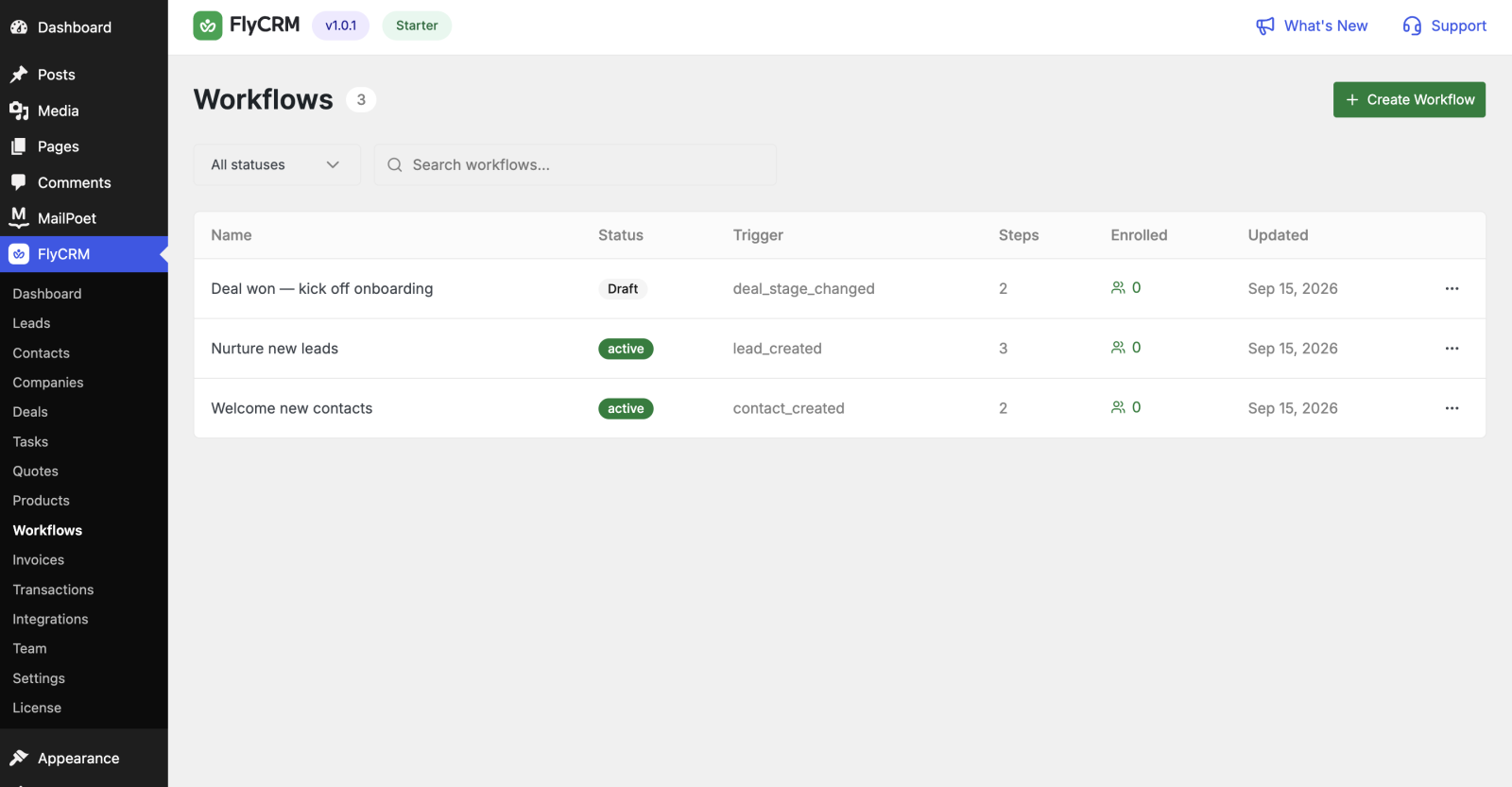
The list shows a status for each workflow:
| Status | What it means |
|---|---|
| Draft | The workflow does not run. You can edit it. |
| Live | The workflow enrolls new records. |
| Paused | The workflow does not enroll new records. |
| Archived | The workflow is out of use. |
A draft never enrolls a record. Click Publish to make the workflow live.
What happens when you publish
Publish makes a snapshot of the workflow. Records that enroll run against this snapshot.
This is important. If you edit a live workflow, the records that are already in it do not change. They finish with the version they started on. Your edits apply to the records that enroll after the next publish.
What happens when you pause
Pause stops new enrollments. Records that are already in the workflow continue to the end. To stop those records, you must let them finish.
Who can use workflows
Only these two roles can see and use workflows:
- Administrator
- FlyCRM Manager
An agent cannot open the Workflows page.
What runs the steps
FlyCRM runs the steps in the background with Action Scheduler. Nothing runs during the page save that started the workflow.
A Wait step uses the same scheduler. The step continues when the timer ends.
NOTE: The background queue uses WP-Cron by default. WP-Cron runs when a person opens the site. For correct times, configure a server cron job.
The next step
Read "Build your first workflow" to make a workflow from start to end.