
GETTING STARTED
WORKFLOWS
INTEGRATIONS
Google Workspace
Google Workspace: set up Google Meet
Create Google Meet meetings from FlyCRM. When you log a meeting, FlyCRM can create a Google Meet link and send a Google Calendar invitation to each attendee.
Today, the integration does one thing: it adds Google Meet links to meetings across leads, contacts, deals, and companies from their details view page. FlyCRM does not sync your calendar (meeting and CRM tasks sync with Google Calendar feature is coming soon).
How it works
The setup has two parts:
- The site administrator creates a Google Cloud project and an OAuth client one time. The administrator then enters the client in FlyCRM.
- Each team member connects their own Google account on their WordPress profile page.
When a team member generates a Meet link, FlyCRM creates an event in that person's Google Calendar. The event has a Meet link, and Google emails an invitation to each attendee.
FlyCRM asks Google for two permissions only:
| Permission (scope) | Why FlyCRM needs it |
|---|---|
| calendar.events | To create and cancel the meeting event in the user's calendar |
| userinfo.email | To show which Google account is connected |
Before you start
- FlyCRM and FlyCRM Pro are active.
- Your site uses HTTPS. Google does not accept a redirect URI that starts with
http://. The only exception ishttp://localhost. - You have a Google account that can open the Google Cloud console.
Keep two browser tabs open: one for the Google Cloud console and one for FlyCRM. You copy values between them.
Part 1: Set up Google Cloud (administrator)
Step 1: Create a project
- Open Create a project in the Google Cloud console.
- Type a project name, for example
FlyCRM. - Select Create.
- Make sure that the new project is selected in the project picker at the top of the console.
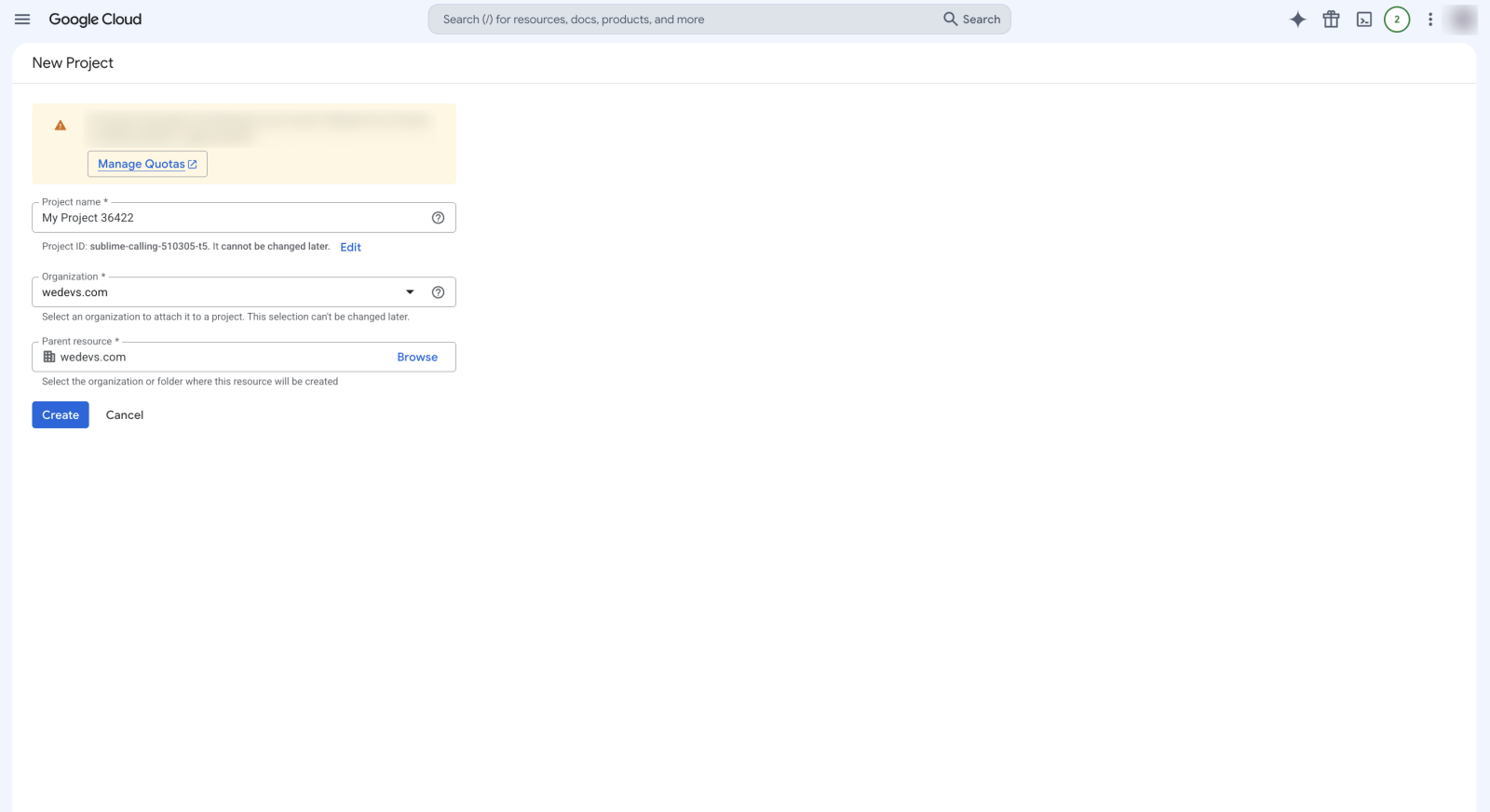
You can also use a project that you already have. For example, you can use the project that you made for other projects/use cases.
Step 2: Turn on the Google Calendar API
- Open the Google Calendar API page.
- Select Enable.
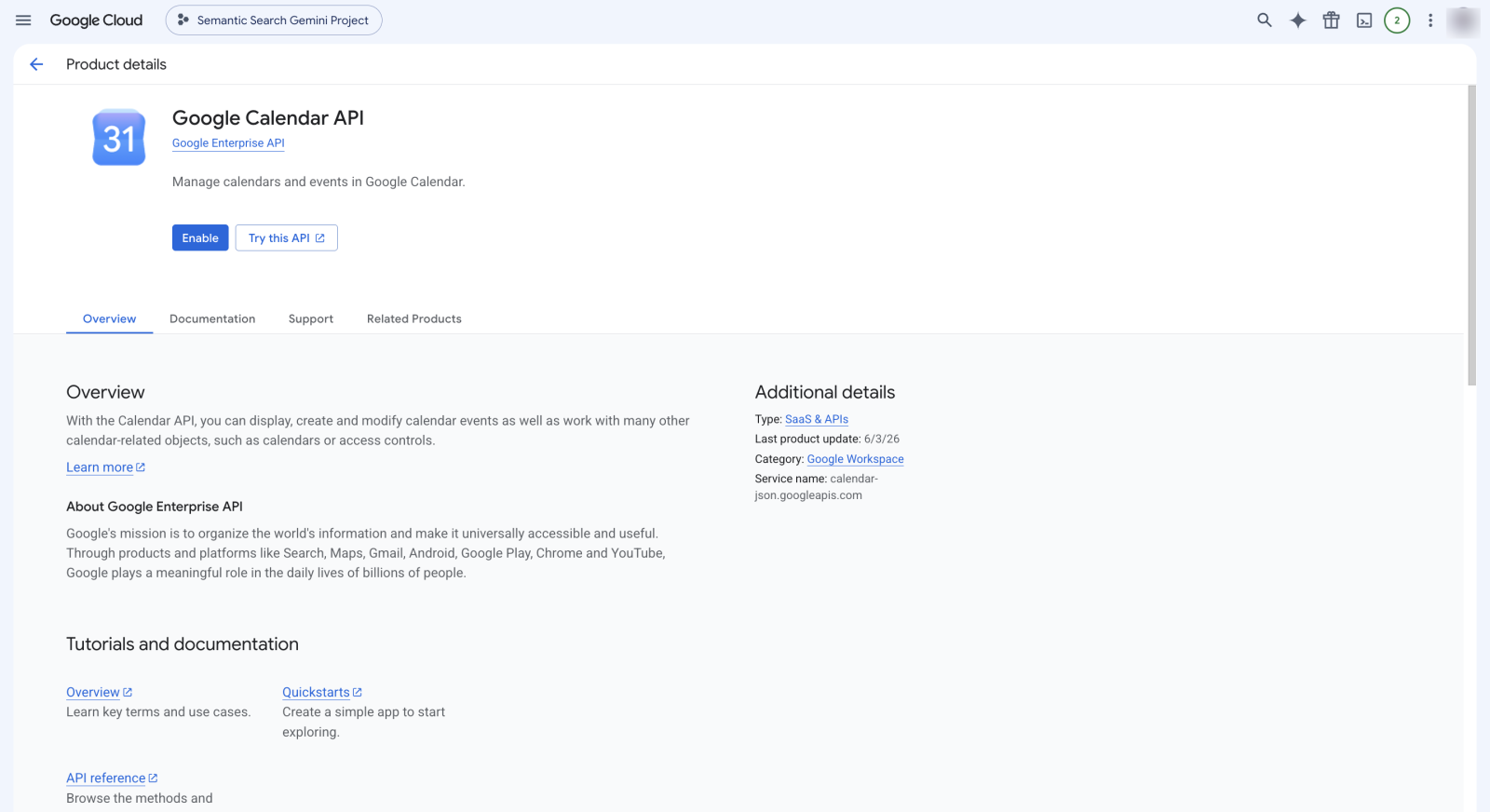
Google Meet needs only the Calendar API. FlyCRM creates each meeting as a calendar event with a Meet link. You do not need the Drive API, the Picker API, or an API key.
Step 3: Set up the consent screen
Google shows the consent screen when a team member connects their account.
- Open Google Auth Platform.
- If Google asks, select Get started. Then type the app name, the support email, and the contact email.
- Under Audience, select the user type:
- If all of your team members use your Google Workspace organization, select Internal. Google does not need to review the app.
- In all other cases, for example Gmail accounts, select External. An external app starts
in Testing mode.
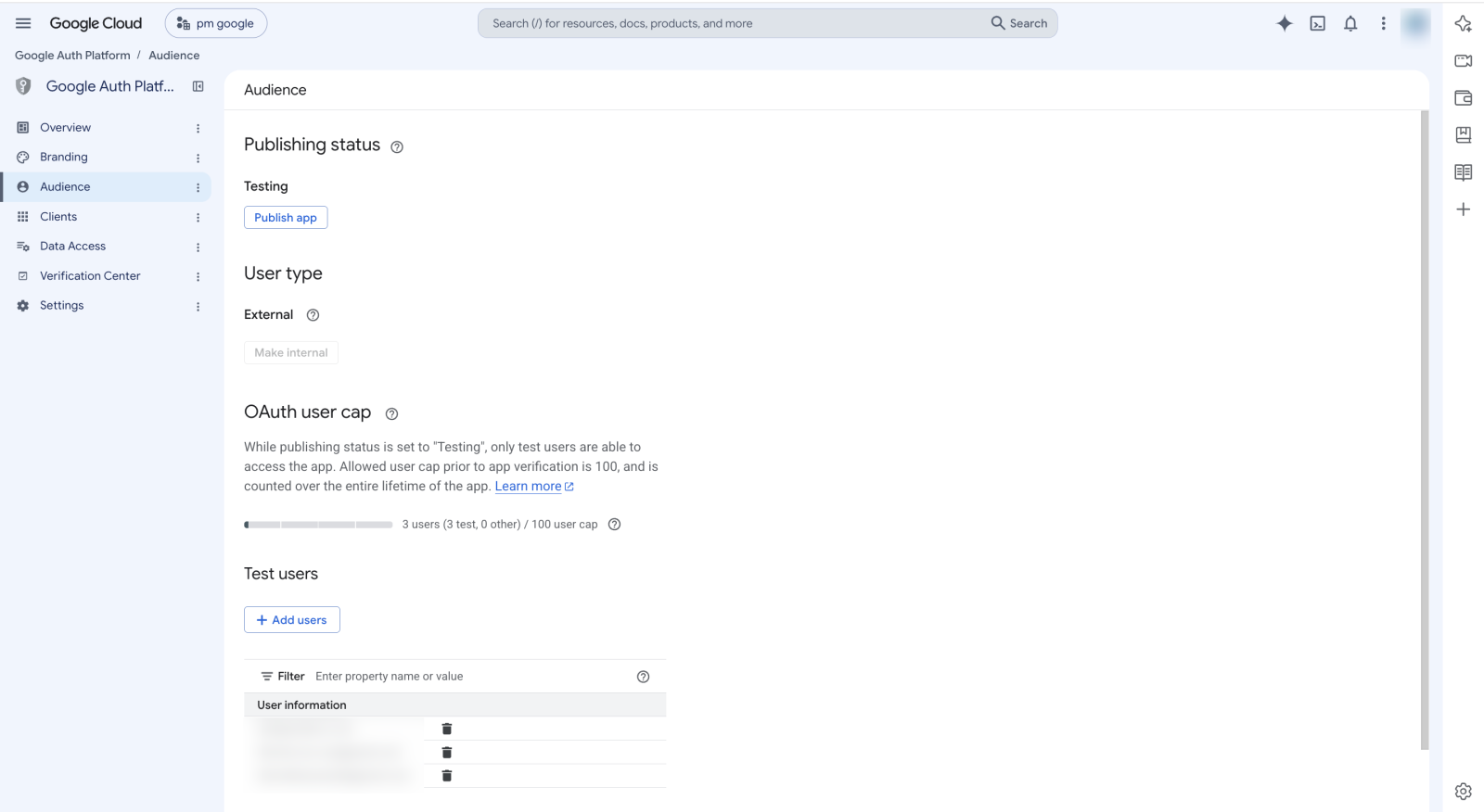
- If you selected External, add the Google email address of each team member as a test user. In Testing mode, only test users can connect.
- Under Data Access, select Add or remove scopes. Add these scopes:
.../auth/calendar.events.../auth/userinfo.email
- Save.
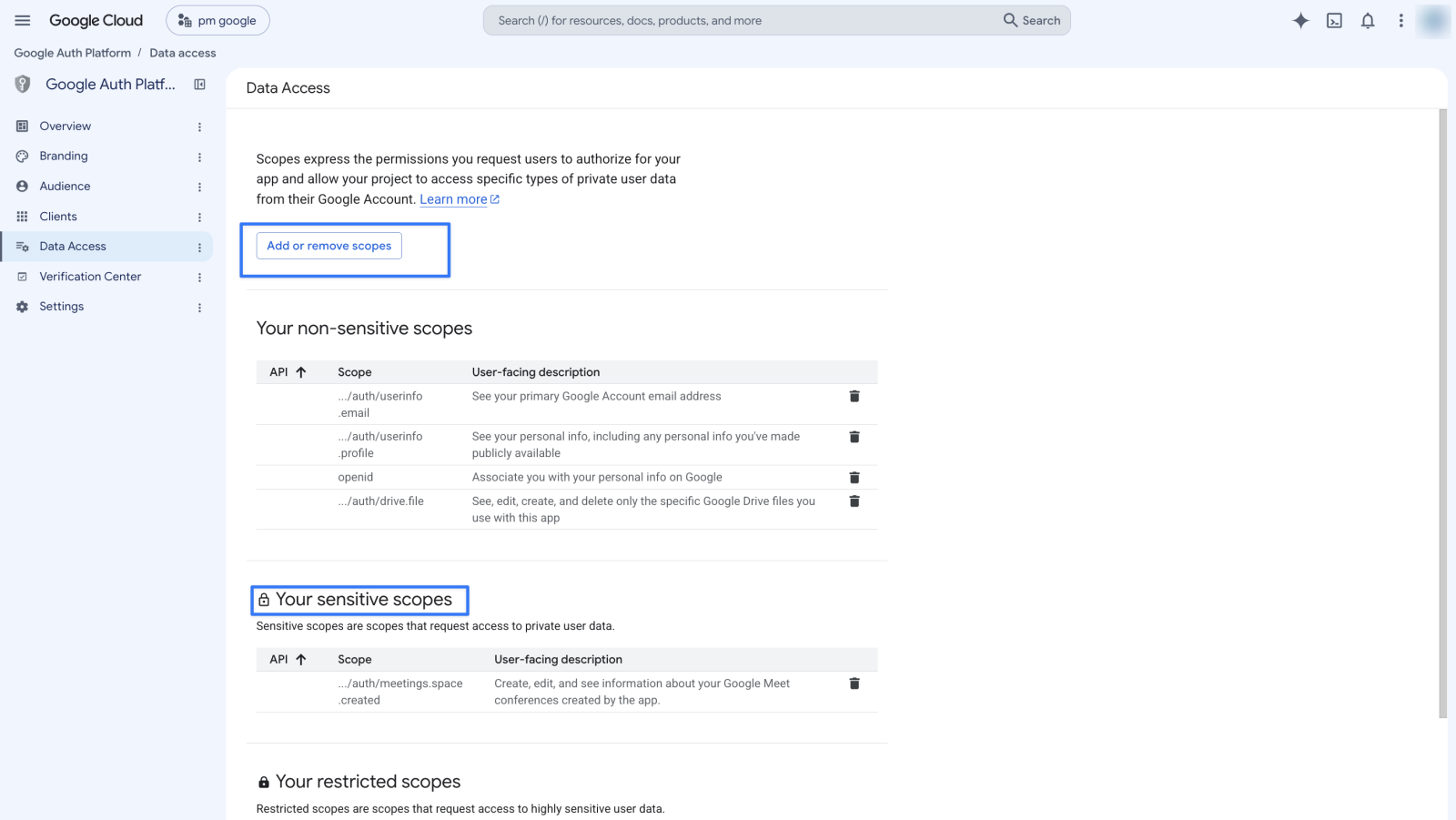
Note: In Testing mode, a connection expires after 7 days. The team member must then connect again. To stop this, publish the app or use the Internal user type.
Note:
calendar.eventsis a sensitive scope. An External app in production needs Google verification for this scope. An Internal app does not need verification.
Step 4: Create the OAuth client
- In FlyCRM, go to FlyCRM > Integrations > Productivity > Google Workspace. Copy the value in Authorized Redirect URI
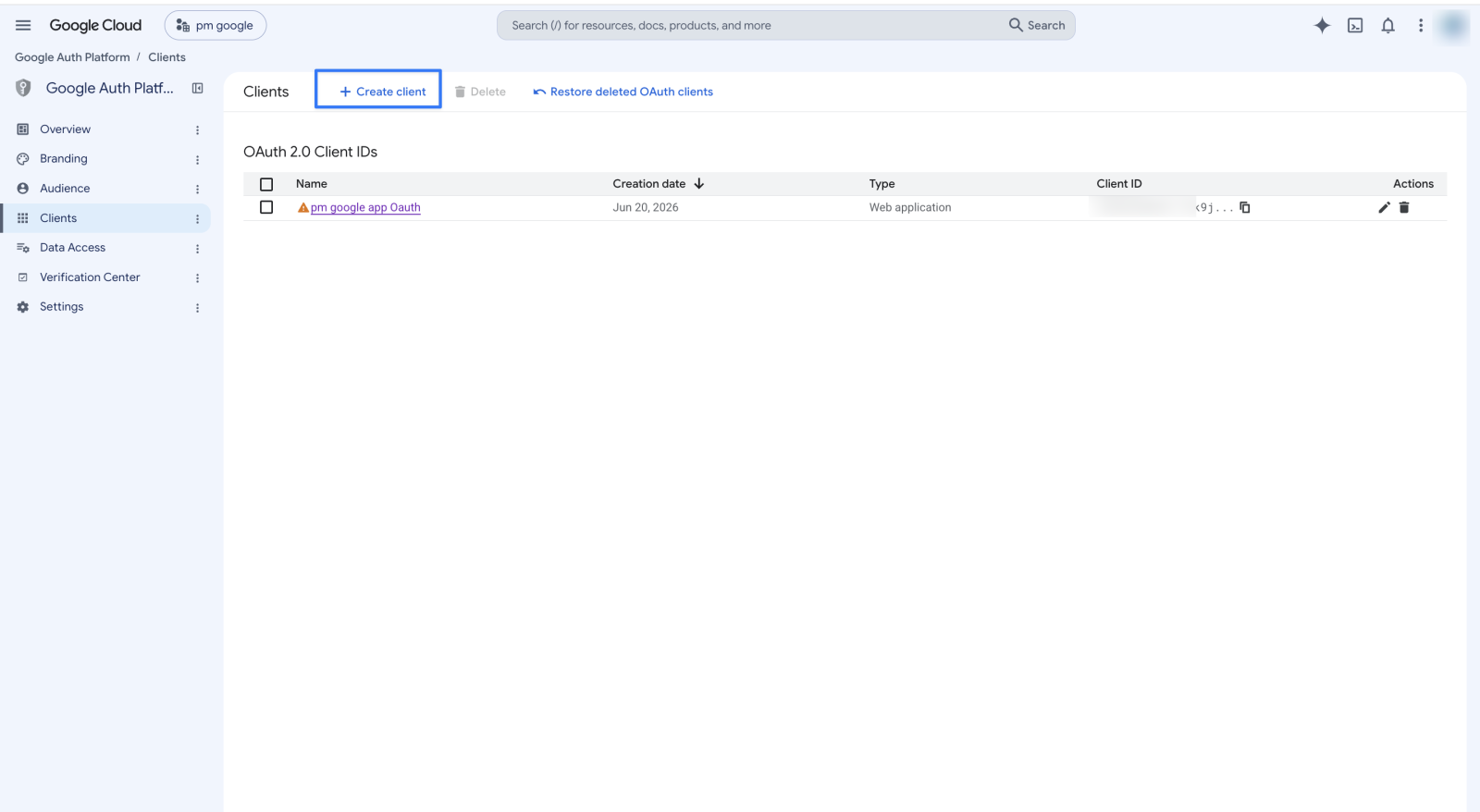
- In Google Auth Platform, open Clients.
- Select Create client.
- For Application type, select Web application.
- Type a name, for example
FlyCRM. - Under Authorized redirect URIs, select Add URI. Paste the redirect URI from FlyCRM.
- Select Create.
- Copy the Client ID and the Client secret. Keep the secret safe. If you lose it, add a
new secret on the page of the client.
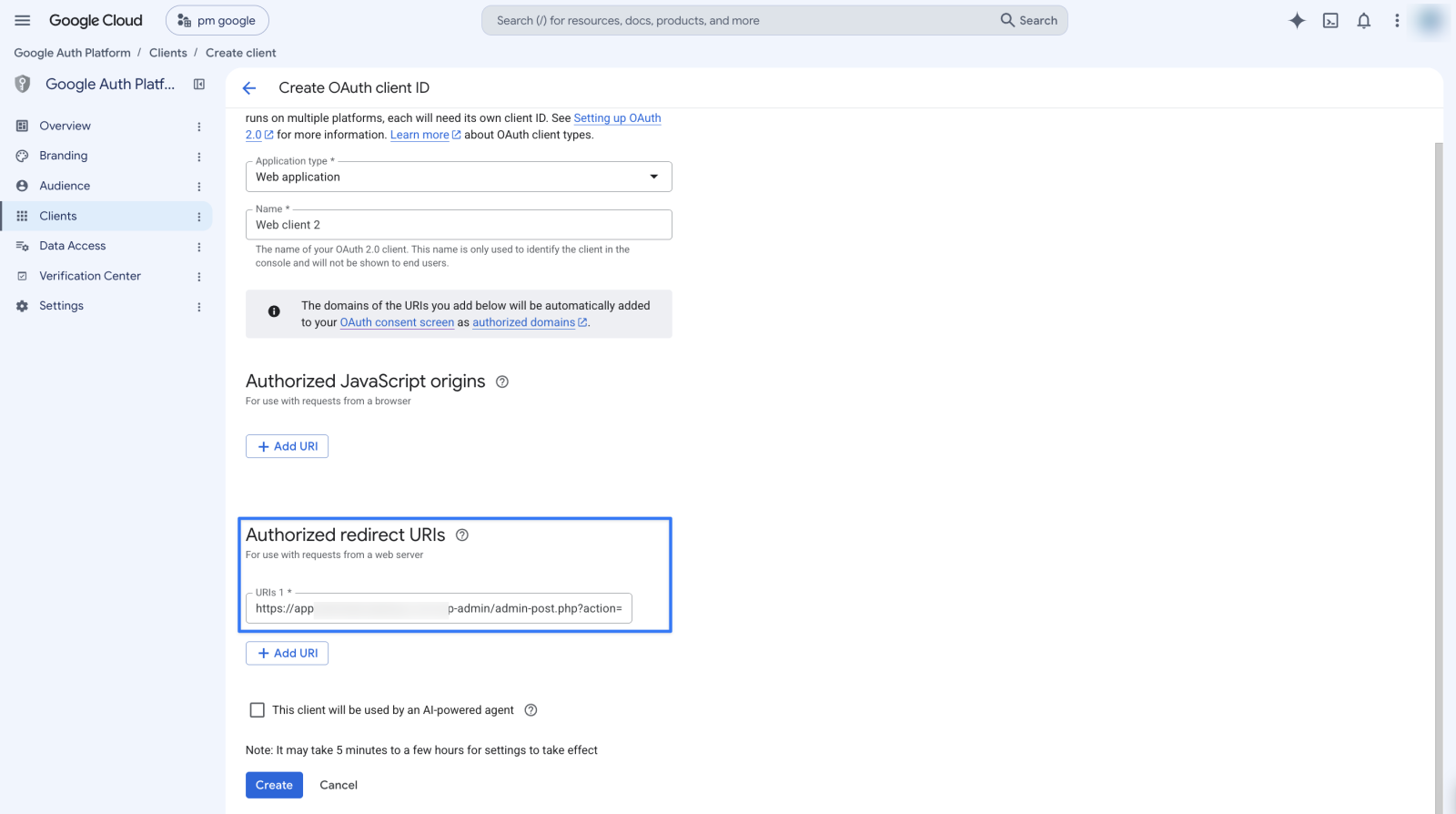
The redirect URI must match character for character. It looks like this:
https://your-site.com/wp-admin/admin-post.php?action=flycrm_google_oauth_callback
Part 2: Configure FlyCRM (administrator)
- Go to FlyCRM > Integrations.
- Select the Productivity tab.
- On the Google Workspace card, select Configure.
- Turn on the switch at the top right.
- Paste the OAuth Client ID.
- Paste the OAuth Client Secret.
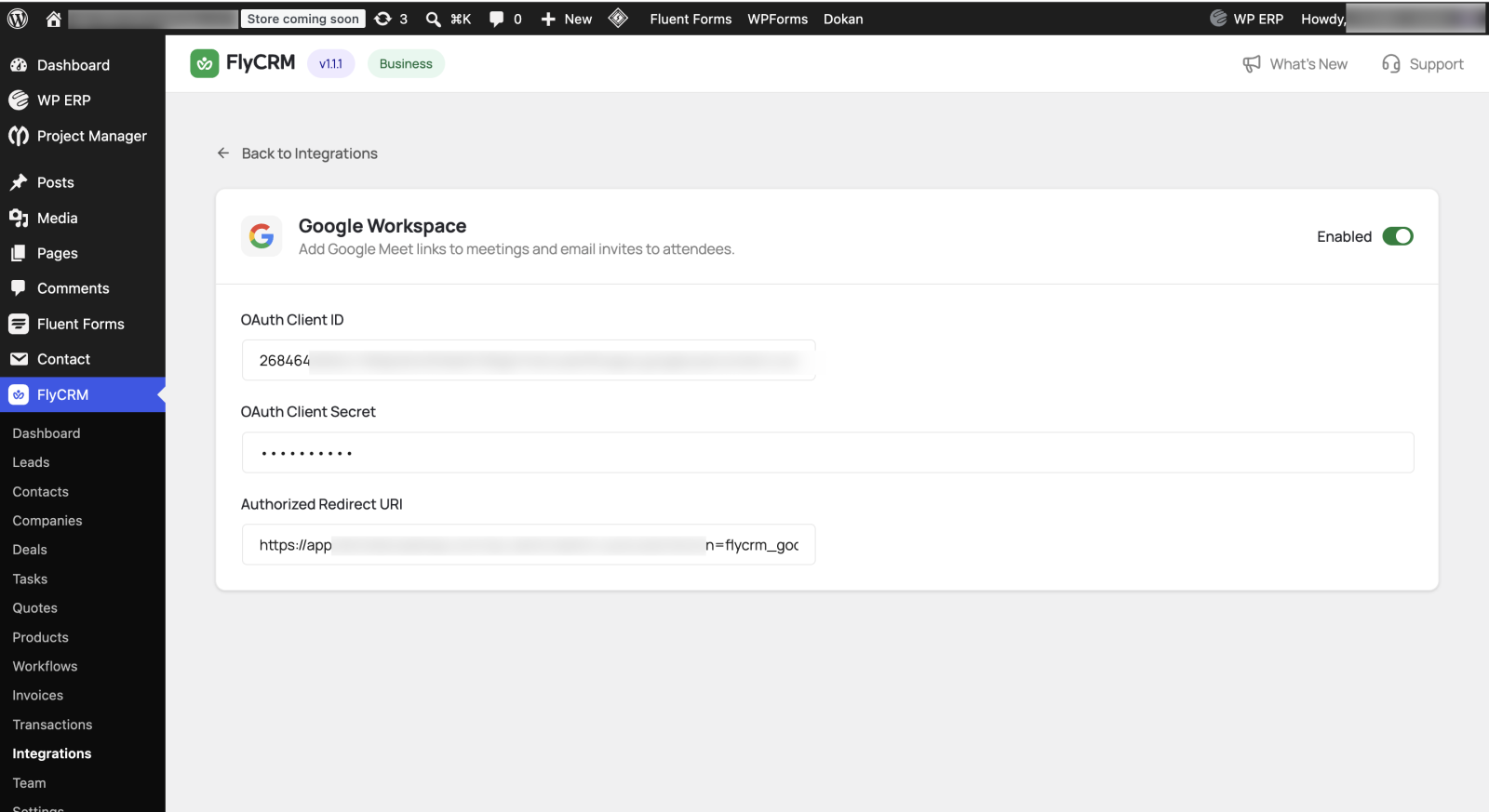
- Make sure that Authorized Redirect URI is the same value that you added in Google.
- Save the changes.
FlyCRM keeps the client secret encrypted. The settings page never shows the full secret.
Part 3: Connect your Google account (each team member)
Each team member does this one time.
- In WordPress, go to Profile. Administrators go to Users > Profile.
- Find the FlyCRM — Google Meet section.
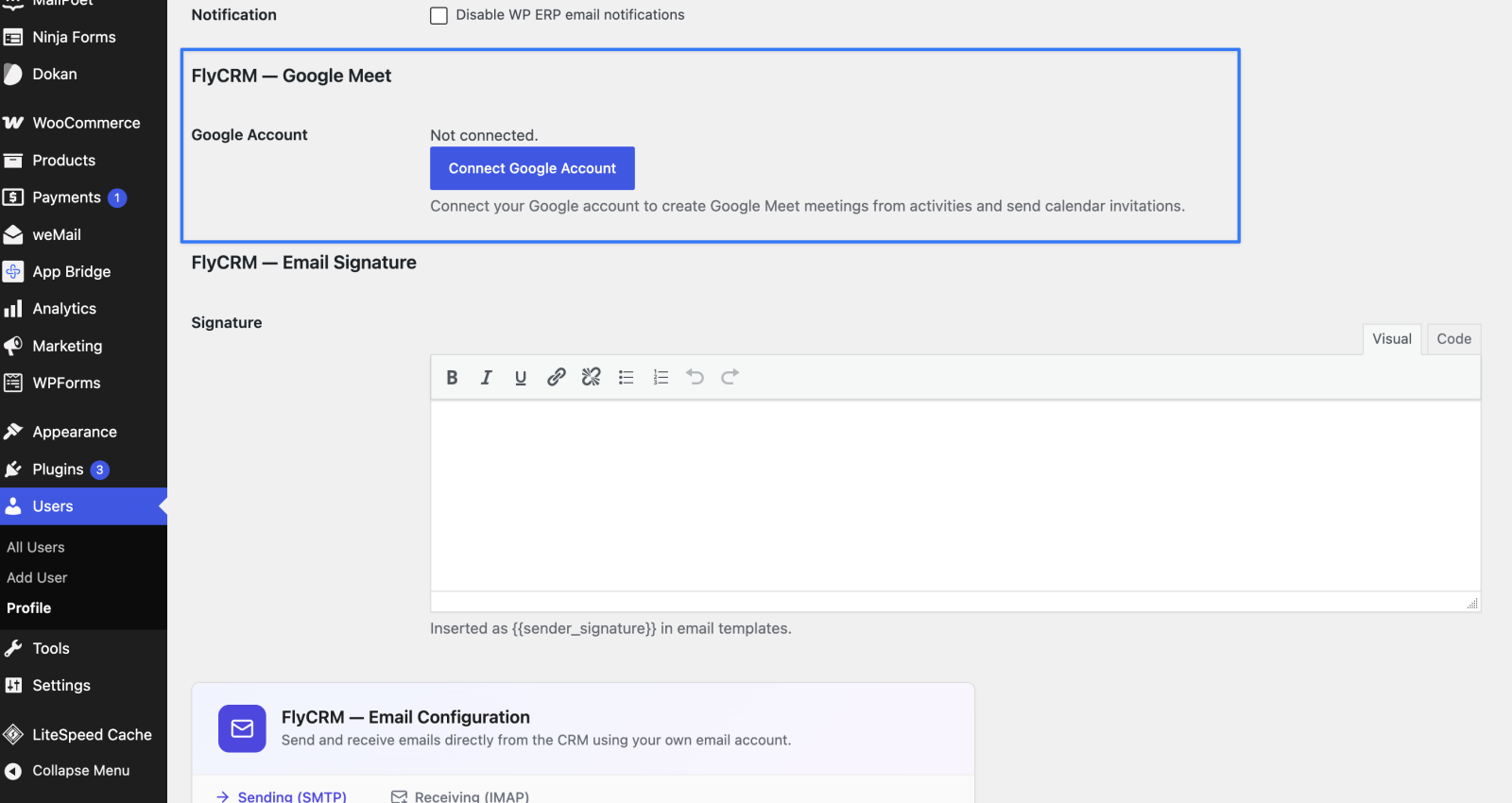
- Select Connect Google Account.
- In the Google window, select your account.
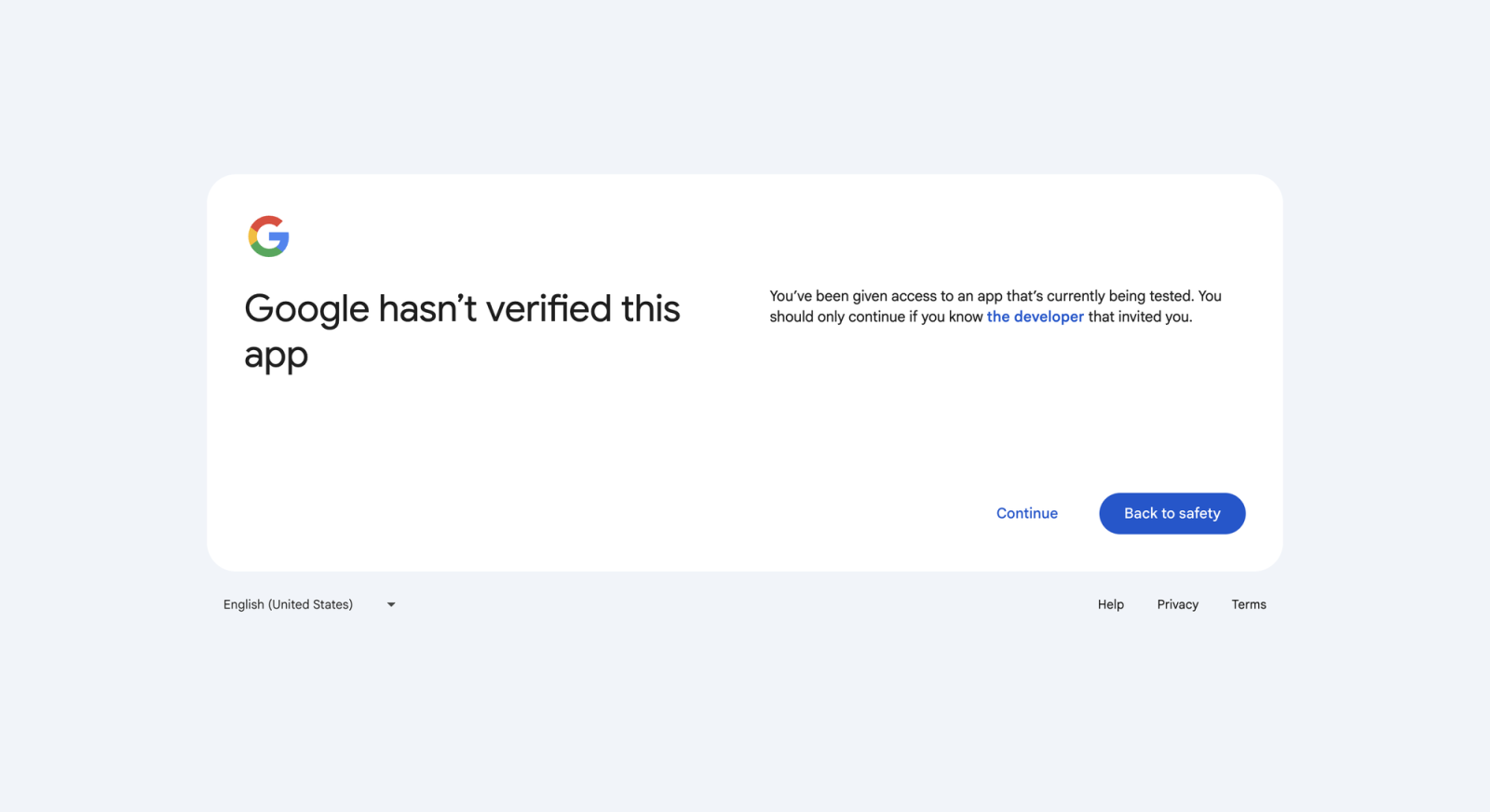
- If Google shows "Google hasn't verified this app", select Continue.
- Allow the permissions.
Google shows the "Google hasn't verified this app" screen while the app is in Testing mode. The screen stays until you publish the app. Only test users see it, and they can continue safely.
The window closes and the profile page shows Connected as with your Google email.

The section shows only when the administrator has finished Part 2. It also shows only for users who can use the CRM and create activities.
To stop using Google Meet, select Disconnect on the same page.
Create a meeting with a Google Meet link
- Open a contact, lead, company, or deal.
- Log a new meeting activity.
- Type the Subject, the Start time, and the End time.
- Turn on Add Google Meet.
- Under Invite people, add the attendees. You can search for a contact, a lead, or a company, or type any email address.
- Select Generate Meet link.
- Select Log Meeting.
FlyCRM adds the record owner to the attendees by default. On a deal, FlyCRM also adds the deal's contacts. You can also select these options:
- Invite company name — on a contact or a deal, adds the email address of the related company.
- Invite all contacts — on a company, adds all contacts of that company. This option is off by default.
Google emails a calendar invitation with the Meet link to each attendee. The meeting notes get a "Google Meet:" line with the link. The meeting then shows Join Google Meet.
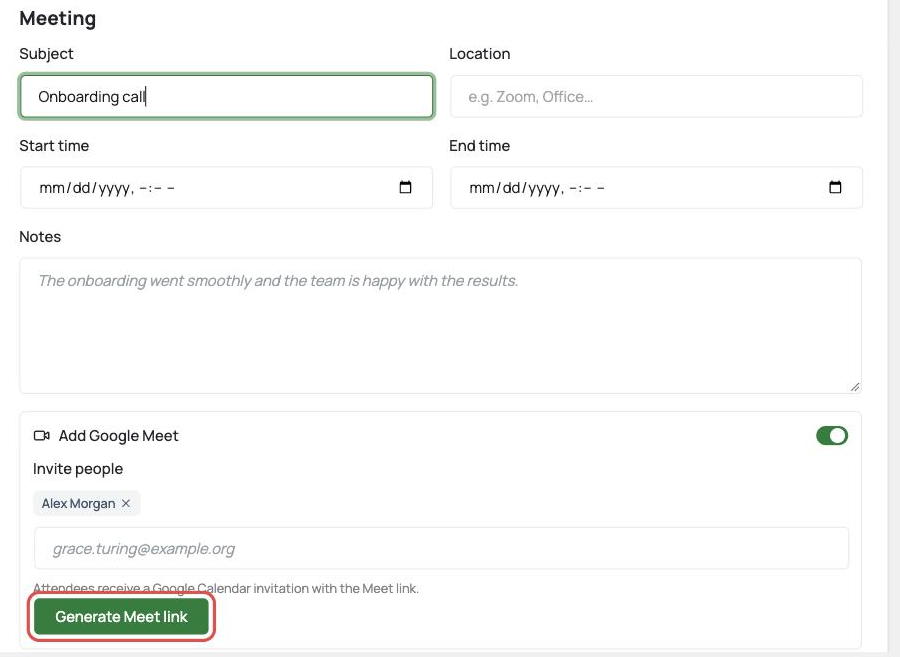
To cancel the meeting in Google, select Remove next to the link. When you permanently delete the meeting activity, FlyCRM also cancels the Google event.
Caution: Select Remove before you select Cancel on the form. If you generate a link and then cancel the form, the Google event and its invitations stay in Google Calendar.
Troubleshooting
| Problem | What to do |
|---|---|
| Google shows redirect_uri_mismatch | Copy Authorized Redirect URI from FlyCRM again and paste it in the OAuth client in Google. Look for http instead of https, www, and a trailing slash. |
| Google shows "Access blocked" or "This app is blocked" | The app is in Testing mode and the person is not a test user. Add their email as a test user, or use the Internal user type. |
| Google shows "Google hasn't verified this app" | The app is in Testing mode. Select Continue. To remove the screen, publish the app. |
| The connection expires every week | The app is in Testing mode. Publish the app, or use the Internal user type. |
| The FlyCRM — Google Meet section is not on the profile page | The integration is off, or the Client ID or Client secret is empty. Complete Part 2. |
| "Set a start and end time before generating a link." | Type a start time and an end time, then select Generate Meet link again. |
| "Your Google connection expired. Please reconnect." | Select Connect Google Account on your profile page again. |