
GETTING STARTED
WORKFLOWS
Pro Features
Lead Scoring
Lead scoring gives every contact and lead a score from 0 to 100. FlyCRM Pro calculates the score from what the person does, how they respond to your team, and who they are. A high score tells your team who to call first.
CRM concept: Lead scoring puts your attention on the people most likely to buy. Fit tells you if a person is the right type of customer. Activity and engagement tell you if they are interested now.
How a score is built
A score has three groups. Each group adds points up to its limit.
| Group | Limit | What earns points |
|---|---|---|
| Activity | 40 | Things the person did: a form, a call, a meeting, a sign-in, an order. These points fade with time. |
| Engagement | 30 | How the person responds: email replies, quotes opened, deals that move forward. These points drop when the person goes quiet. |
| Fit | 30 | Who the person is: their orders, their spend, and their linked company. These points never fade. |
The three limits add up to 100. The total never goes above 100 and never goes below 0.
FlyCRM always uses your current rules. If you change the points for a rule, FlyCRM uses the new value for old events too.
Score colors
Each score has a color, so you can read it fast.
| Color | Default range |
|---|---|
| Cold | 0 to 40 |
| Warm | 41 to 70 |
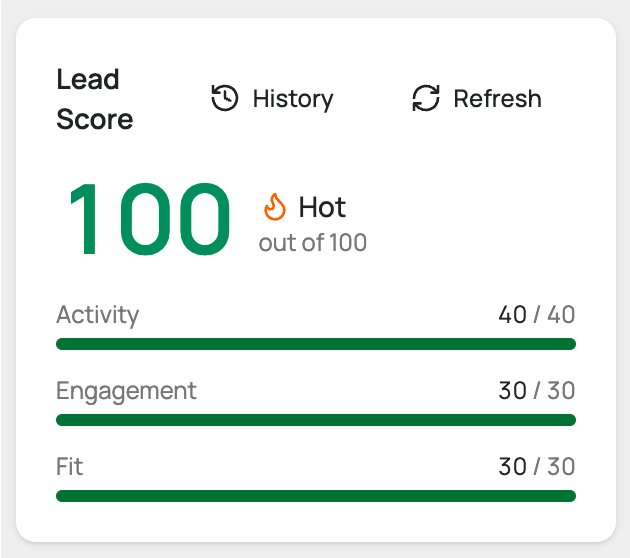
| Hot | 71 to 100 |
| Flame icon | 90 and more. The flame shows next to a Hot score. |
You can change where each color starts. See Set the score colors.
Where you see the score
- Contact list. The Lead Score column shows each score with its color.
- Contact and lead pages. The Lead Score card shows the score, its color, and a bar for each group.
- Dashboard. The Hot Leads widget shows your five contacts with the highest scores.
See why a score changed
- Open the contact or the lead.
- On the Lead Score card, select History.
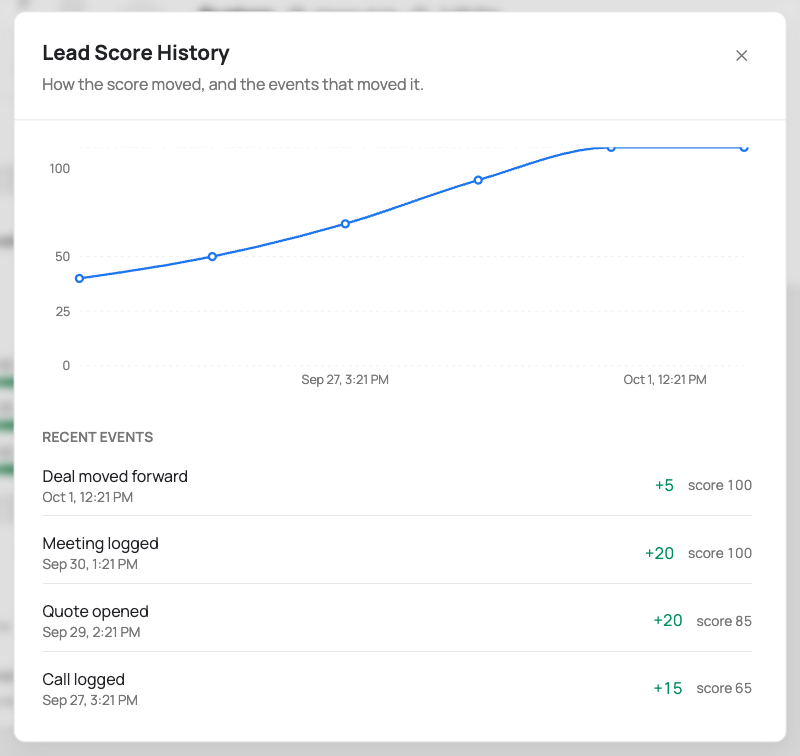
The Lead Score History window shows a chart of the score over time. Below the chart, a list shows the recent events and the score after each event.
The chart needs two or more score changes. Before that, the window shows a message instead of the chart.
Refresh one score
- Open the contact or the lead.
- On the Lead Score card, select Refresh.
FlyCRM calculates the score again with your current rules. You see the Refresh button only if you can manage the CRM settings.
Turn on lead scoring
- Go to FlyCRM > Settings.
- Select the Lead Scoring tab.
- Turn on Turn on scoring.
- Select Save Changes.
Scoring is on by default when you install FlyCRM Pro.
If you turn scoring off, the scores that exist stay as they are. FlyCRM does not count new events until you turn scoring on again.
When scores update
| Option | What it does |
|---|---|
| Real-time | The score changes as soon as an event occurs. This is the default. |
| Hourly | FlyCRM collects events and updates scores once an hour. |
| Daily | FlyCRM collects events and updates scores once a day. |
FlyCRM also does a scheduled update of all scores. With Hourly, it runs every hour. With the other two options, it runs once a day. The scheduled update also applies the fade of old points.
If you change a rule, the scores that exist change at the next scheduled update. To see the change on one record now, refresh its score.
Note: If you edit a contact, a lead, or a company, the fit points change at the next scheduled update, not immediately.
Set the score colors
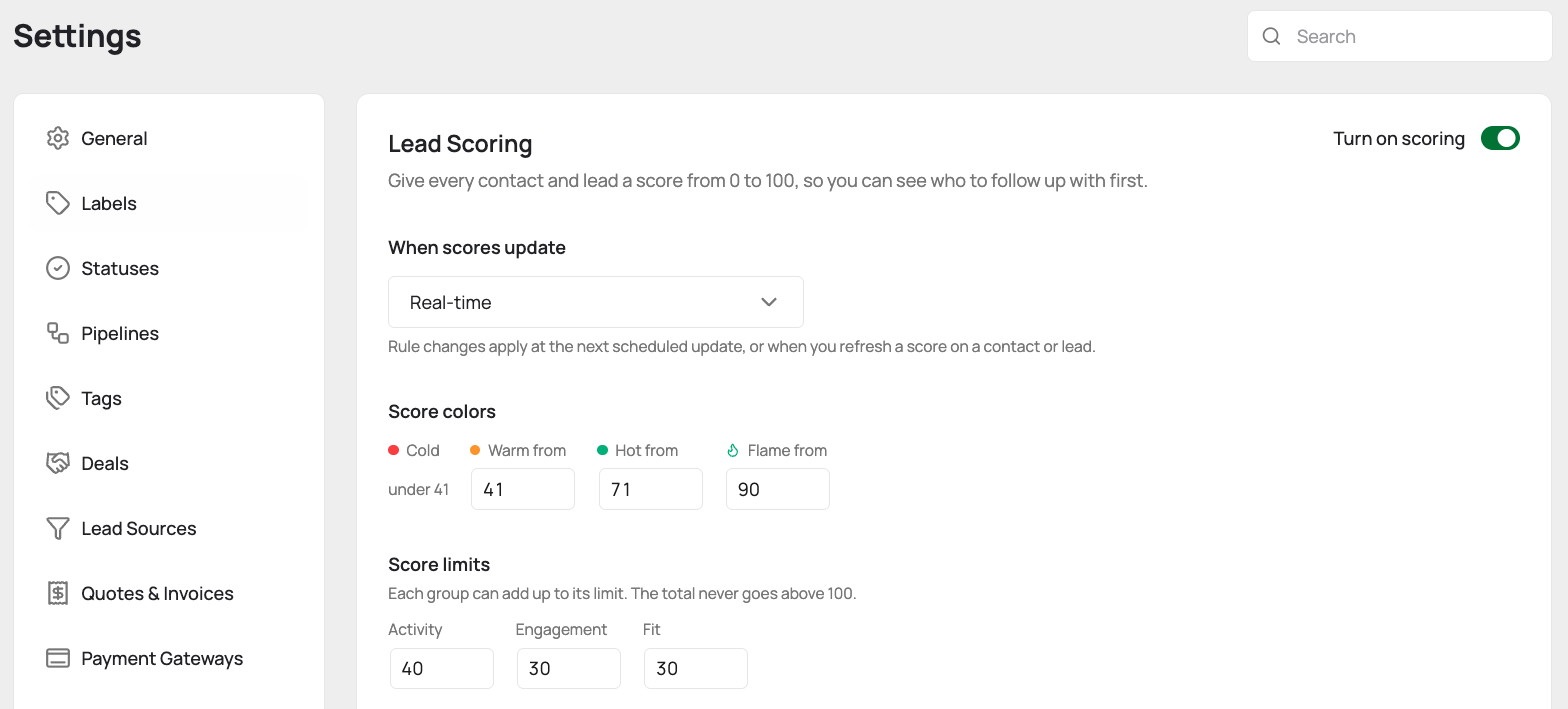
- In the Score colors section, set Warm from.
- Set Hot from.
- Set Flame from.
- Select Save Changes.
A score below Warm from is Cold. If the values are in the wrong order, FlyCRM puts them in order when it saves.
Set the score limits
The Score limits section sets the most points that each group can add.
| Group | Default limit |
|---|---|
| Activity | 40 |
| Engagement | 30 |
| Fit | 30 |
If the three limits add up to less than 100, FlyCRM shows the highest score that a person can get. If that score is below a color, the message turns amber and names the color. FlyCRM still saves your limits.
Edit a rule
Each group lists its rules. A rule row shows a one-line summary, for example "10 pts for 30 days, then −5 every 7 days".
- To turn a rule on or off, use the switch on its row.
- To change the values, select Edit on the row.
- Change the values.
- Select Done.
- Select Save Changes.
Activity rules
An activity rule gives its points each time the event occurs. The points stay at full value for a number of days. Then they decrease by a set amount at a set interval until they reach 0.
| Rule | When it adds points | Points | Full value for |
|---|---|---|---|
| Form submitted | The person fills in one of your forms. | 10 | 30 days |
| Call logged | Your team logs a call with the person. | 15 | 7 days |
| Meeting logged | Your team logs a meeting with the person. | 20 | 7 days |
| Signed in | The person signs in to their account on your site. | 5 | 7 days |
| Order placed | The person places a WooCommerce order. | 20 | 30 days |
After the full-value period, each rule loses 5 points every 7 days by default.
Example: A person submits a form. The form adds 10 points for 30 days. On day 37, the form gives 5 points. On day 44, the form gives 0 points.
Each event adds its own points. A person who submits two forms gets points for both forms.
Engagement rules
An engagement rule gives its points each time the event occurs. These points do not fade by themselves. The Gone quiet rule takes points away instead.
| Rule | When it adds points | Points |
|---|---|---|
| Replied to email | The person replies to one of your emails. | 10 |
| Quote opened | The person opens a quote that you sent. | 20 |
| Deal moved forward | One of their deals moves to a later stage in the pipeline. | 5 |
| Task completed | A task linked to the person is marked done. | 5 |
| Several touchpoints | The person does 3 or more things within 7 days. | 10 |
Several touchpoints counts activity events and engagement events together.
A deal that moves back to an earlier stage does not add points.
Gone quiet
Gone quiet takes points away when a person stops responding. By default, the person loses 10 points for every 30 days with no engagement event.
A person who never had an engagement event does not lose points.
Fit rules
FlyCRM reads fit from the record and its linked company each time it calculates the score. Fit points never fade.
| Rule | How it scores | Default points |
|---|---|---|
| Company size | The number of employees at the linked company | 1–10: 5, 11–50: 10, 51–200: 20, 201+: 30 |
| Order count | The number of WooCommerce orders | 1: 5, 2–5: 15, 6–15: 25, 16+: 35 |
| Lifetime value | The total that the person spent | Under 500: 5, 500–2K: 15, 2K–10K: 25, 10K+: 35 |
| Target industry | The linked company is in one of your industries | 10 |
| Recent purchase | The last order is from the last 30 days | 20 |
| At risk | A past customer has not ordered in 90 days | −20 |
Some rule values are more than the Fit limit of 30. This is correct. The Fit group stops at its limit, so a strong match fills the group.
Set your target industries
The Target industry rule adds no points until you add an industry.
- On the Target industry row, select Edit.
- Type an industry name.
- Press Enter.
- To add more industries, do steps 2 and 3 again.
- Select Done, then select Save Changes.
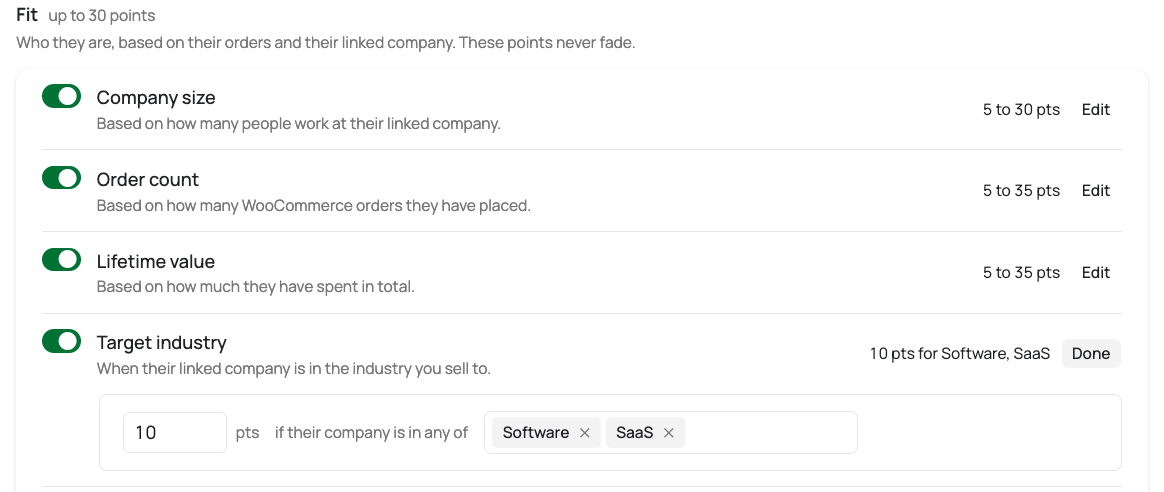
The rule matches the full industry name of the linked company. Upper case and lower case do not matter.
Note: An industry name cannot contain a comma.
Fit needs a linked company
Company size and Target industry read the company that is linked to the contact or lead. If a form lead has only a typed company name, these two rules give 0 points. To get these points, link the lead to a company record.
Leads and imported scores
FlyCRM calculates a lead score only after the lead has a scoring event. Until then, the lead keeps the score that you imported from a CSV file.
Use the score in workflows
You can start a workflow when a score changes, or test a score in a condition.
- Triggers. Use Lead score changed for a contact or a lead. The workflow runs each time the score moves.
- Conditions. Use the Lead score field with is at least or is at most.
Example: Use the Lead score changed trigger and the condition Lead score is at least 71. Then add an action that creates a call task for the contact owner.