GETTING STARTED
WORKFLOWS
Pro Features
Payments
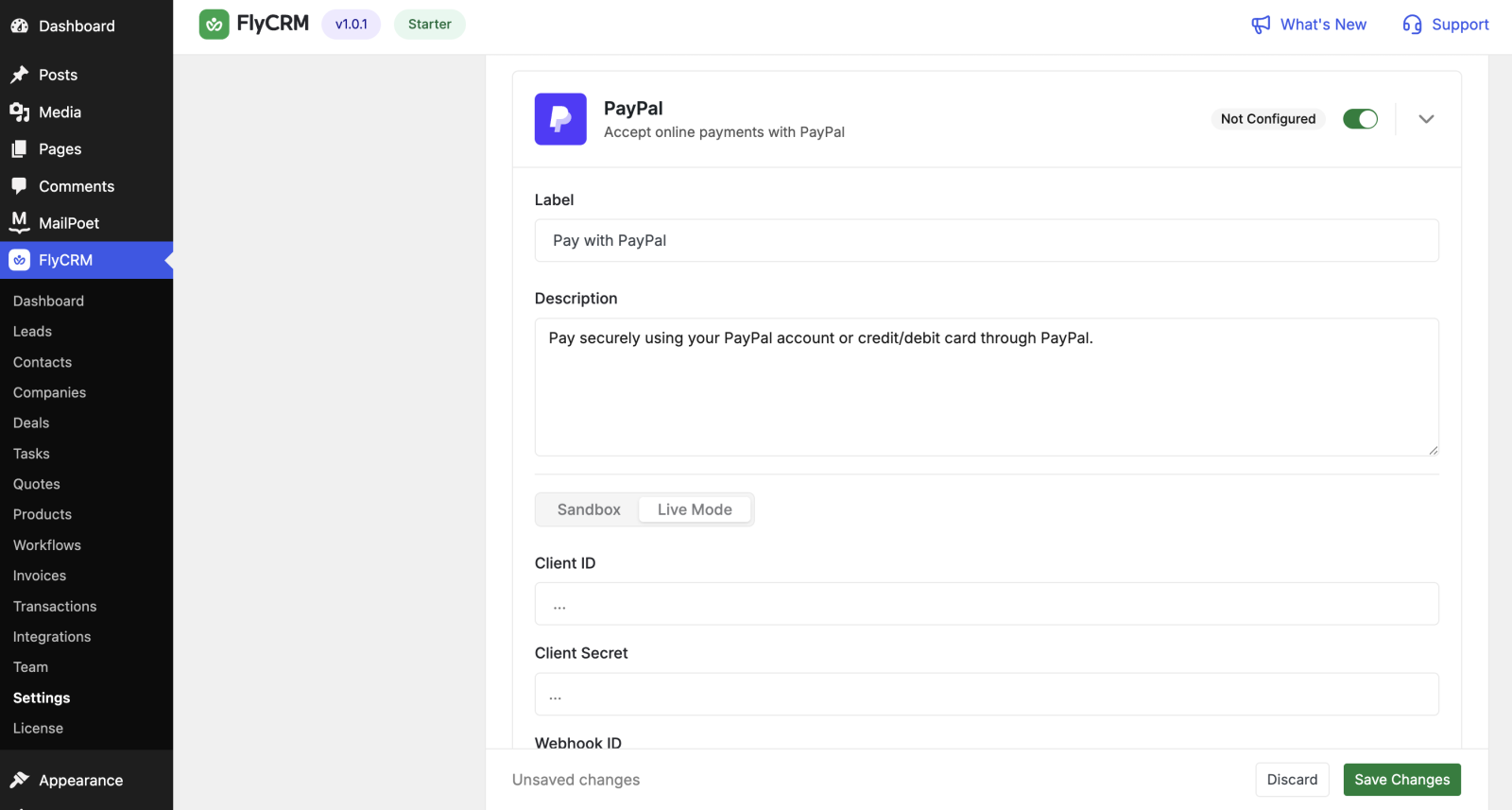
A payment gateway is how you take money against an invoice. Pro gives you five: two that collect money online, and three that record money you took another way. This page sets up each one.
CRM concept: An online gateway (Stripe, PayPal) charges the customer for you and marks the invoice paid on its own. A manual method (bank transfer, cash, cheque) is a record you enter yourself after the money arrives.
The five methods
- Stripe — card payments online.
- PayPal — PayPal and card payments online.
- Bank transfer — you show your bank details; the customer pays into your account and you record it.
- Cash — for money paid in person.
- Cheque — for a cheque paid by post.
Turn on only the methods you use. A method you turn off does not show on the invoice.
Set up an online gateway
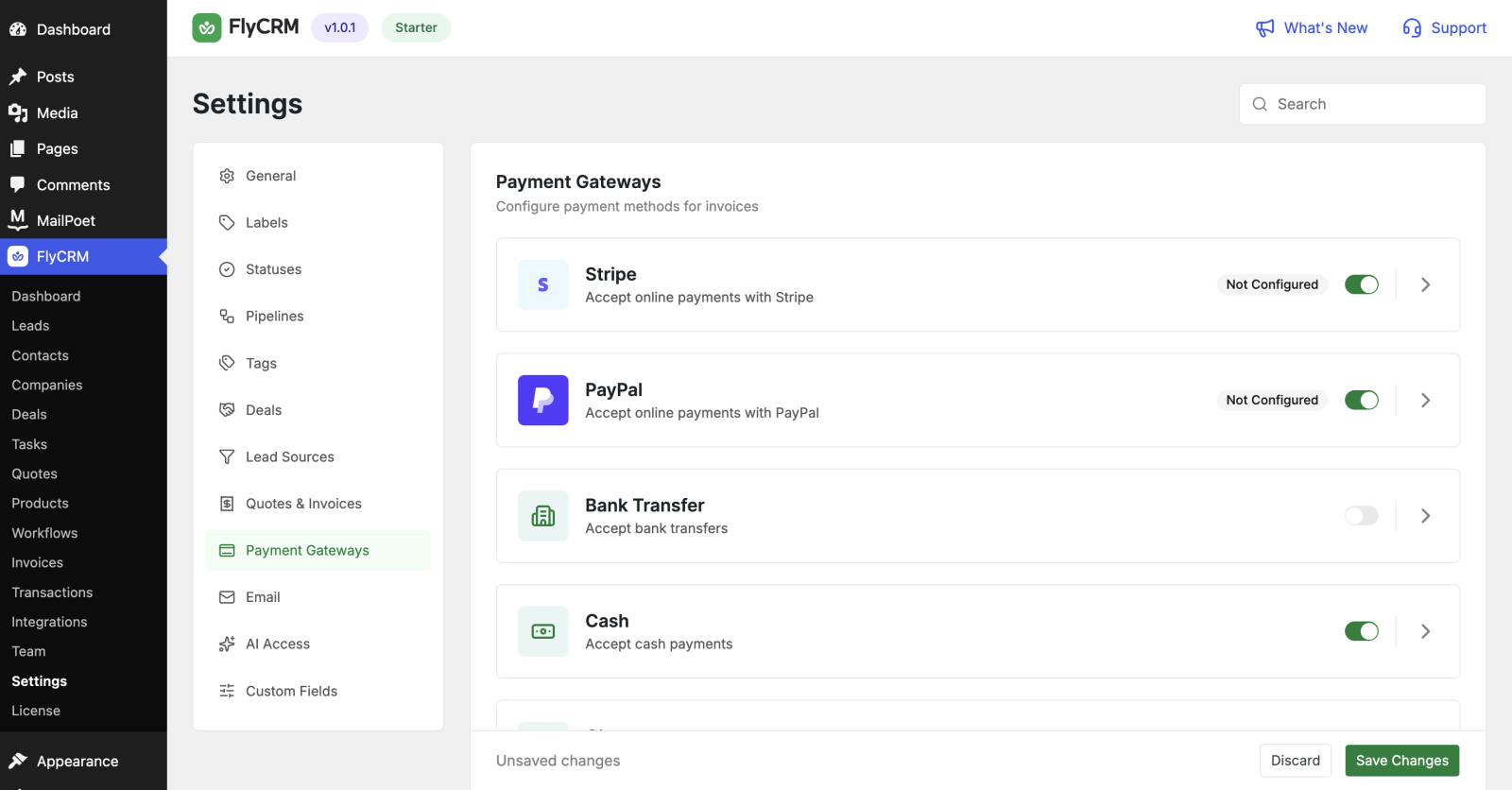
Stripe
- Sign in to your Stripe account and open the developer keys page.
- Copy the publishable key, the secret key, and a webhook signing secret.
- In FlyCRM, go to Settings > Payments > Stripe and turn it on.
- Choose Test mode to try it first, or Live mode to take real payments.
- Paste the keys for the mode you chose. Test mode uses your test keys; live mode uses your live keys.
- Select Save.
Stripe sends the payment result back to FlyCRM through a webhook. If your site is live on the internet, add the webhook address shown on the settings page to your Stripe account. On a local or staging site that the internet cannot reach, the customer still pays; the invoice updates when the site is reachable.
PayPal
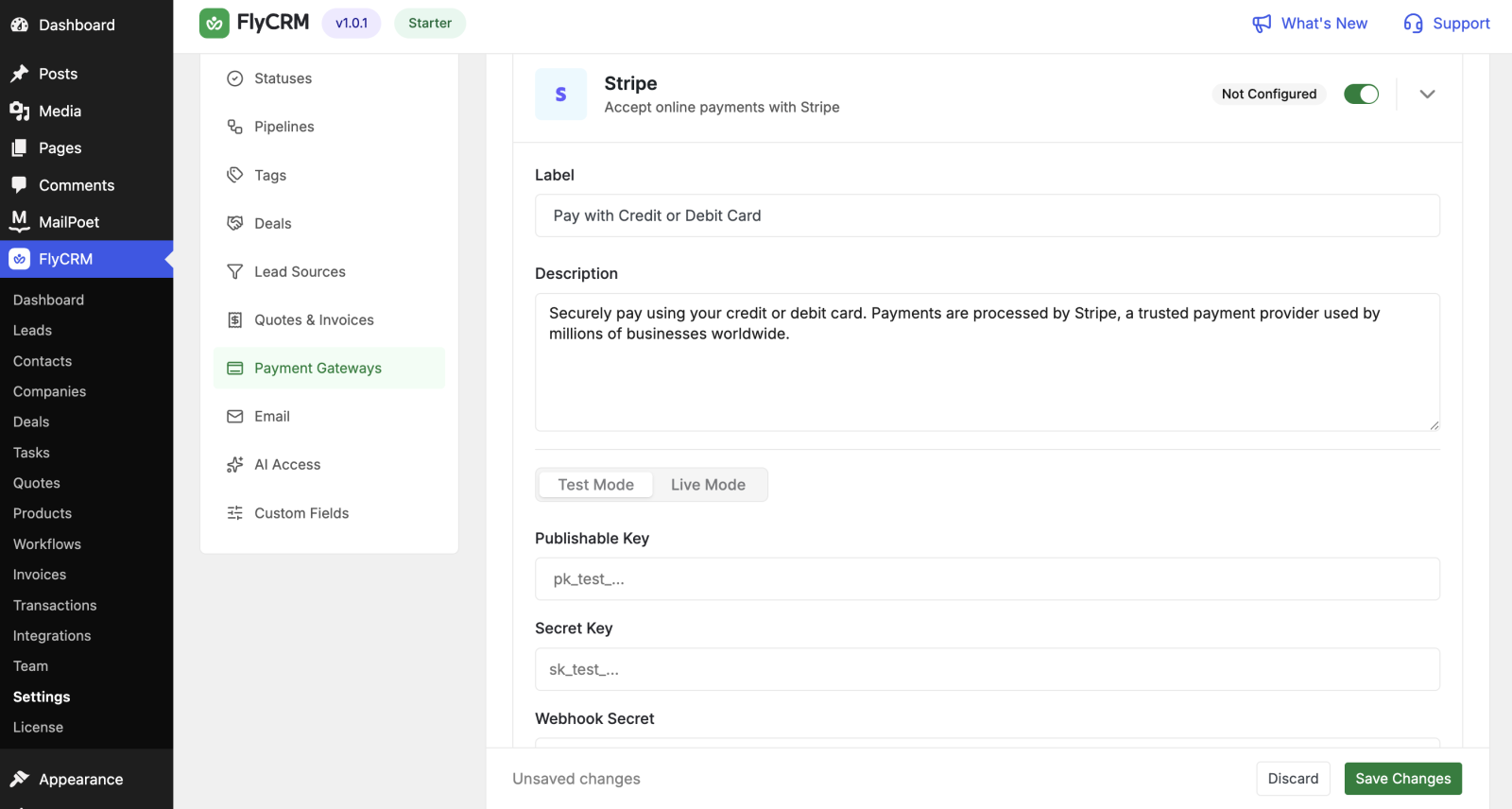
- Sign in to the PayPal developer dashboard and create an app.
- Copy the client ID, the client secret, and a webhook ID.
- In FlyCRM, go to Settings > Payments > PayPal and turn it on.
- Choose Sandbox mode to try it first, or Live mode to take real payments.
- Paste the credentials for the mode you chose.
- Select Save.
Set up a manual method
Bank transfer, cash, and cheque work the same way.
- Go to Settings > Payments and find the method.
- Turn it on.
- For bank transfer, write your payment instructions in the Instructions field. The customer sees this text on the invoice, so include your account name, number, and reference.
- Select Save.
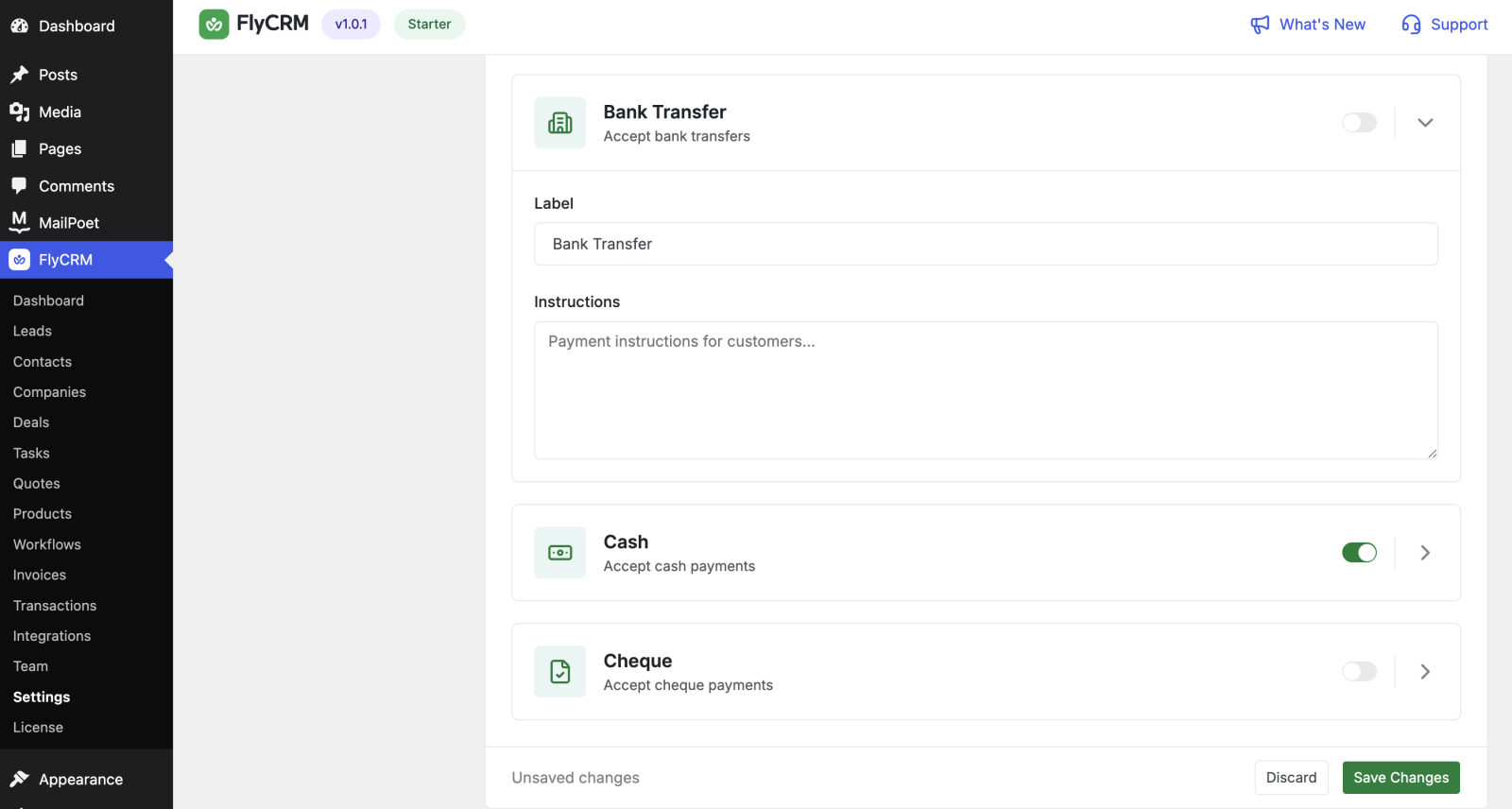
When the money arrives, open the invoice, select Record Payment, and enter the amount. FlyCRM updates the balance and the status.
Test before you go live
Both Stripe and PayPal have a test mode. Use it before you take real money.
- Enter your test keys and save.
- Send yourself an invoice.
- Open the public invoice link and pay with a test card.
- Make sure that the invoice moves to Paid.
- Switch to live keys only after the test works.
How a customer pays online
- You send an invoice.
- The customer opens the public invoice link (from their frontend portal or the link you shared with them).
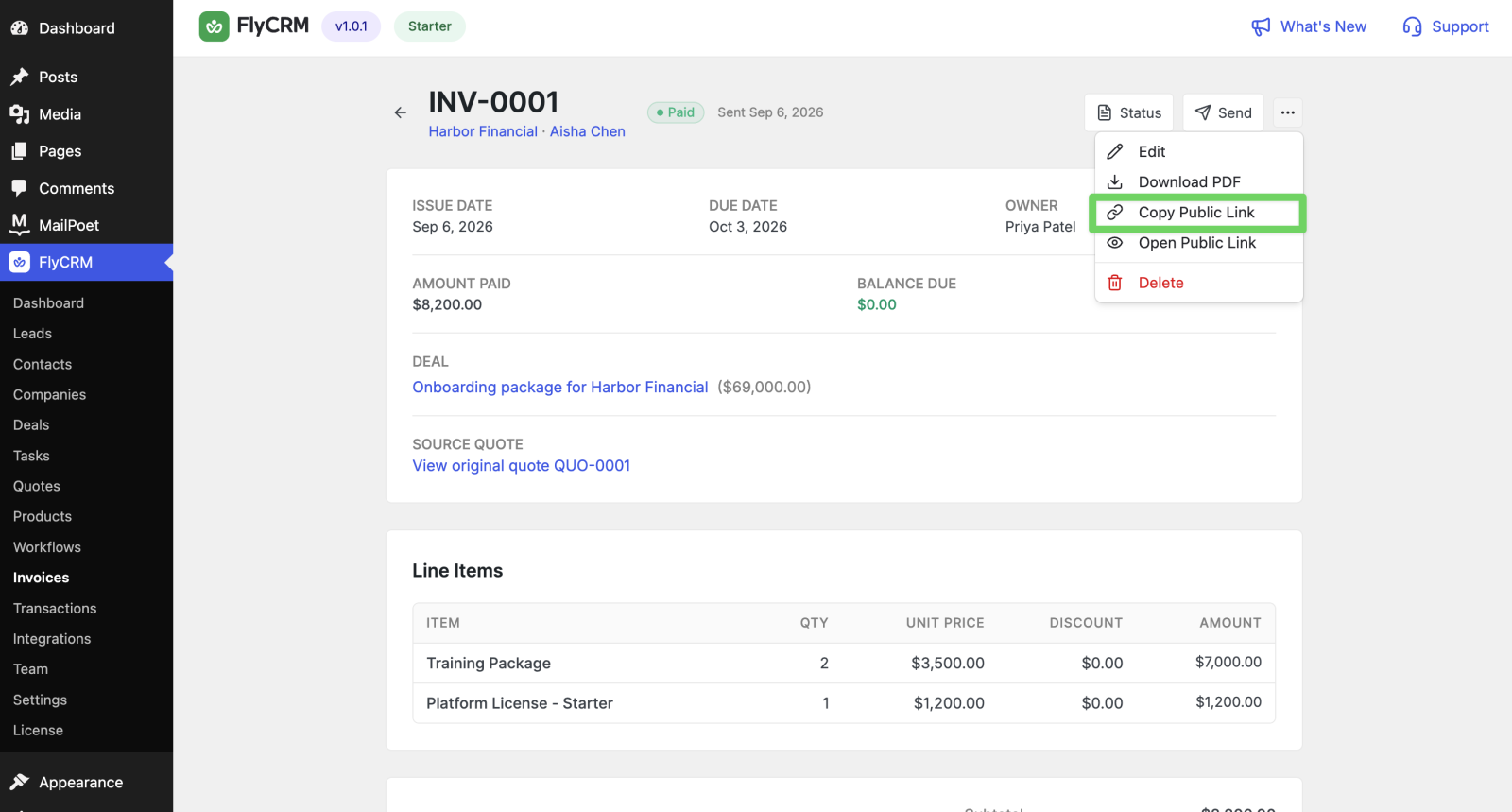
- The customer selects Stripe or PayPal and pays on the secure page.
- The gateway confirms the payment.
- FlyCRM marks the invoice Paid and adds the payment to the transactions ledger.
FlyCRM only charges the amount still owed. A customer cannot pay a draft invoice, a cancelled invoice, or one that is already paid in full.
Refunds
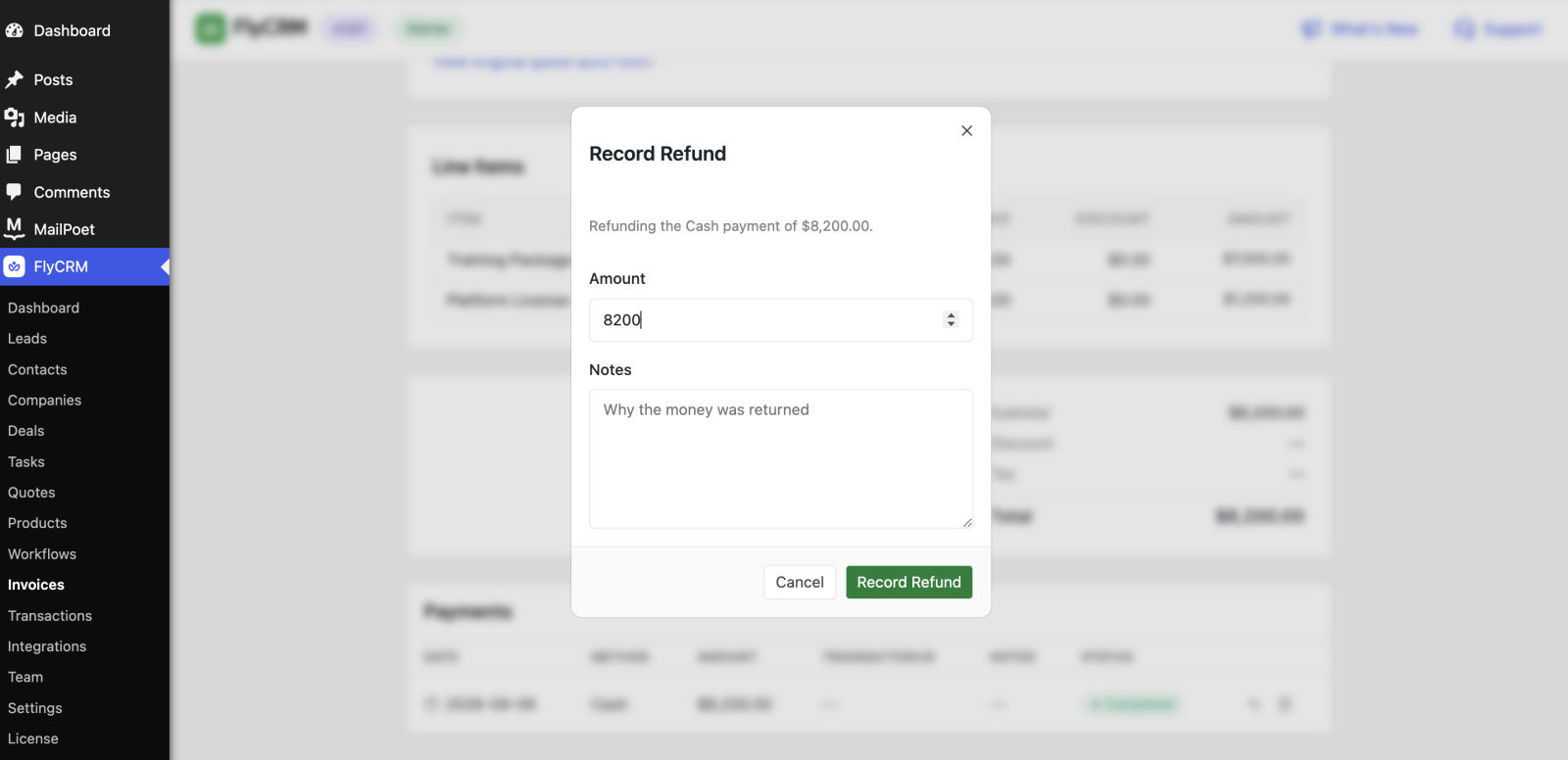
You can refund a completed payment from the invoice.
- Open the invoice and find the payment on its transactions list.
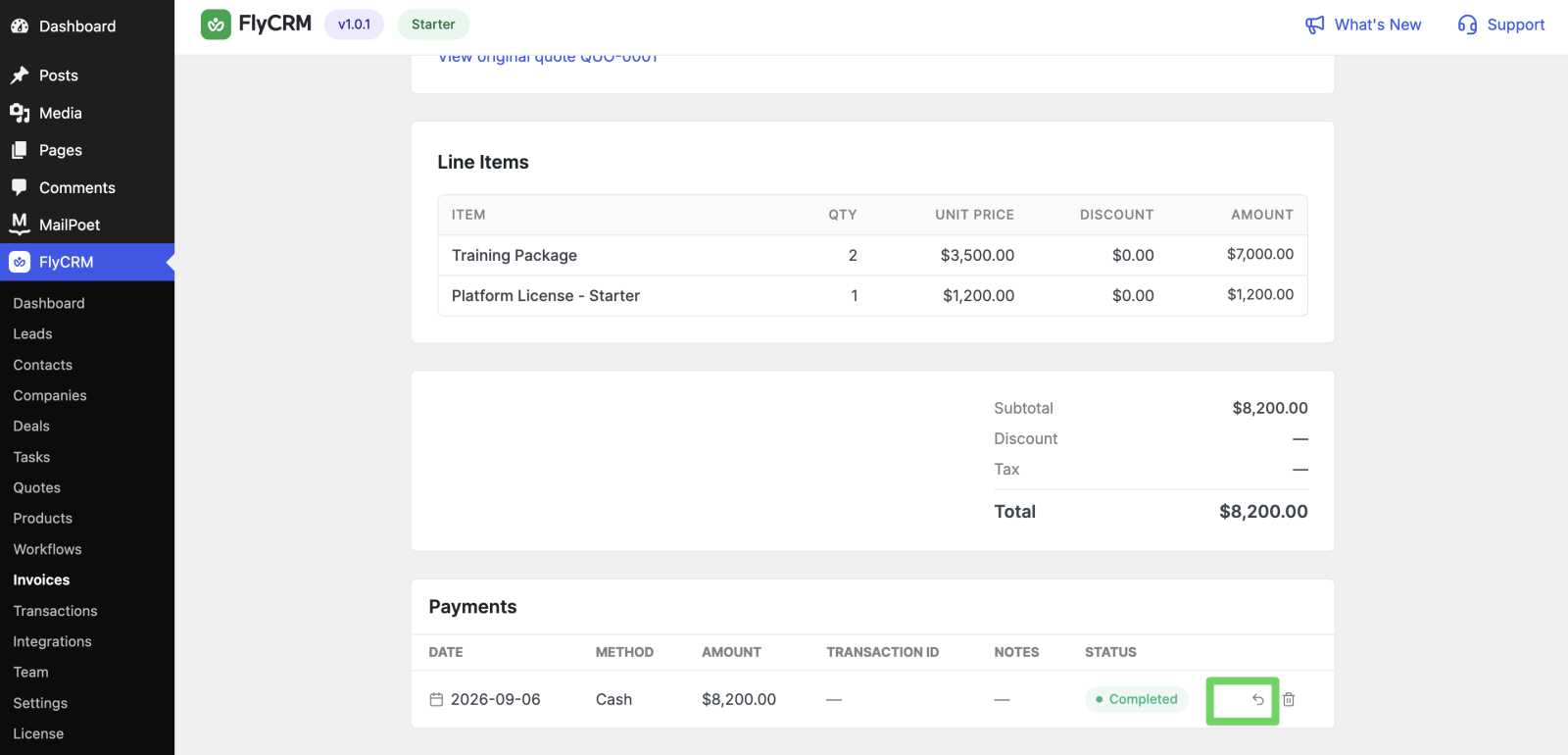
- Select Refund and enter the amount. You can refund part of a payment or all of it.
- Select Save.
The refund is added as its own line, so the original payment and the refund both stay on the record. A fully refunded invoice returns to Sent; a partly refunded one becomes Partially paid.