GETTING STARTED
WORKFLOWS
WORKFLOWS
How to check workflow runs
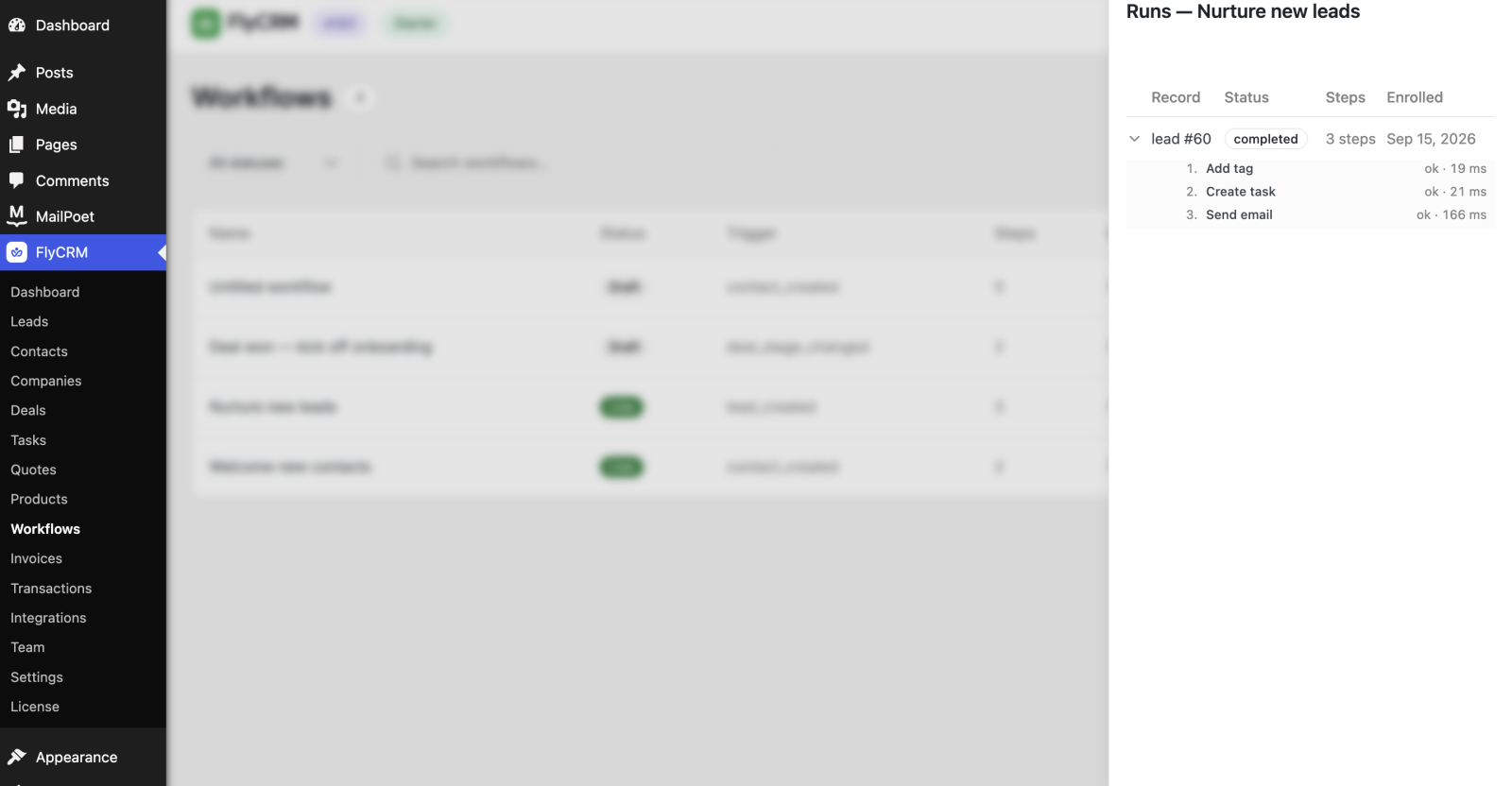
A run is one record that went into a workflow. The runs panel shows the records, their status, and the time of enrollment.
Use the panel to find out if a workflow does its work, and to find the runs that failed.
Before you start
Make sure that you have the Administrator role or the FlyCRM Manager role.
Step 1: Open the Workflows page
In the WordPress admin menu, click FlyCRM, then click Workflows.
Step 2: Open the runs panel
You can open the panel in two ways:
- Click the number in the Enrolled column of the workflow.
- Click the three-dot button at the end of the row, then click View runs.
The panel opens at the right of the screen. The heading shows the name of the workflow. For example, Runs — VIP on big order.
NOTE: The number in the Enrolled column counts only the runs with the status active or waiting. The panel shows the runs of all statuses. A workflow with the number 0 can still show many runs.
What the columns show
| Column | What it shows |
|---|---|
| Record | The name of the record. For a contact with no name, the panel shows the email address. |
| Status | The status of the run. |
| Step | The ID of the step that the run is on. |
| Enrolled | The date when the record went into the workflow. |
A dash (—) in the Step column shows that the run has no current step. The run is at its end.
The Step column shows the internal ID of the step, for example n2. It does not show the name of the step.
The run statuses
| Status | What it means |
|---|---|
| active | The run is between two steps. The next step starts soon. |
| waiting | The run is on a Wait step. It continues when the timer ends. |
| completed | The run went through all the steps. |
| exited | The run stopped at an Exit workflow step. |
| failed | A step made an error. The run stopped. |
| aborted | Reserved for a later release. You do not see this status now. |
The panel shows these words in English only. A translated site also shows English.
When a run fails
The panel shows the error message in red below the status.
A failed run does not start again. FlyCRM makes no second attempt.
To put the record through the workflow again, let the trigger start it again.
Limits of the panel
- The panel shows a maximum of 50 runs. It shows the most recent runs first. There is no message when a workflow has more runs.
- The panel has no page buttons and no filter.
- You cannot stop a run from the panel.
If the panel is empty
An empty panel shows this message:
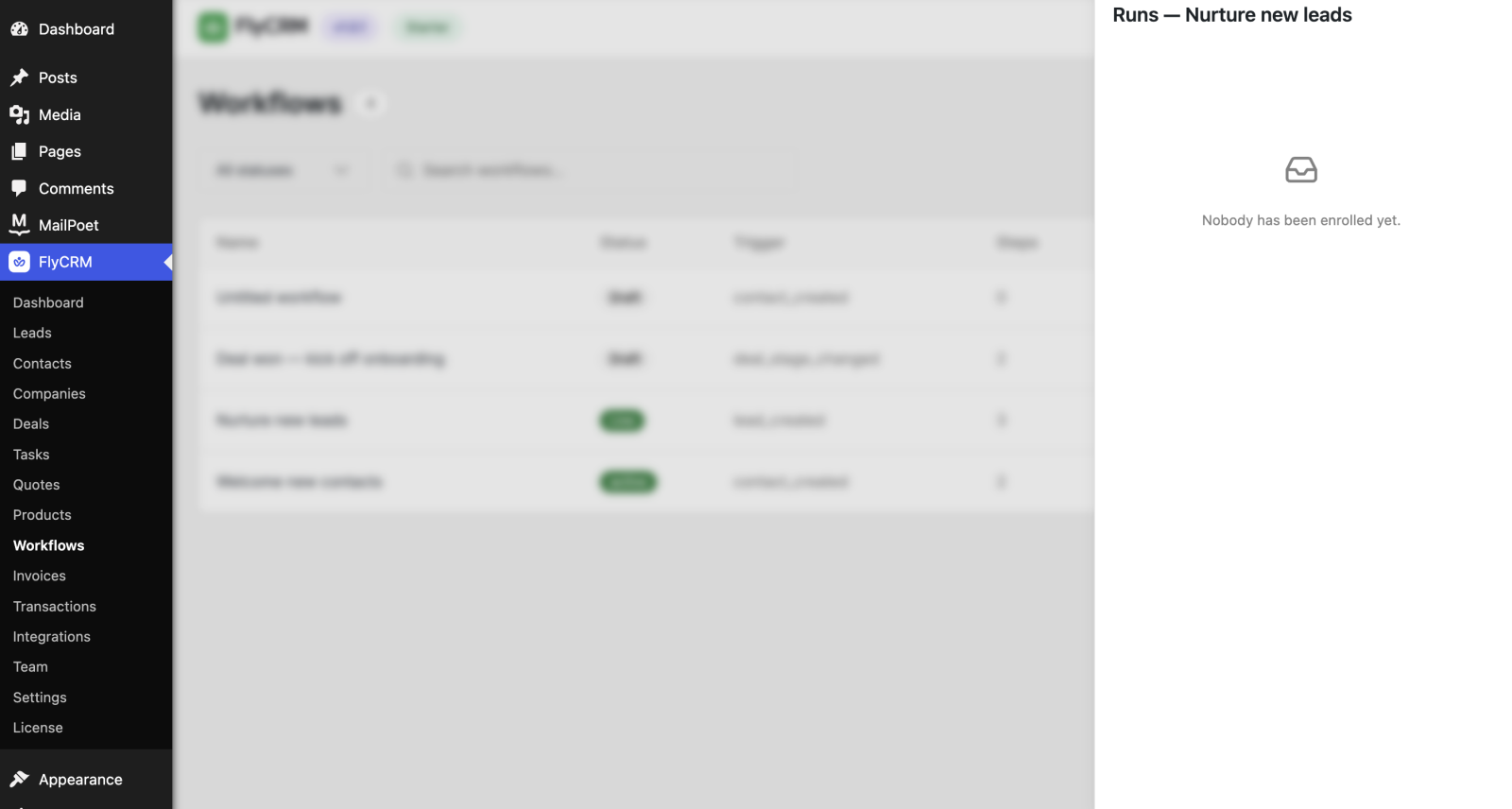
Nobody has been enrolled yet.
Examine these items:
- The status of the workflow. A draft workflow enrolls no record.
- The trigger. Make sure that the trigger event occurred after you published the workflow.