
GETTING STARTED
WORKFLOWS
INTEGRATIONS
HelpScout Integration
Connect FlyCRM to Help Scout. Each Help Scout customer becomes a FlyCRM contact, and their conversations show on the contact's Support tab.
- The sync goes one way: from Help Scout to FlyCRM.
- A customer with no contact who writes to a chosen mailbox becomes a new contact.
- Import Existing Help Scout Customers brings in your current customers one time.
Before you start
- A Help Scout account with at least one mailbox.
- Access to Your Profile > My Apps in Help Scout.
- FlyCRM Pro, and a WordPress administrator account.
Step 1: Open the settings
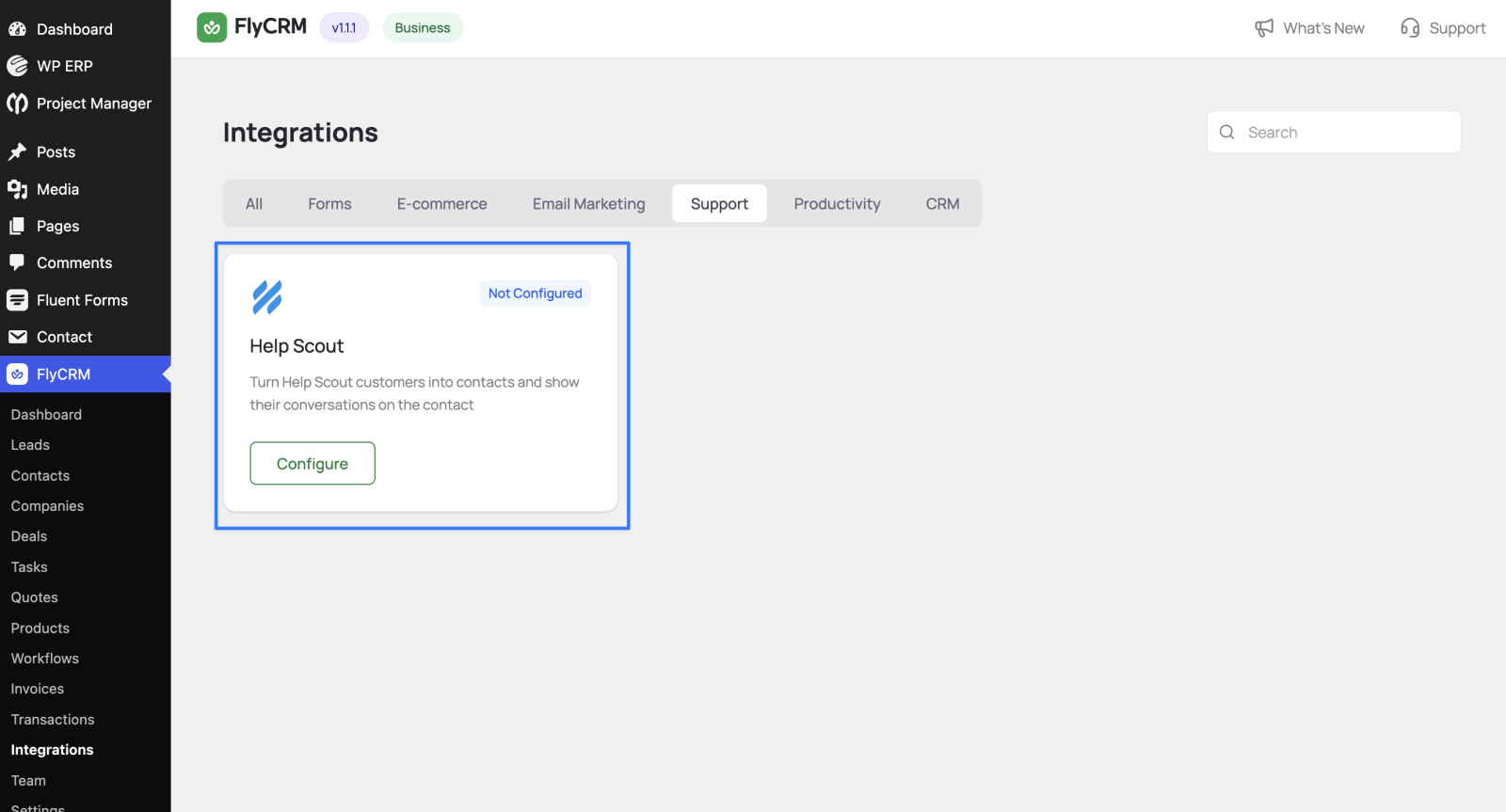
- Go to FlyCRM > Integrations.
- Select the Support tab, or search for "Help Scout".
- Open Help Scout and turn on the switch at the top right.
Step 2: Create a Help Scout app
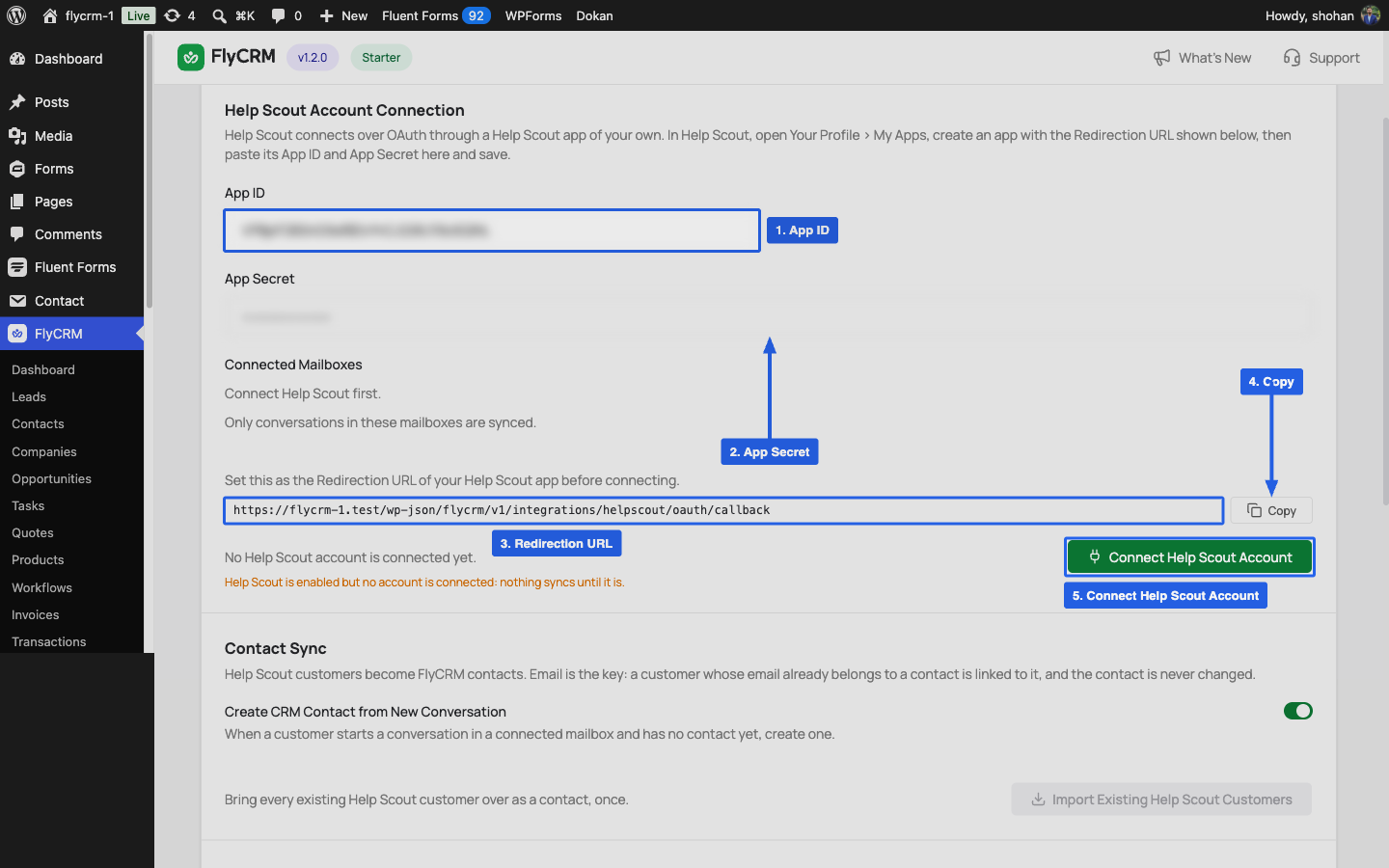
- In FlyCRM, select Copy next to the Redirection URL.
- In Help Scout, go to Your Profile > My Apps and create an app.
- Paste the URL into Redirection URL, then save the app.
Step 3: Connect
- Copy the App ID and App Secret from the Help Scout app into FlyCRM.
- Select Save Changes.
- Select Connect Help Scout Account.
- In Help Scout, allow access within ten minutes, in the same browser.
FlyCRM shows "Help Scout is connected. Choose the mailboxes to sync and save."
Step 4: Choose the mailboxes
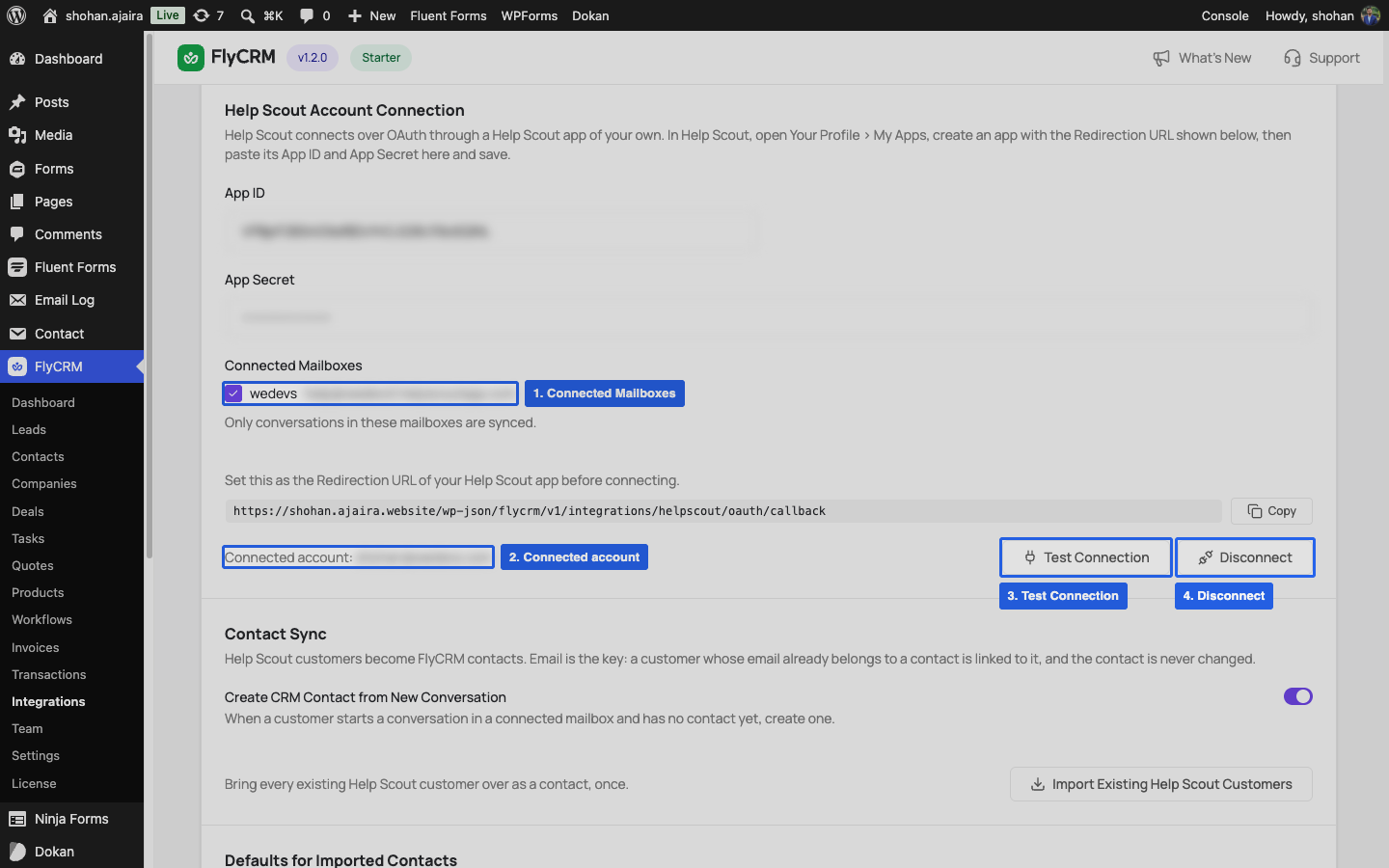
- In Connected Mailboxes, choose the mailboxes to sync.
- Select Save Changes.
FlyCRM syncs only conversations from these mailboxes.
Settings
Select Save Changes after you change a setting.
Contact Sync
| Setting | What it does |
|---|---|
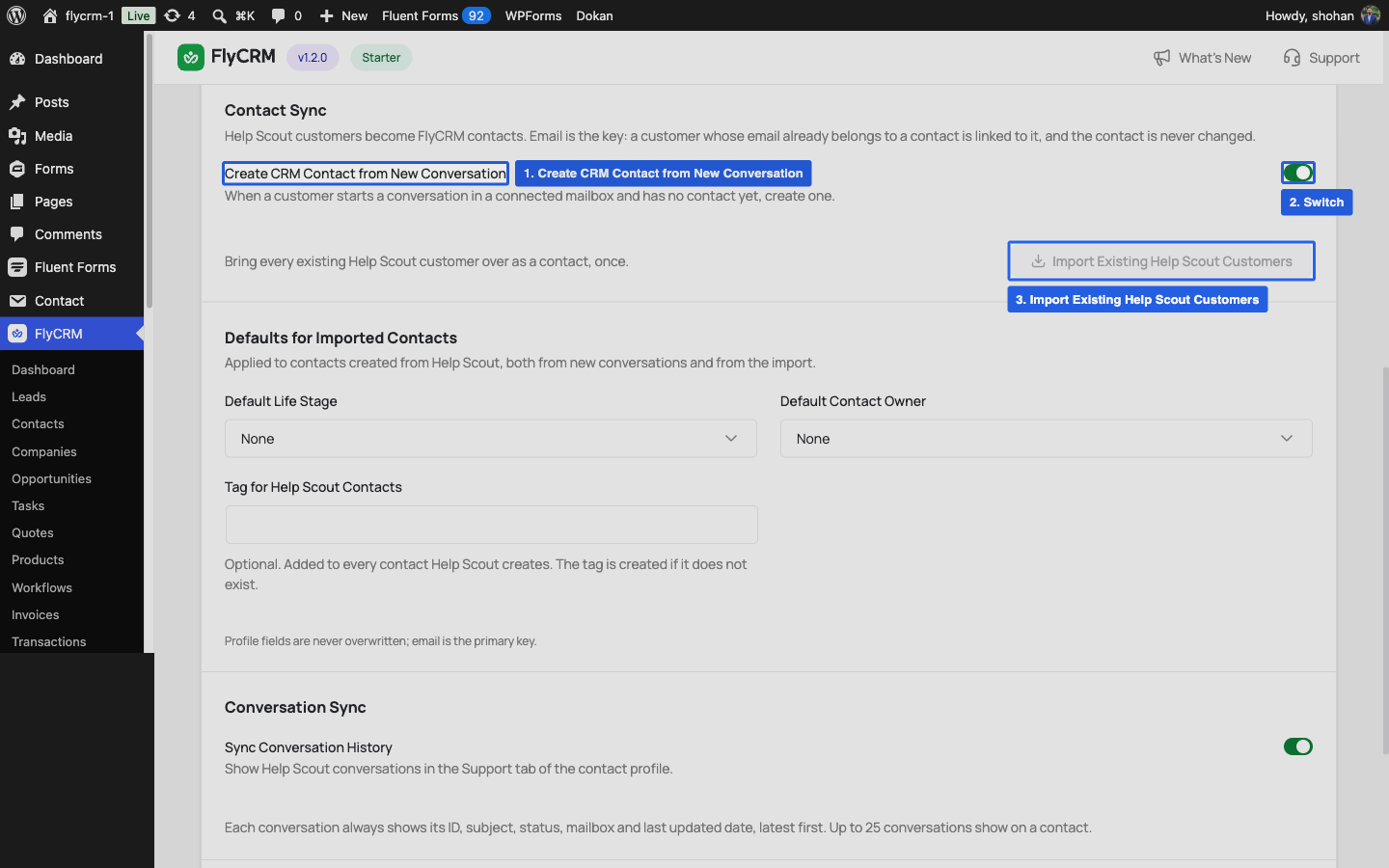
| Create CRM Contact from New Conversation | Creates a contact for a new customer who writes to a chosen mailbox. On by default. |
| Import Existing Help Scout Customers | Brings all Help Scout customers into FlyCRM, one time. |
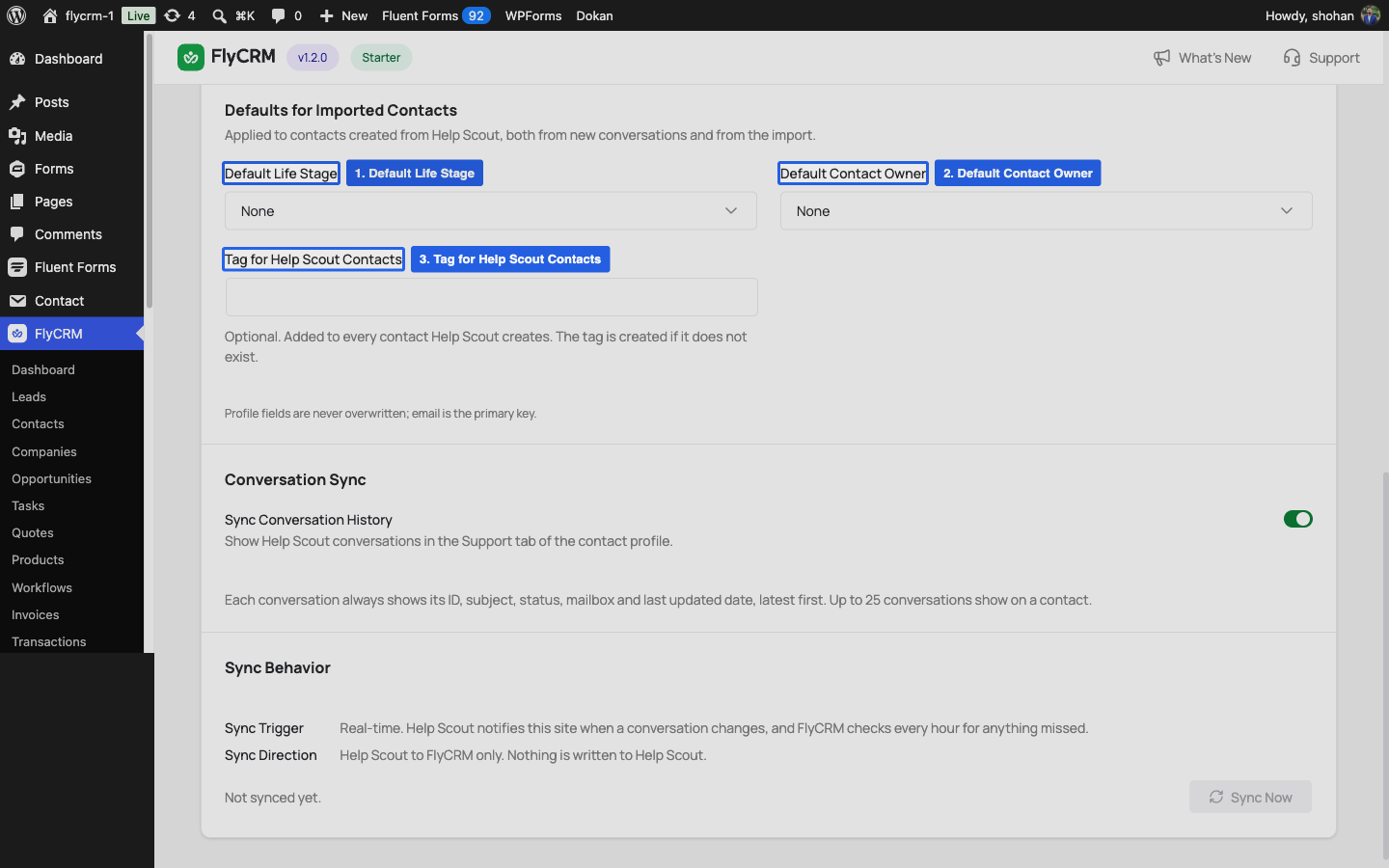
Defaults for Imported Contacts
These apply only to new contacts. FlyCRM never changes contacts that already exist. Set them before you import.
| Setting | What it does |
|---|---|
| Default Life Stage | Life stage for new contacts |
| Default Contact Owner | Owner for new contacts |
| Tag for Help Scout Contacts | Optional tag for new contacts. FlyCRM creates it if needed. |
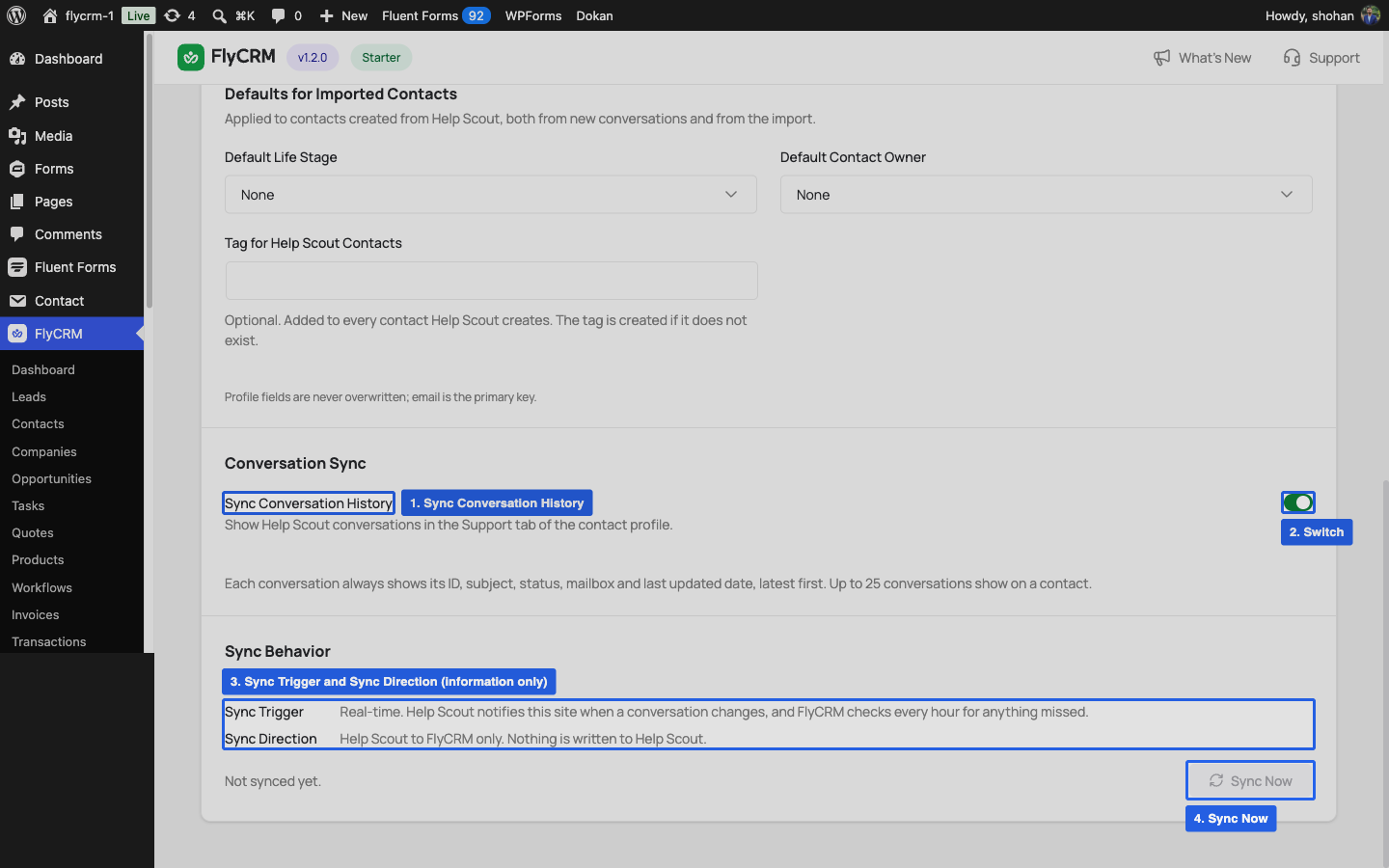
Conversation Sync
| Setting | What it does |
|---|---|
| Sync Conversation History | Shows Help Scout conversations on the Support tab. On by default. |
| Sync Now | Asks Help Scout for new conversations immediately. |
Help Scout tells FlyCRM about changes as they happen. FlyCRM also checks every hour to catch anything missed.
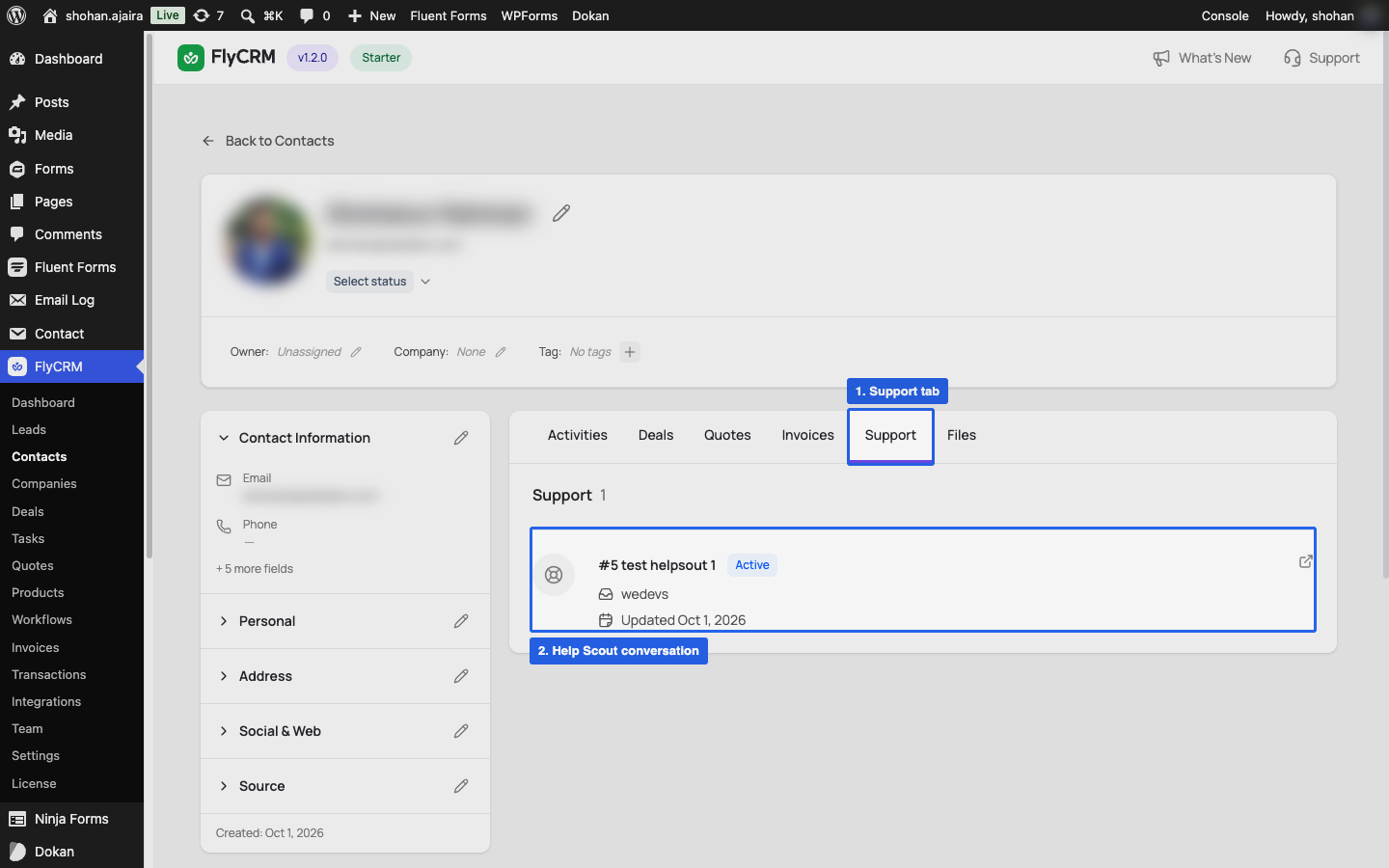
See conversations on a contact
Open a contact and select the Support tab (1). The tab lists up to 25 conversations (2), newest first, with ID, subject, status, mailbox, and last update.
Test the connection
- Select Test Connection. The message must start with "Connected as".
- Send an email to a chosen mailbox from an address that is not in FlyCRM.
- Select Sync Now.
- Open the new contact. The conversation shows on the Support tab.
To use a different Help Scout account, select Disconnect, then do Steps 3 and 4 again.
Troubleshooting
| Problem | What to do |
|---|---|
| Connect Help Scout Account is not available | Paste the App ID and App Secret, then select Save Changes. |
| "The connection could not be verified" | Connect again. Allow access within ten minutes, in the same browser. |
| "Help Scout refused the App ID or App Secret" | Copy both again from Your Profile > My Apps, save, and connect again. |
| "Help Scout refused the connection" | Select Disconnect, then do Steps 3 and 4 again. |
| Nothing syncs | Make sure an account is connected and at least one mailbox is chosen and saved. |
| "Real-time updates are not set up" | No action needed. FlyCRM still gets conversations every hour. |
| "Help Scout could not be reached" or "rate limiting" | Wait and try again. Make sure your site can reach the internet. |