
GETTING STARTED
WORKFLOWS
INTEGRATIONS
AWeber Integration
Sync your FlyCRM contacts with an AWeber list in both directions. This page covers the AWeber setup.
How it works
- No API key. AWeber connects through OAuth only. You create a small AWeber app of your own, and FlyCRM connects through that app.
- You paste a code. AWeber does not send you back to your site. After you allow access, AWeber shows an authorization code. You paste the code into FlyCRM.
- FlyCRM checks AWeber on a schedule. AWeber cannot call your site when a subscriber changes. "Real-time" means that FlyCRM checks every 5 minutes.
- One list in each direction and one AWeber account.
Before you start
- An AWeber account with at least one list.
- An AWeber Developer account at labs.aweber.com. This account is
not the same as your AWeber user account. Sign up for it if you do not have one. You need it only to create the app in Step 1.
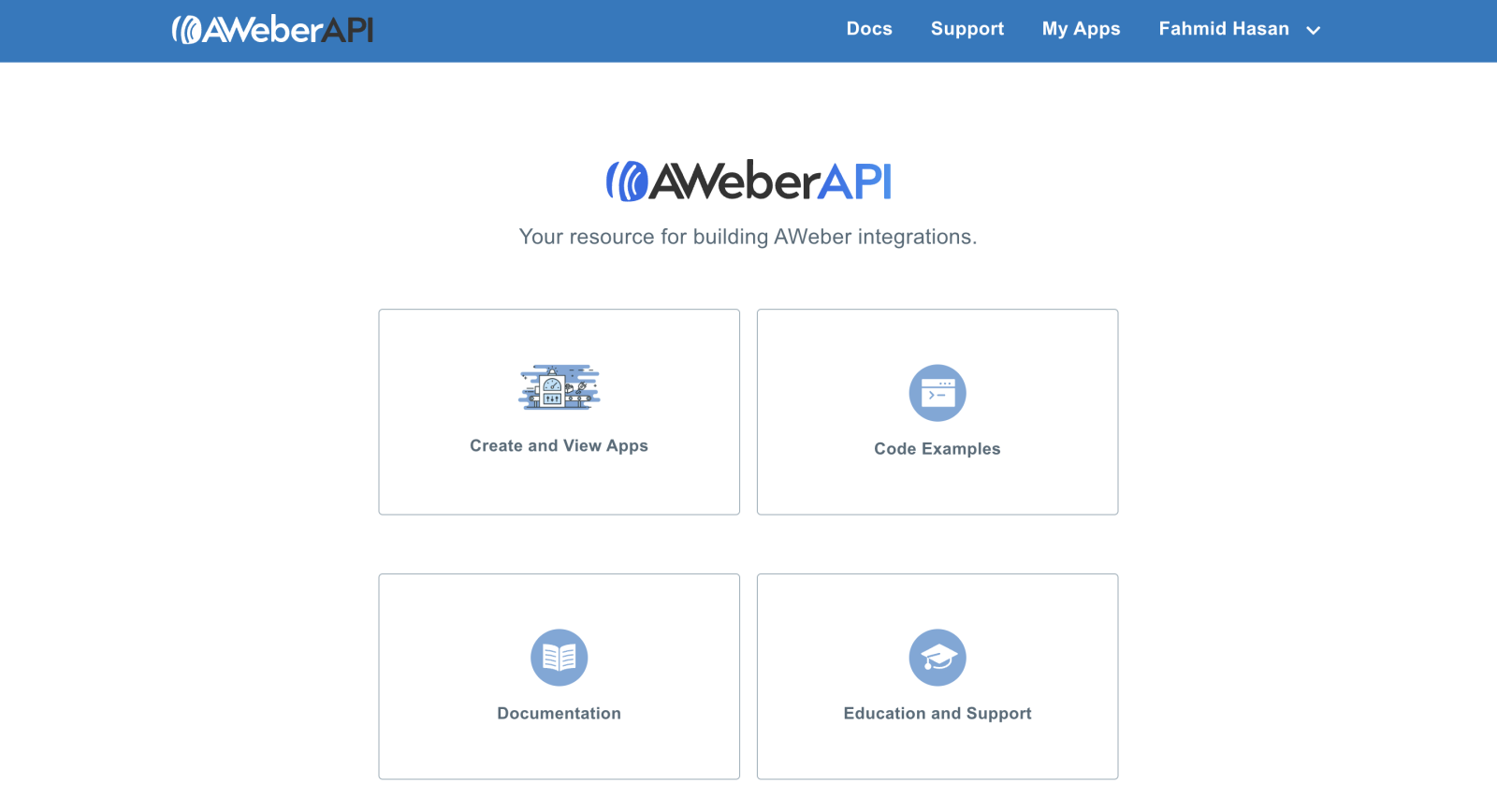
Step 1: Create an AWeber app
- Log in to labs.aweber.com.
- Open My Apps.
- Select Create A New App.
- Fill in the form:
Field What to type Application Name A name for the app, for example FlyCRM - My Store. The name must be unique in all of AWeber, and it cannot contain the word "AWeber".Author Your name or your company name Application Website Your website address Client Type Select Public OAuth Redirect URL urn:ietf:wg:oauth:2.0:oobDescription A short description, for example "Syncs our FlyCRM contacts with AWeber." You can leave the image and the webhook settings empty. - Select Create New App.
- On the My Apps page, copy the Client ID of the new app.
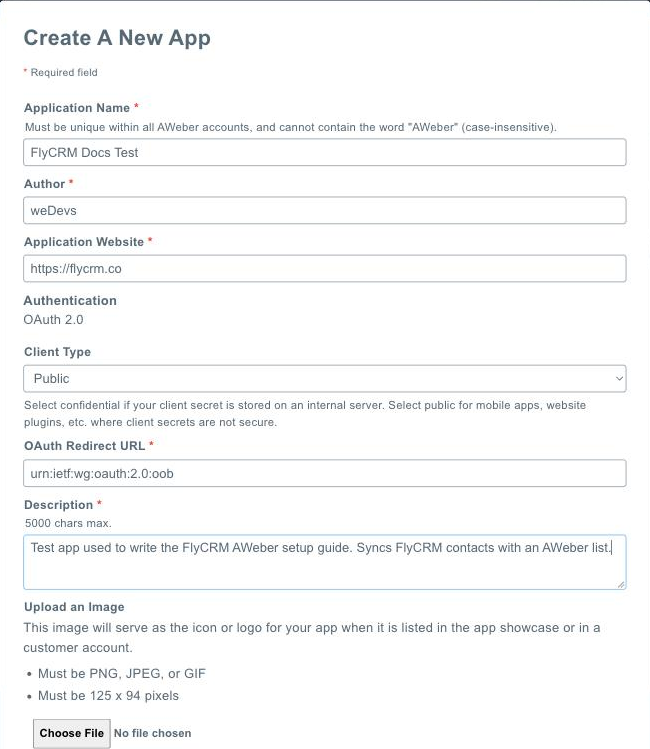
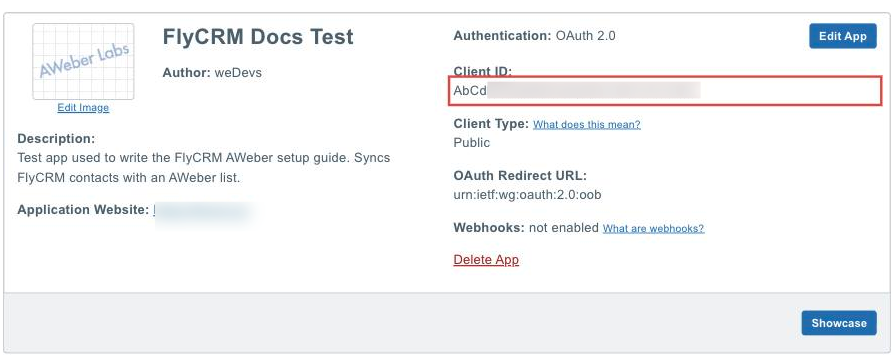
Public does not publish or list your app. Only you can see it, in your own developer account. The client type only tells AWeber whether the app keeps a secret key.
Public or Confidential
Both client types work with FlyCRM. Both keep your app private.
| Client type | What you get | When to use it |
|---|---|---|
| Public (recommended) | A Client ID only. FlyCRM uses PKCE to prove the connection. | Most sites. You copy one value, and there is no secret to keep safe. |
| Confidential | A Client ID and a client secret. The secret proves the connection. | Your company policy requires a secret for each API connection, or you already have a confidential AWeber app that you want to use. |
If you select Confidential, you must also paste the client secret into FlyCRM in Step 2. FlyCRM keeps the secret encrypted. If someone gets the secret, they can use your app. If this occurs, create a new app in AWeber and connect FlyCRM to the new app.
Step 2: Turn on the integration
- Go to FlyCRM > Integrations.
- Select the Email Marketing tab.
- On the AWeber card, select Configure.
- Turn on the switch at the top right.
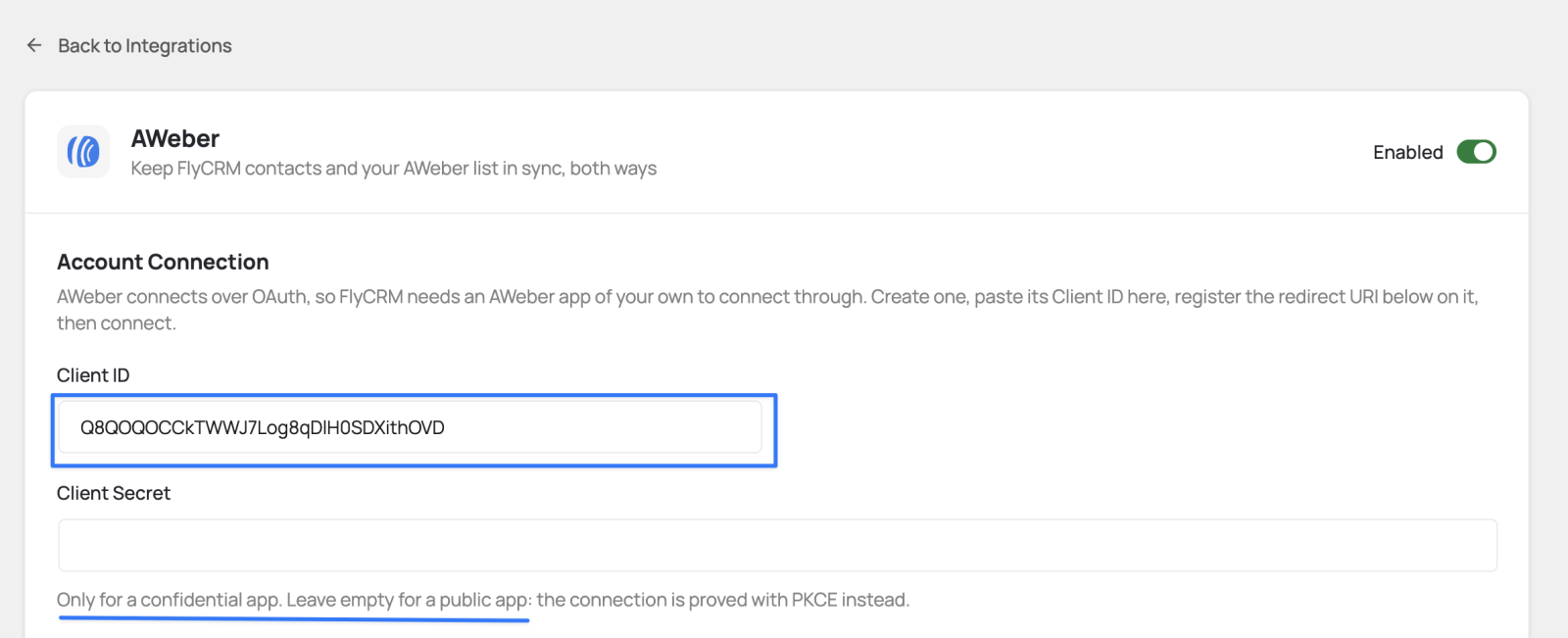
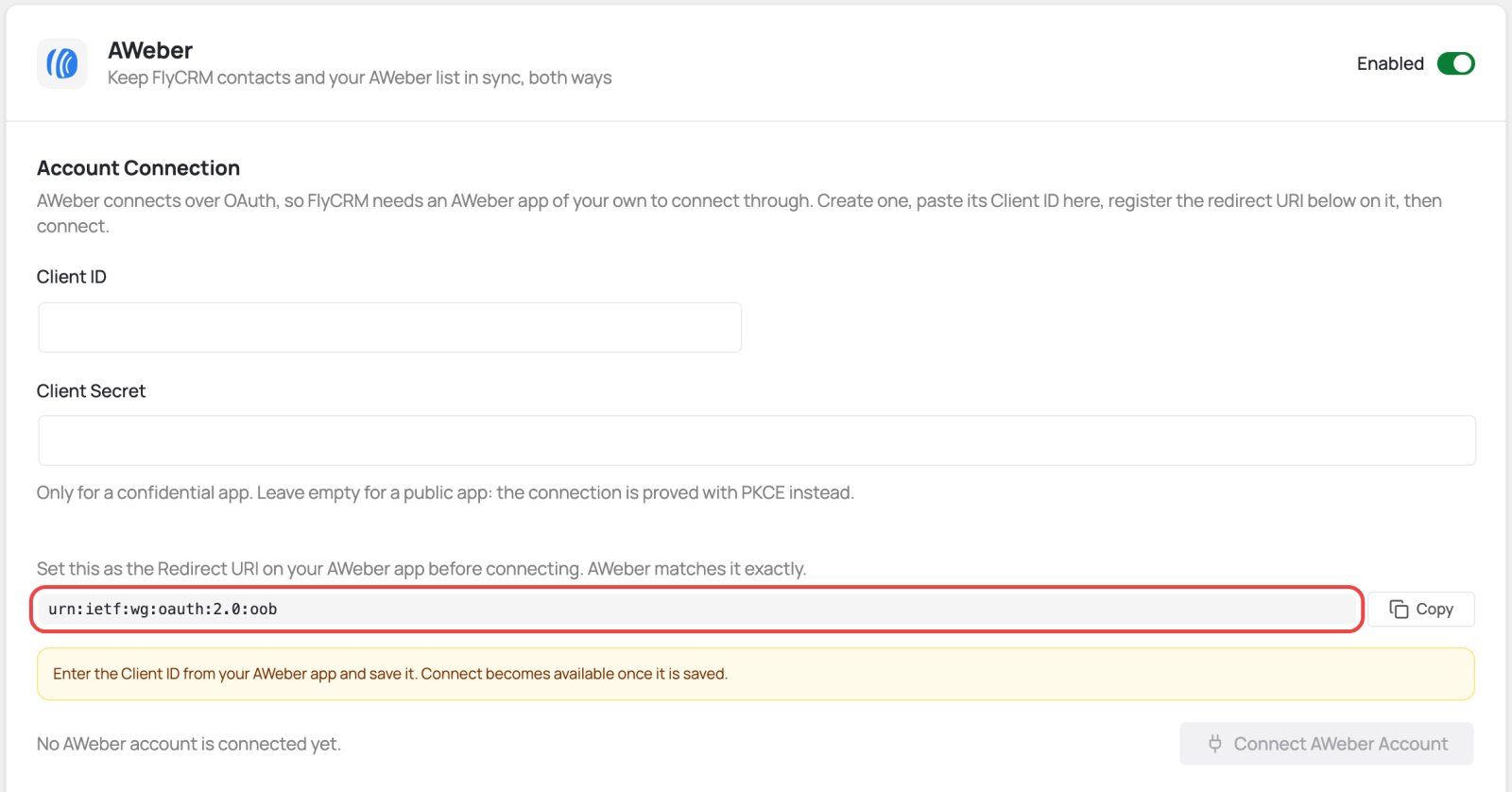
- Under Account Connection, paste the Client ID.
- If you created a confidential app, paste the Client Secret. For a public app, leave it empty.
- Save the changes.
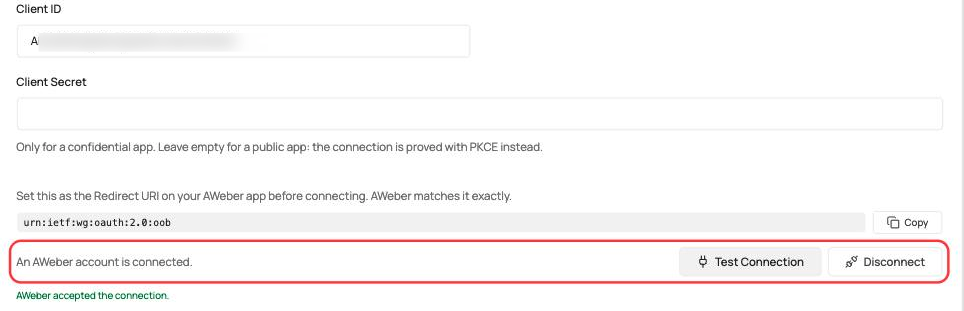
The redirect URI under the Client ID must be the same value as on your AWeber app:
urn:ietf:wg:oauth:2.0:oob. Select Copy to copy it.
Step 3: Connect your AWeber account
- Select Connect AWeber Account. AWeber opens in a new tab. FlyCRM shows the Authorization code field.
- In the AWeber tab, type your AWeber Login Name and Password. Use your normal AWeber
account, not the developer account.
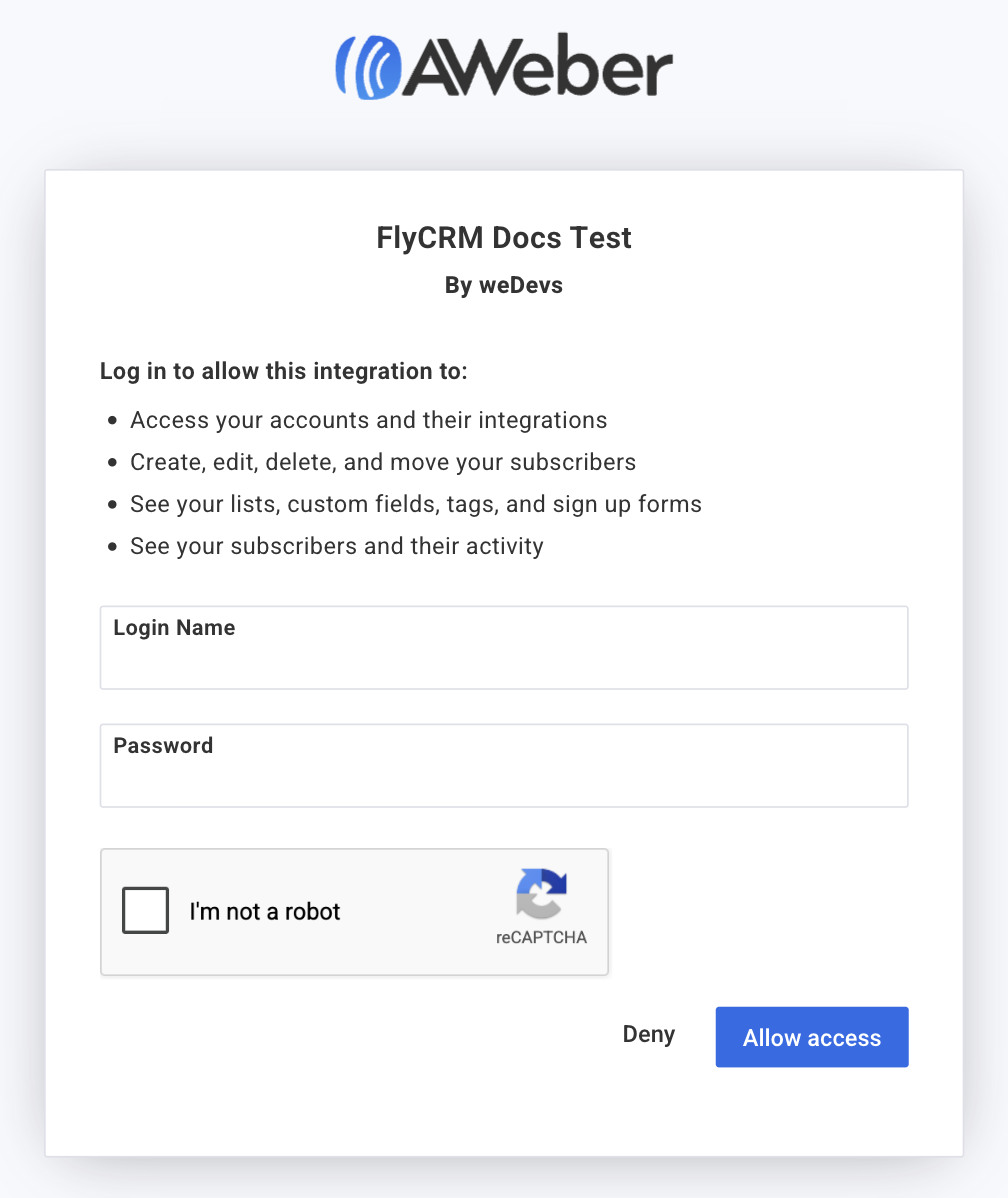
- Select the reCAPTCHA box.
- Select Allow access.
- Copy the authorization code that AWeber shows.
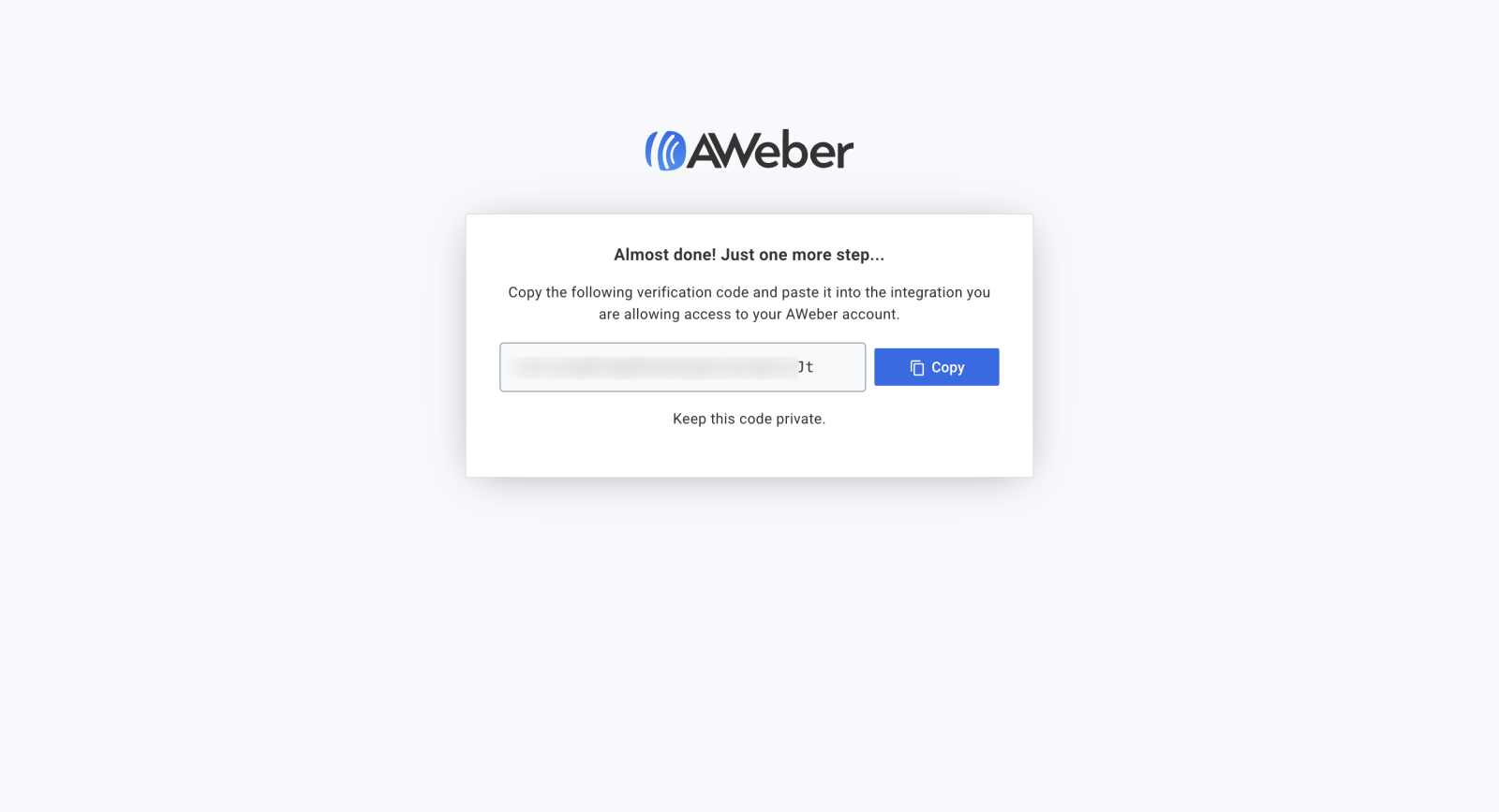
- Go back to FlyCRM. Paste the code into the Authorization code field.
- Select Finish Connecting.
When the connection is good, FlyCRM shows Connected account with your AWeber email, or "An AWeber account is connected." Select Test Connection to make sure that AWeber accepts the connection.
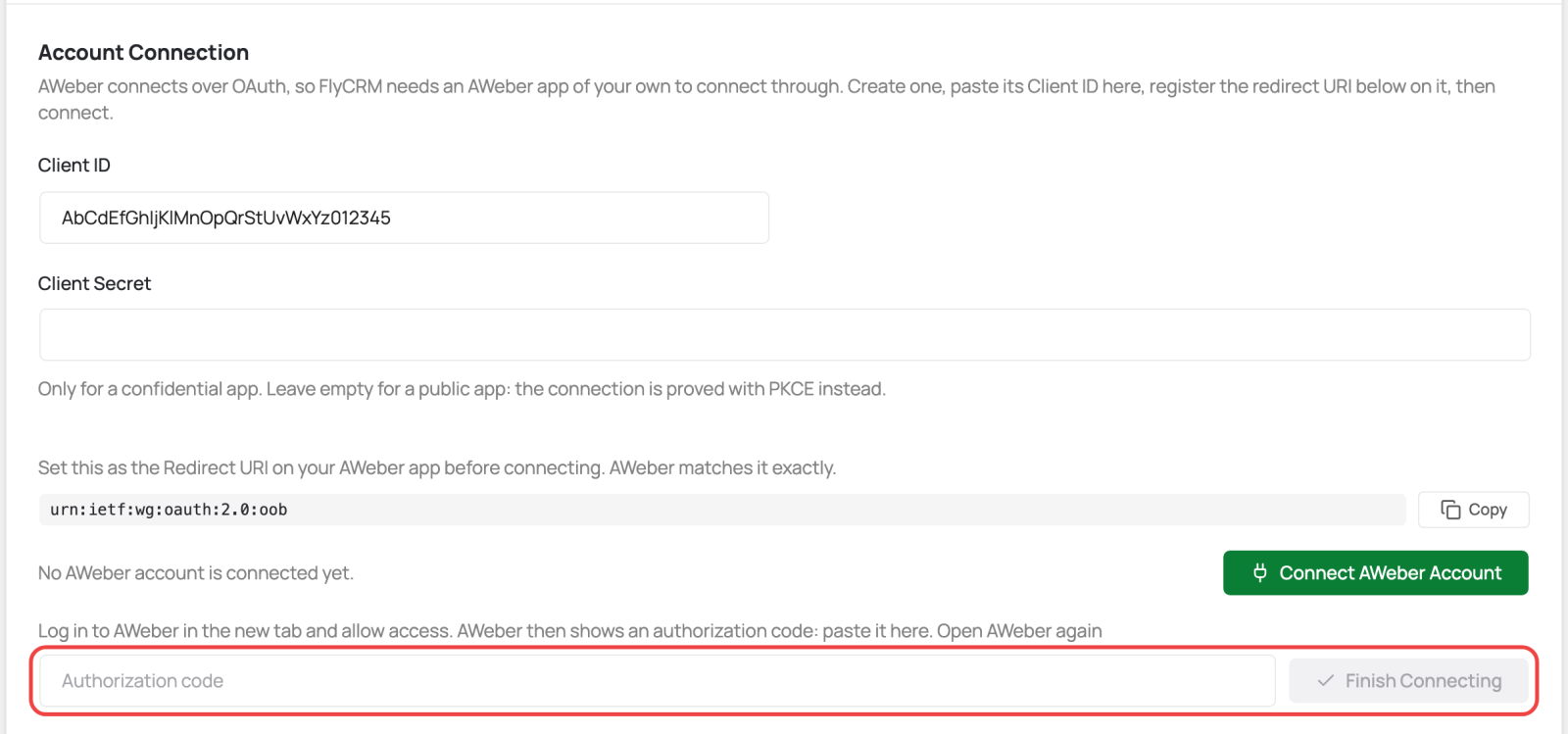
The code is good for a short time only. If Finish Connecting fails, select Open AWeber again to get a new code.
Step 4: Set up the sync
Turn on one direction, the other, or both. Then save.
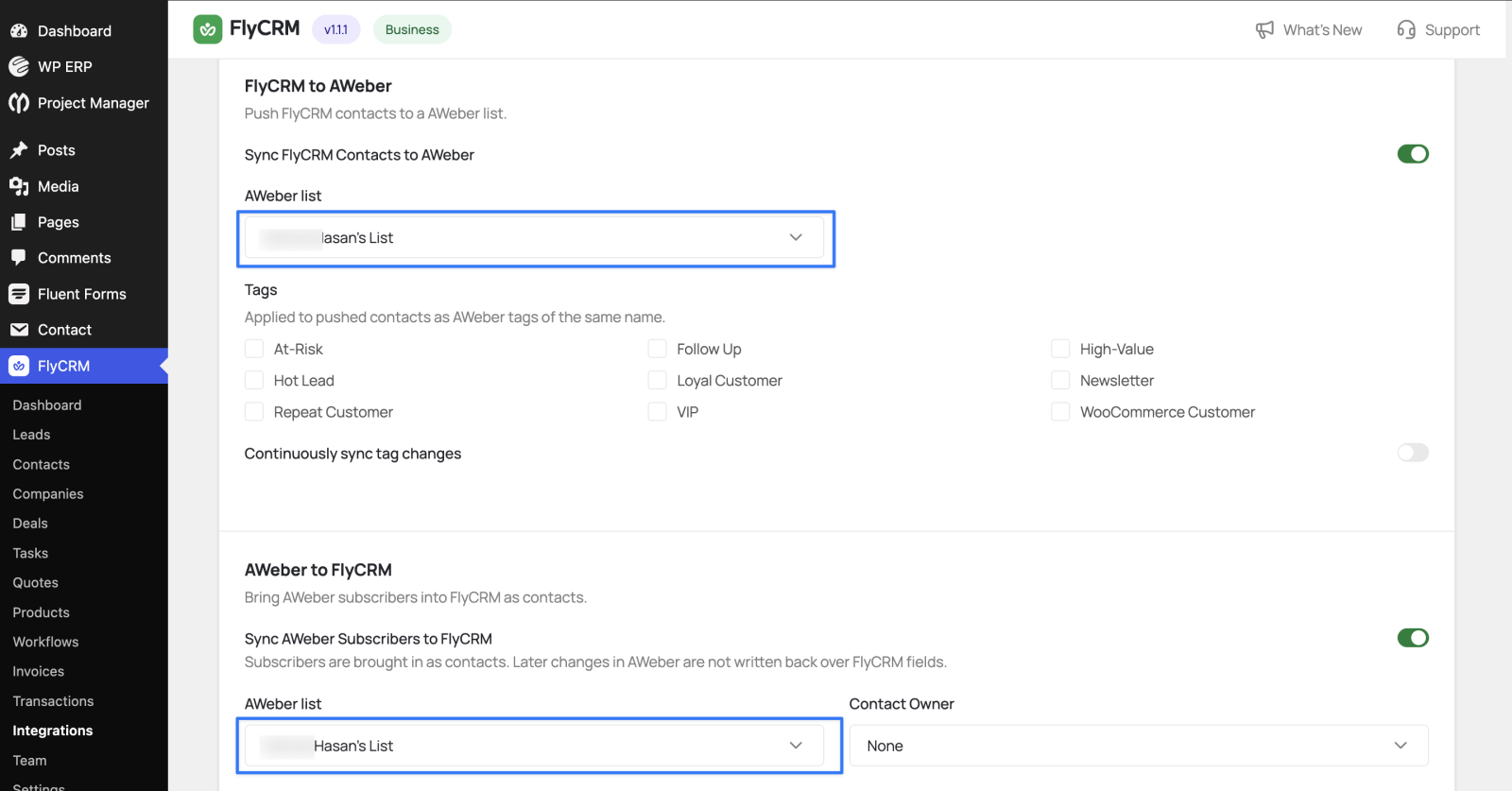
Push contacts to AWeber (outbound)
| Setting | What it does |
|---|---|
| Sync FlyCRM Contacts to AWeber | Turns on the push from FlyCRM to AWeber. |
| AWeber list | The list that FlyCRM sends contacts to. |
| Tags | FlyCRM tags to add to each pushed subscriber, as AWeber tags with the same name. |
| Continuously sync tag changes | Keeps these tags the same as in FlyCRM after the first push. FlyCRM never removes tags that someone added in AWeber. |
FlyCRM sends a contact when its email, first name, last name, or life stage changes. FlyCRM skips contacts that have no email address. If you change a contact's email in FlyCRM, FlyCRM updates the same subscriber in AWeber. It does not add a second subscriber.
Bring subscribers into FlyCRM (inbound)
| Setting | What it does |
|---|---|
| Sync AWeber Subscribers to FlyCRM | Turns on the check for new AWeber subscribers. |
| AWeber list | The list that FlyCRM reads from. |
| Contact Owner, Life Stage, Tag for new contacts | How FlyCRM files each new contact. |
Some facts about inbound sync:
- FlyCRM brings in each subscriber one time. Later changes in AWeber do not change the FlyCRM contact.
- FlyCRM does not change a contact that it already has with the same email address.
- FlyCRM skips subscribers who did not confirm their subscription.
- The first check starts from the time you turn on the sync. Older subscribers do not come in. To bring in old subscribers, export them from AWeber and import the CSV file.
Sync frequency
Sync Frequency sets how often FlyCRM checks AWeber:
- Real-time (checks every 5 minutes) (default)
- Hourly
- Daily
When a subscriber unsubscribes
Set When a subscriber unsubscribes or bounces in AWeber to the action that FlyCRM must take. The four choices are the same for every email tool.
This setting applies only to contacts that came from AWeber or that FlyCRM sent to AWeber.
Step 5: Run the first sync
Select Sync Now under Sync now. FlyCRM brings in new AWeber subscribers and sends your existing FlyCRM contacts to AWeber. After that, FlyCRM sends contacts as they change.
When the sync is complete, the page shows the number of contacts sent and the date of the last sync.
Test the connection
- Select Test Connection. Make sure that FlyCRM shows your AWeber account.
- Change a FlyCRM contact that has an email address.
- Make sure that the contact shows in your AWeber list.
- Add a subscriber to the inbound list in AWeber and confirm the subscription.
- Select Sync Now.
- Make sure that the contact shows in FlyCRM.
To remove the connection, select Disconnect. FlyCRM keeps your other AWeber settings.
Troubleshooting
| Problem | What to do |
|---|---|
| Connect AWeber Account is not available | Paste the Client ID and save. If you changed the Client ID, save it again. |
| "AWeber refused the connection." | The code is old or wrong. Select Open AWeber again, copy the new code, and select Finish Connecting. Make sure that the redirect URI on the AWeber app is urn:ietf:wg:oauth:2.0:oob. |
| "AWeber is enabled but no account is connected" | Complete Step 3. |
| The list fields show "Connect AWeber first" | Complete Step 3, then reload the page. |
| A new subscriber does not come in | Make sure that the subscriber confirmed the subscription. Then select Sync Now. |