
GETTING STARTED
WORKFLOWS
MCP
Connecting an AI Client to MCP
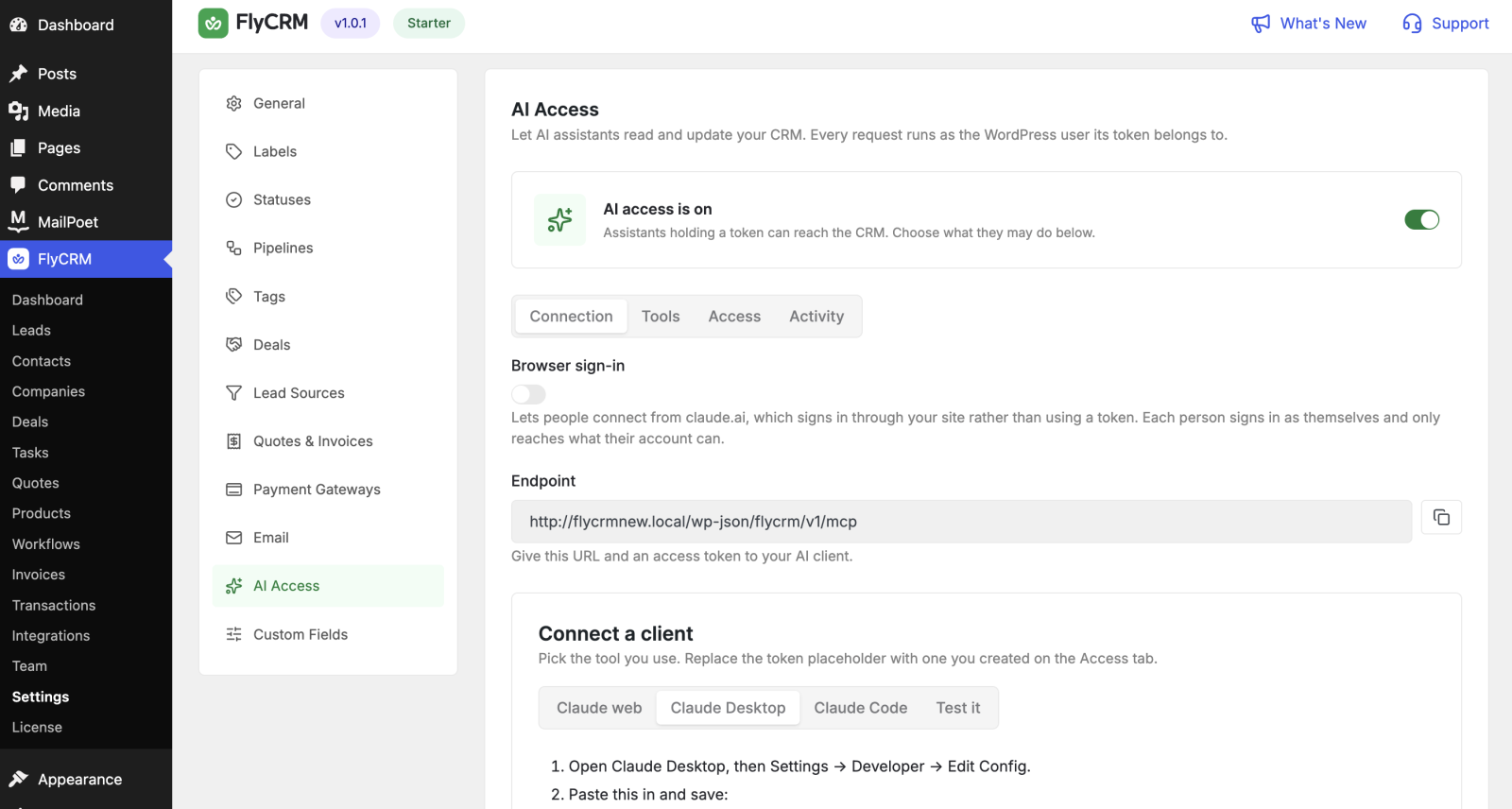
This page turns on the FlyCRM MCP server, sets its options, and connects an AI client. Before you start, read AI access with MCP.
CRM concept: A server offers tools. A client uses them. FlyCRM is the MCP server. Your AI assistant is the client. This page connects the two.
Step 1: Turn on the MCP server
- Go to FlyCRM > Settings > MCP.
- Turn the MCP server on.
- Select Save.
FlyCRM now exposes an MCP endpoint that a client can connect to.
Step 2: Set the options
Set these options before you connect a client:
- Allowed origins — the addresses that may connect. Limit this to the clients you use.
- Disabled tools — turn off any tool you do not want an AI to use. For example, turn off the delete tool.
- Authorization — leave sign-in required. It confirms who the client is.
- Log retention — how many days to keep the audit log.
CAUTION: Do not open the server to all origins on a live site. Add only the origins you trust. An open server lets any client try to reach your data.
Step 3: Authorize the client
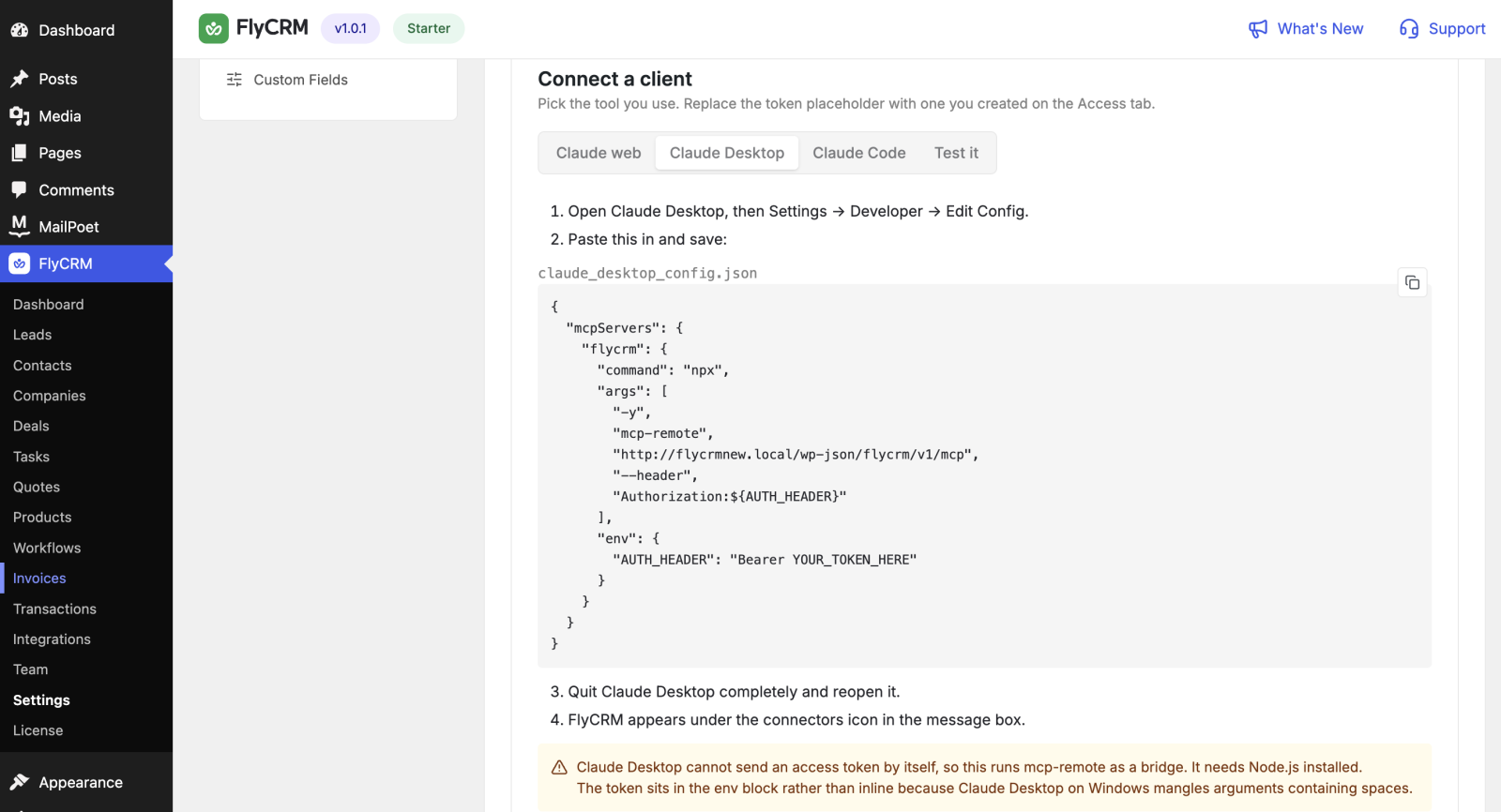
An MCP client must sign in before it calls any tool. FlyCRM uses an authorization step for this.
- In your AI client, add a new MCP server.
- Enter the FlyCRM MCP endpoint URL from the settings screen.
- Start the connection. The client opens a sign-in page.
- Sign in as the CRM user whose access the AI should use.
- Approve the connection.
The client receives a token and can now call the FlyCRM tools. The AI acts with that user's CRM permissions.
Step 4: Test the connection
- In the AI client, ask a simple read request, for example "List my pipelines."
- Confirm the AI returns your real pipeline names.
- Go to Settings > MCP and open the audit log.
- Make sure that the request appears in the log.
If the read works and the log shows it, the connection is live.
Turn off access
To cut off a client, remove its origin from the allowed list, or turn the MCP server off. Both stop new tool calls at once.