
GETTING STARTED
WORKFLOWS
Pro Features
Custom fields
A custom field is a field you define yourself, on top of the built-in fields. This page adds a custom field, chooses its type, and uses it on a record.
CRM concept: No two businesses track the same details. A custom field lets you store the data that matters to your business — a contract number, a renewal date, a preferred contact method — without changing code.
When to use a custom field
Add a custom field when you keep writing the same extra detail into notes. For example:
- A renewal date on a company
- A lead's budget range
- A product interest on a contact
- An account number on a deal
A structured field beats a note, because you can filter and report on it.
Add a custom field
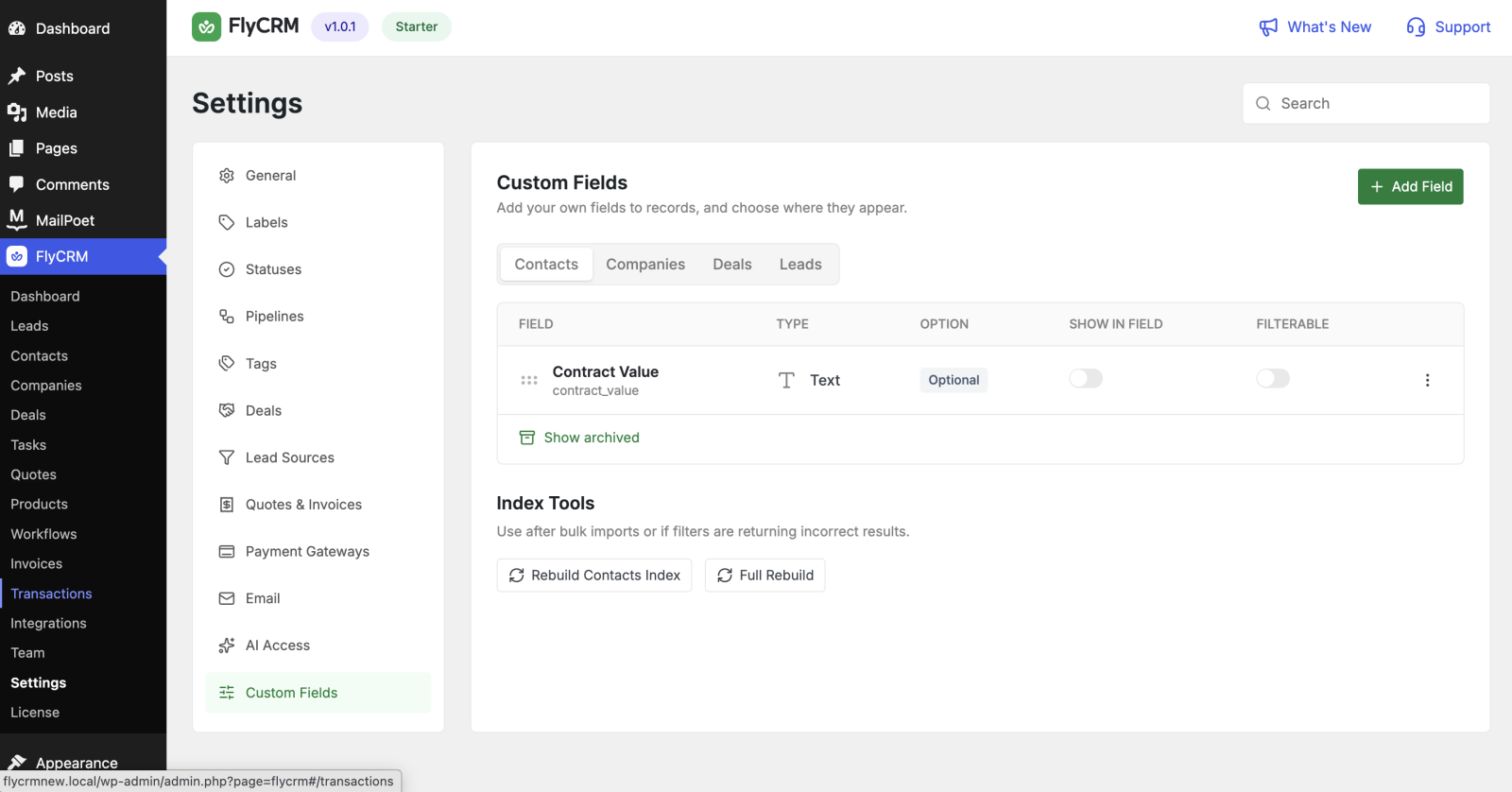
- Go to FlyCRM > Settings > Custom fields.
- Select Add field.
- Choose the record type the field belongs to: contact, company, lead, or deal.
- Enter a field label, for example
Renewal date. - Choose a field type (see below).
- Select Save.
Choose a field type
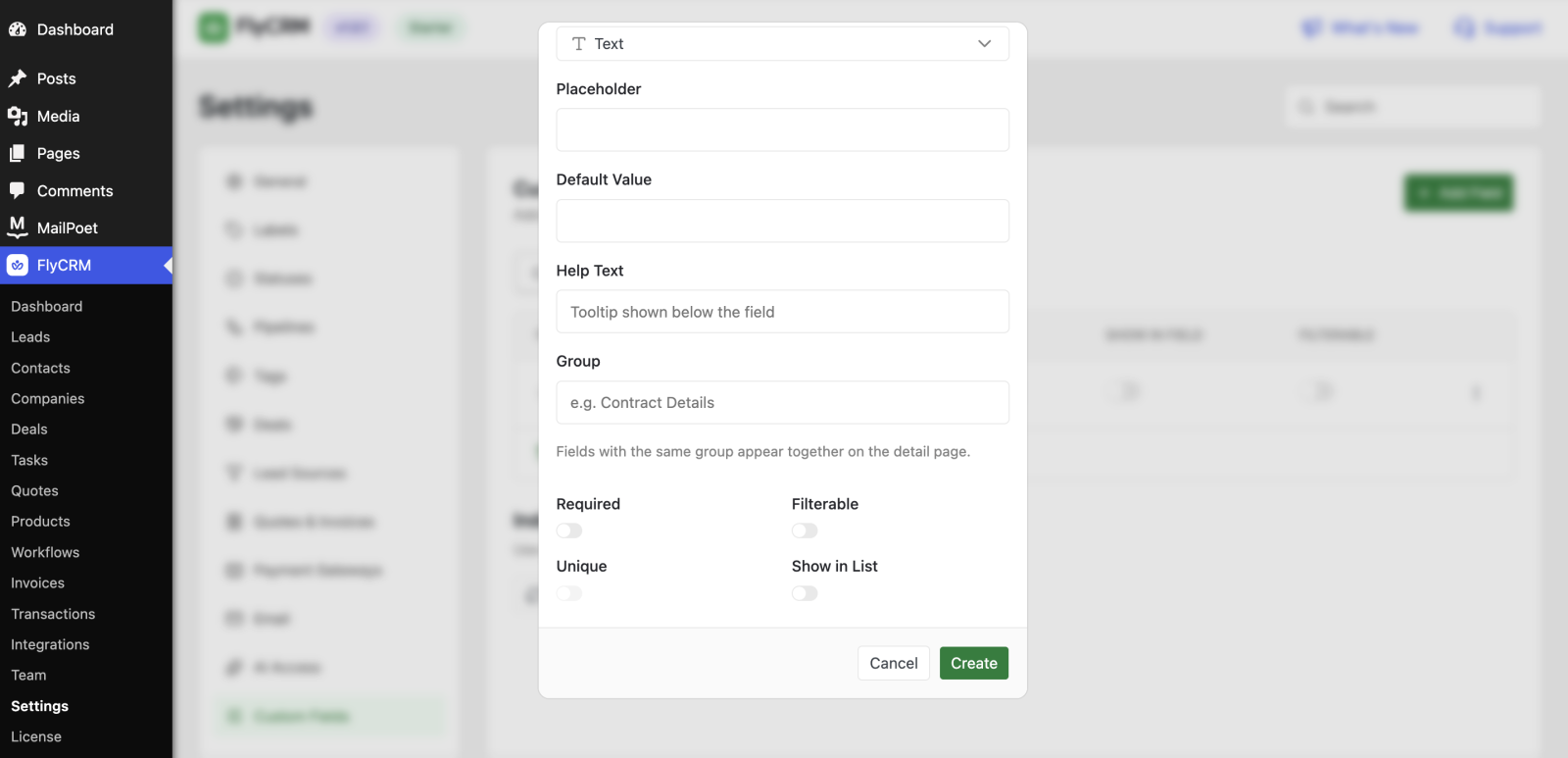
Pick the type that matches the data. The type controls how the field looks and what it accepts:
- Text — a short line of text.
- Number — a numeric value.
- Date — a calendar date.
- Dropdown — a choice from a fixed list you define.
- Checkbox — a yes or no value.
Note: Choose the right type once. The type shapes how you filter and report on the field later.
Use the field on a record
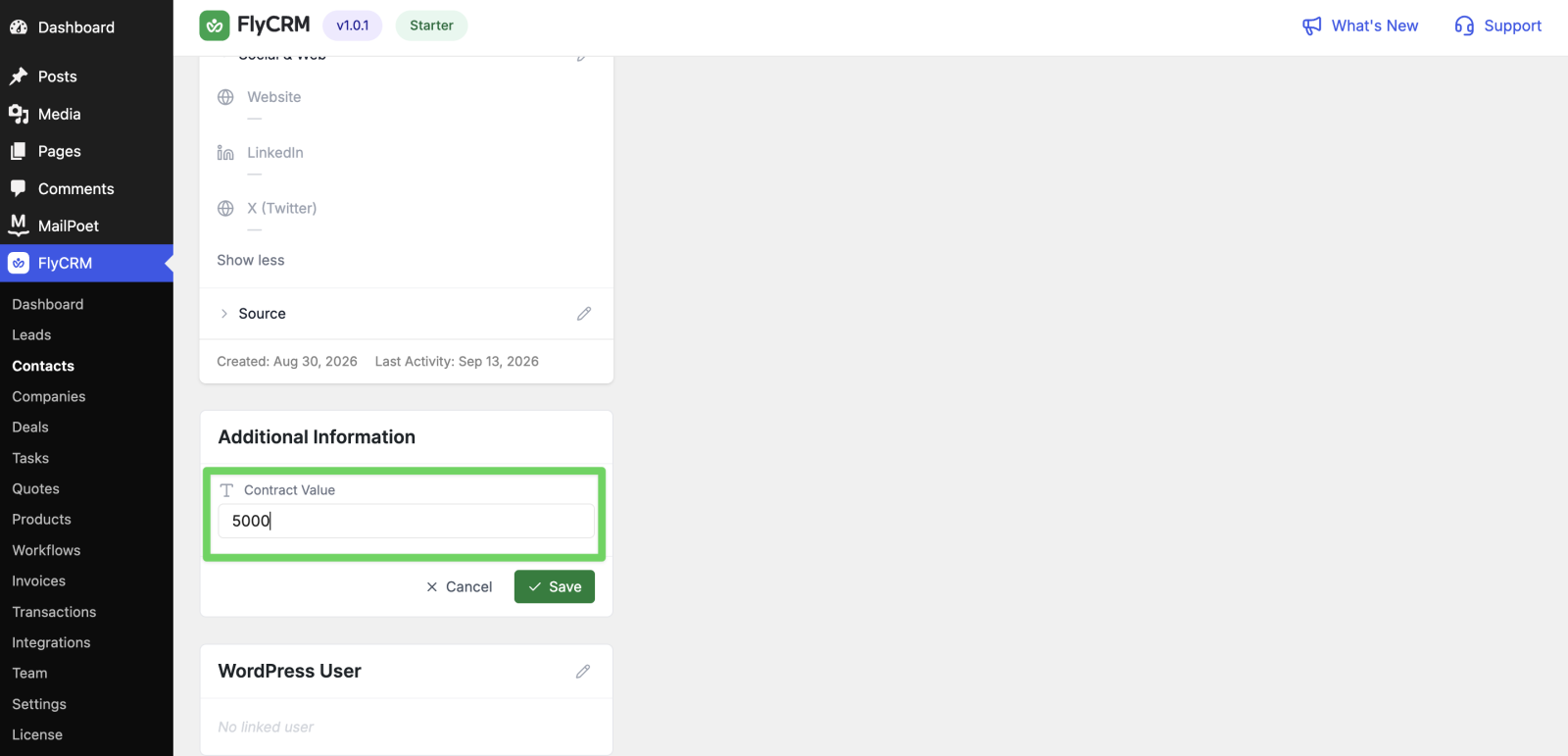
After you add a field, it shows on every record of that type.
- Open a contact, company, lead, or deal of the matching type.
- Find the custom field in the profile.
- Enter a value and save.
Use custom fields in workflows
A workflow can read a custom field in a condition and can set one with the Update field
action. For example, branch a workflow on a custom Plan dropdown.