
GETTING STARTED
CONTACTS
COMPANIES
DEALS
Activities
Other Features
DEALS
Deals and sales pipelines
Deals and sales pipelines
A deal is a sale you are trying to win. A pipeline is the path a deal takes from first contact to a close. This page opens a deal, tracks its details, and moves it across the kanban board.
CRM concept: A pipeline is your sales process drawn as a line of stages. Each stage is a step, such as Qualified, Proposal, Negotiation, Won, or Lost. Moving a deal to the right means the sale is progressing.
Open a deal
- Go to FlyCRM > Deals.
- Select Add deal.
- Enter a deal name that says what the sale is.
- Enter the deal value.
- Set the pipeline stage, contact, company, and owner (admin or CRM agent to manage the deal).
- Click Create Deal.
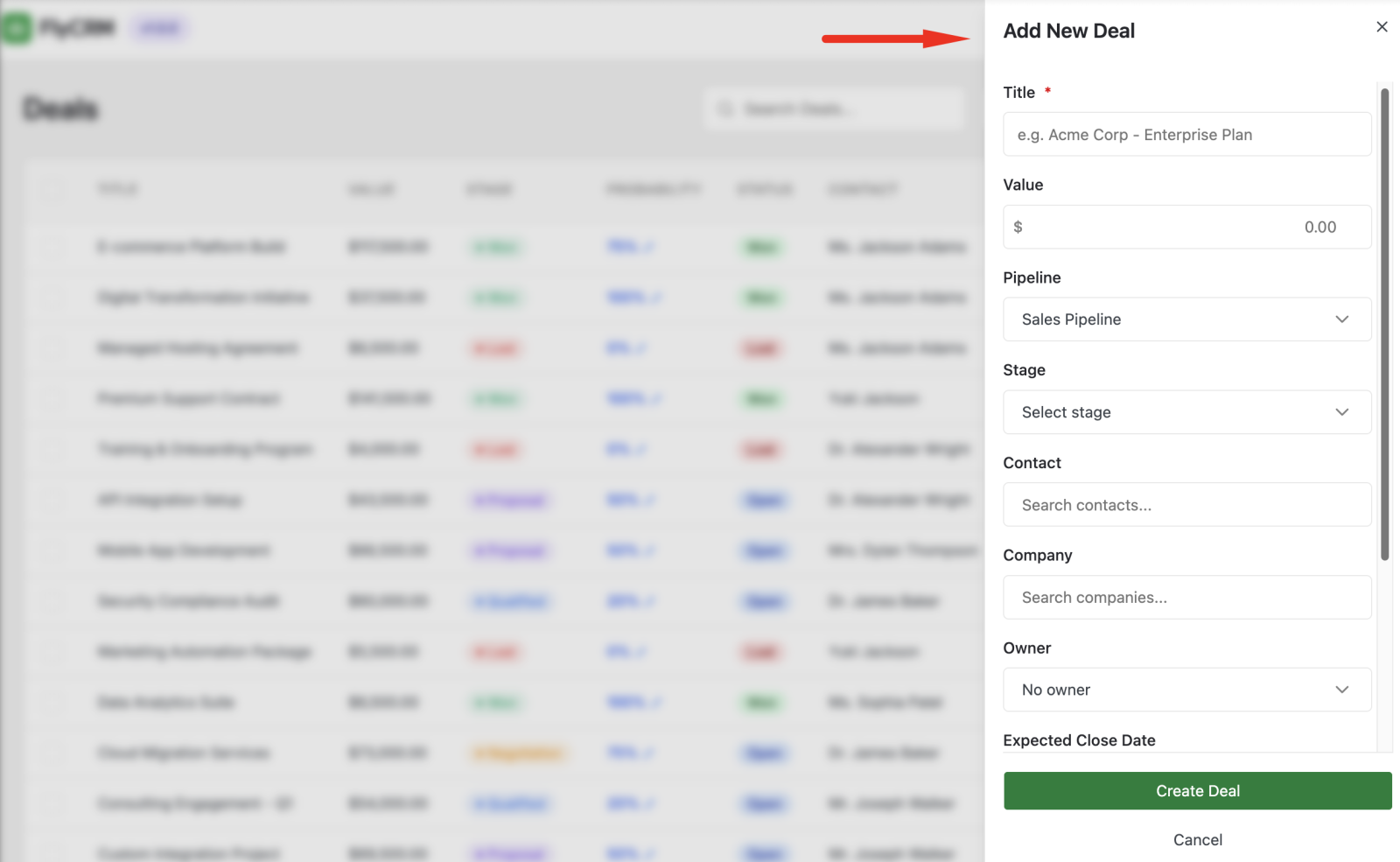
You can also create a deal from a lead. See Converting a lead.
Track deal details:
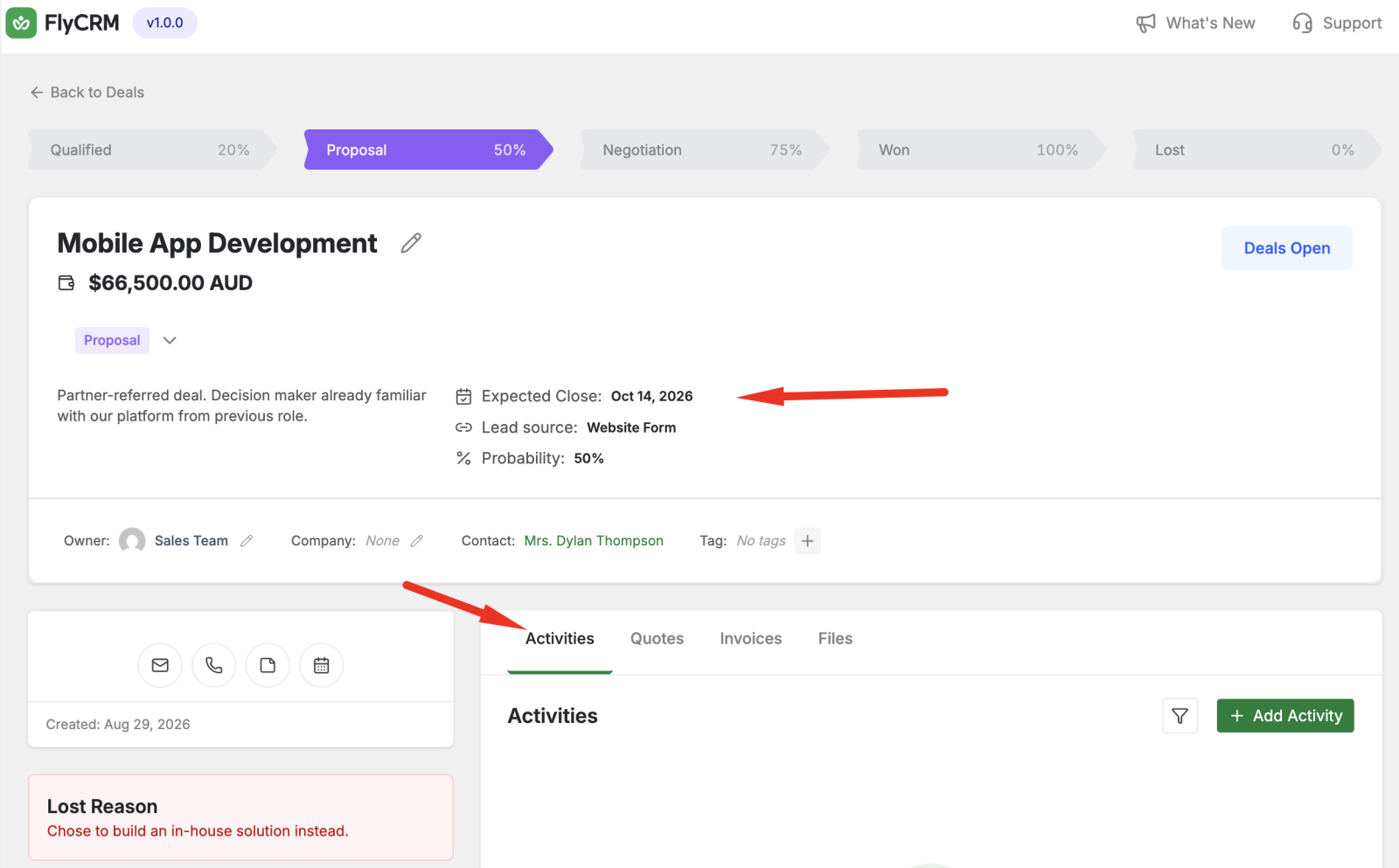
A deal holds the numbers you use to forecast a sale:
- Value — the amount the deal is worth.
- Expected close date — when you think the deal will close.
- Stakeholders/Contacts — the contacts involved.
CRM concept: A multi-stakeholder deal records more than one contact, because a real sale often involves several people — a buyer, a decision maker, and a user.
Use the Kanban board
The kanban board shows every deal as a card, grouped into columns by stage. It gives you the whole pipeline at a glance.
- Go to FlyCRM > Deals and select the board view.
- Read each column, left to right, as a stage.
- To move a deal, drag its card to another column.
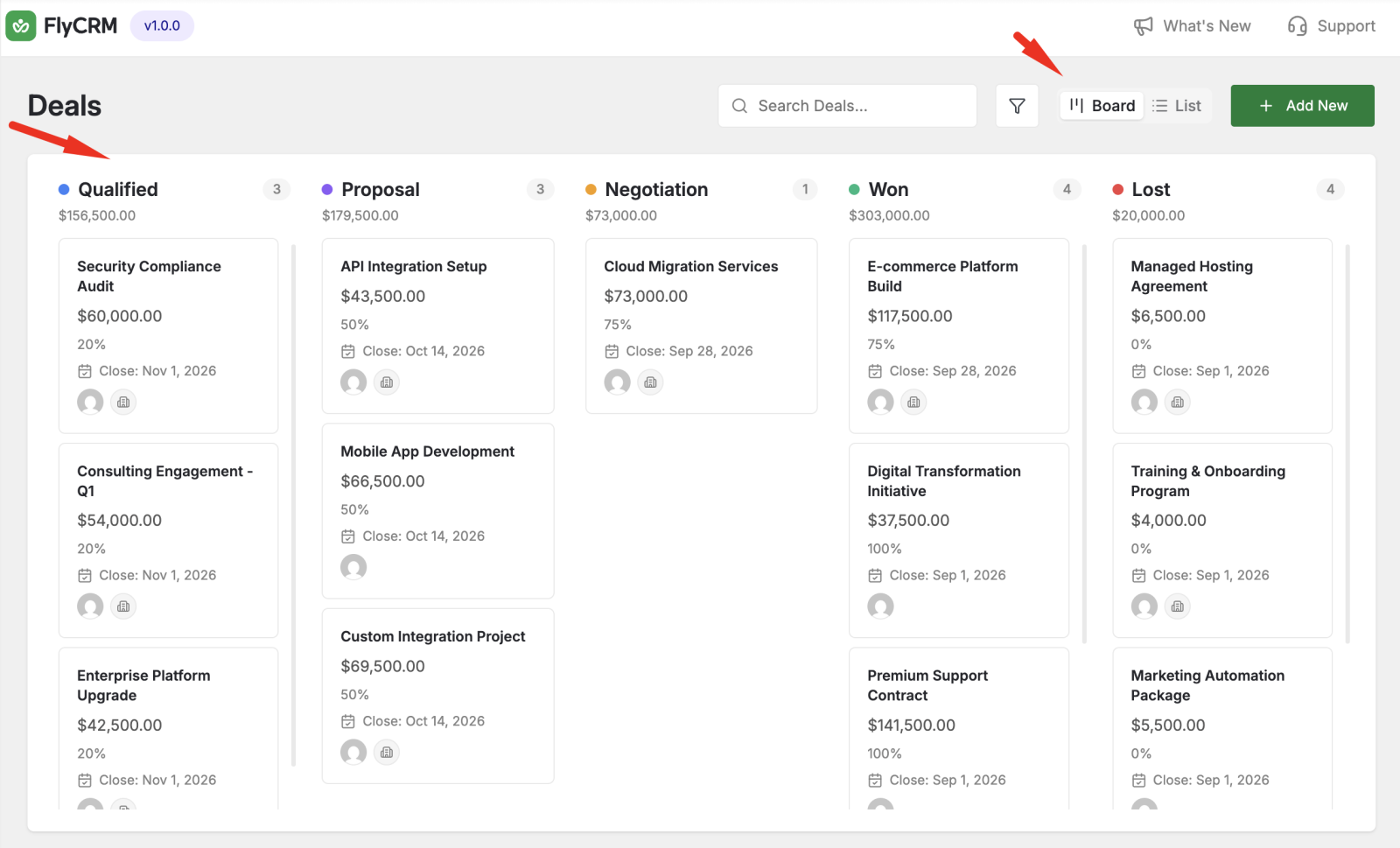
When you drop a card in a new column, FlyCRM sets the deal to that stage and records the change.
Track stage history
FlyCRM records every stage change on a deal, with the date. Open a deal to read its stage history. Use the history to see how long a deal sat in each stage.
About pipeline editing
The free plugin uses one default pipeline with a fixed set of stages. Editing the stages and creating extra pipelines are Pro features. See the Pro documentation.