
GETTING STARTED
CONTACTS
COMPANIES
DEALS
Integrations
Activities
Other Features
Team roles and permissions
FlyCRM controls who sees and changes CRM data with two roles and record ownership. This page explains each role, how ownership works, and how to assign them.
CRM concept: Access control keeps a sales rep in their own accounts and gives a manager the full view. It protects data and keeps each person focused on their own work.
The two CRM roles
FlyCRM adds two roles on top of the standard WordPress roles:
- CRM Manager — full access to all CRM data, settings, imports, and reports. Give this role to a sales lead or an administrator.
- CRM Agent — access to their own records only. Give this role to a sales rep. An agent sees the contacts, companies, and deals they own, not the whole database.
Behind these roles, FlyCRM defines more than 60 fine-grained capabilities. The two roles bundle those capabilities into a sensible default for each job.
How ownership works
Every record has an owner — the team member responsible for it. Ownership drives what a CRM Agent sees:
- A CRM Agent sees and works the records they own.
- A CRM Manager sees every record, whoever owns it.
Assign an owner on each contact, company, lead, and deal. FlyCRM also tracks the last-contacted date on each record, so you see when it was last worked.
CRM concept: Record ownership answers one question — "whose job is this?" It stops a lead from falling between two reps and gives a manager a clear line of accountability.
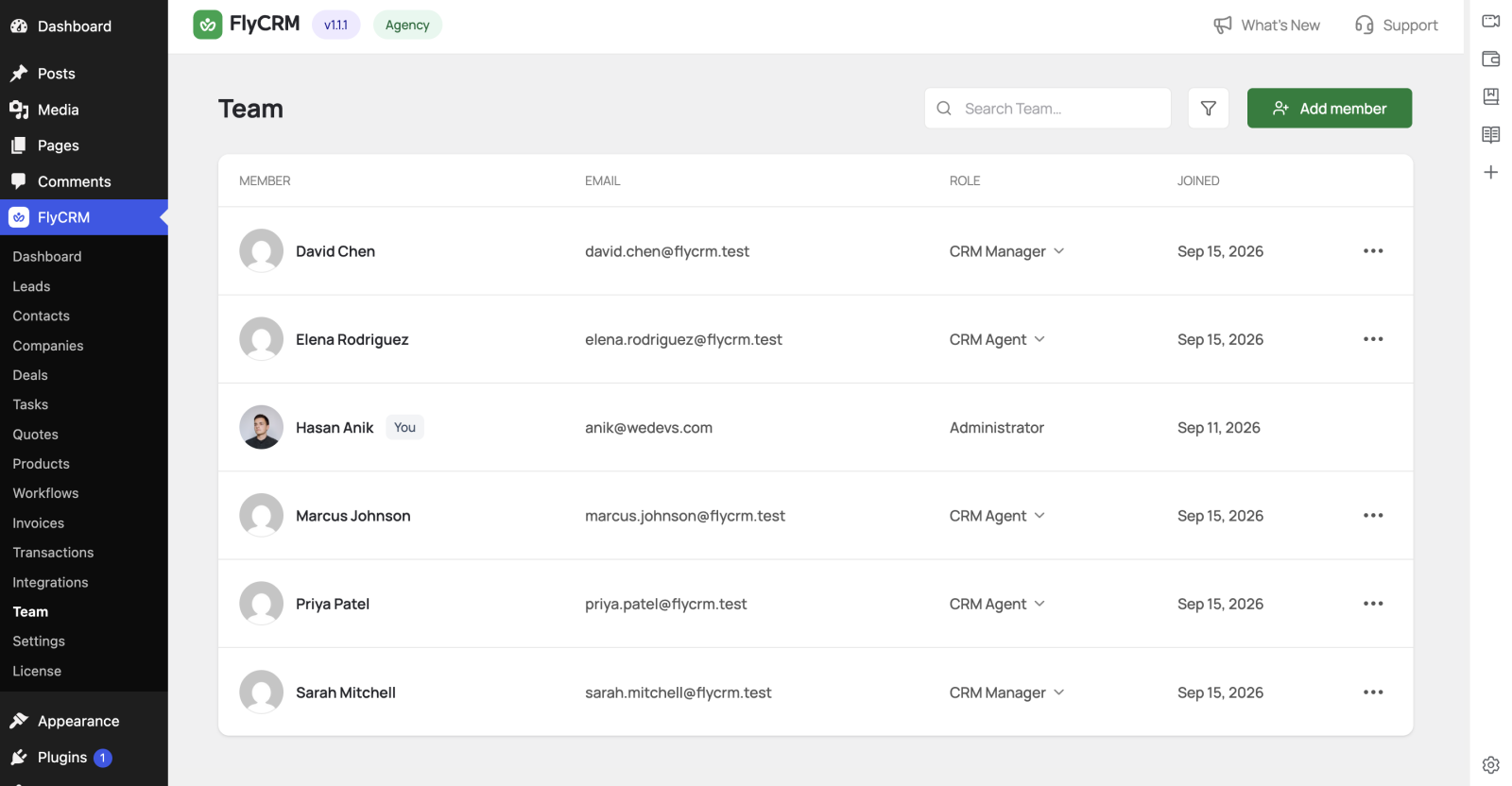
Invite your team from the Team page
The Team page is the fastest way to build your team. It lists everyone with CRM access and lets you invite more people without leaving the CRM.
- Go to FlyCRM > Team.
- Select Invite and enter the person's email address.
- Choose their CRM role — CRM Manager or CRM Agent.
- Send the invitation.
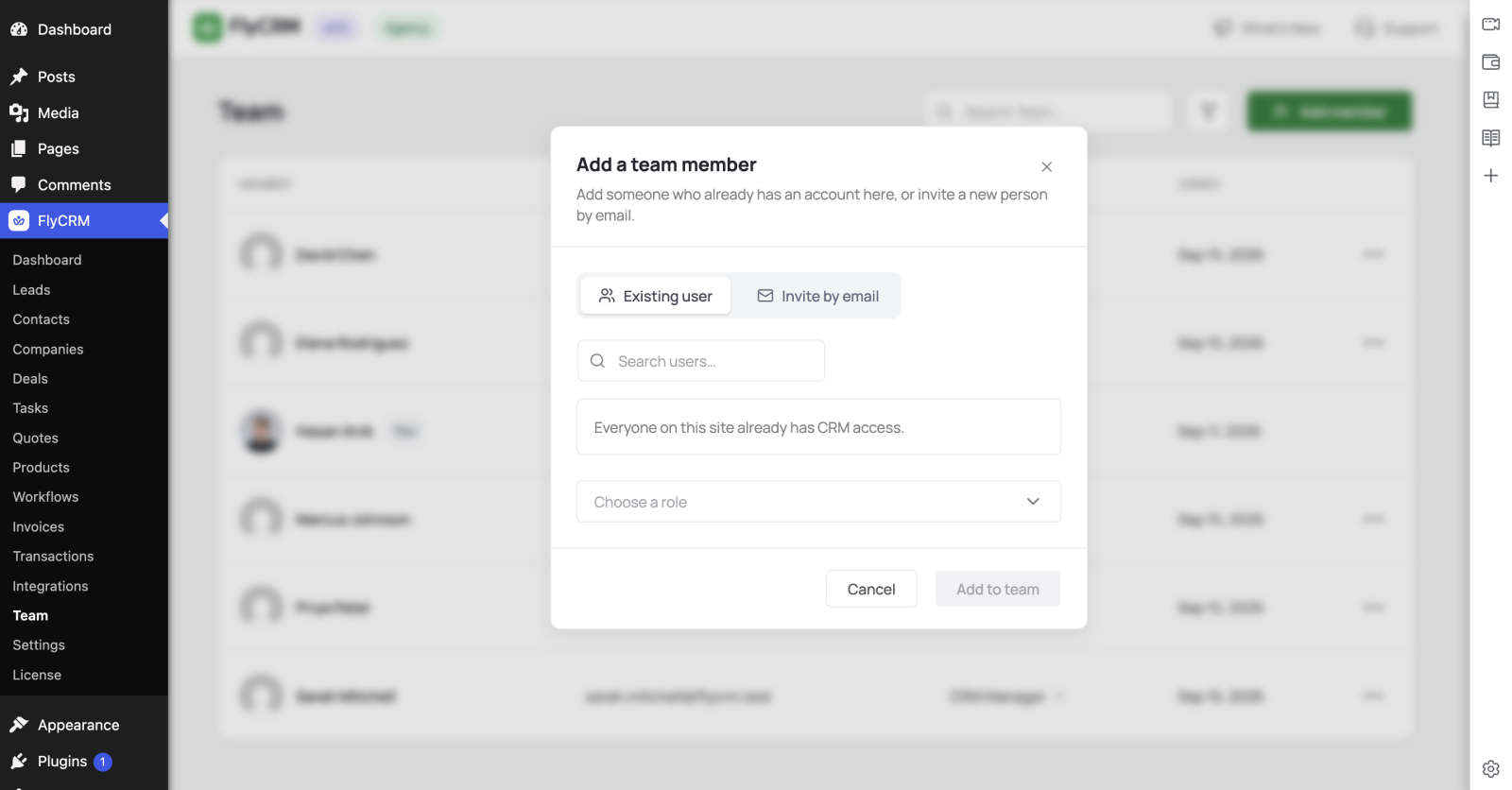
The Team page also shows each member's role, which you can change from the same screen.
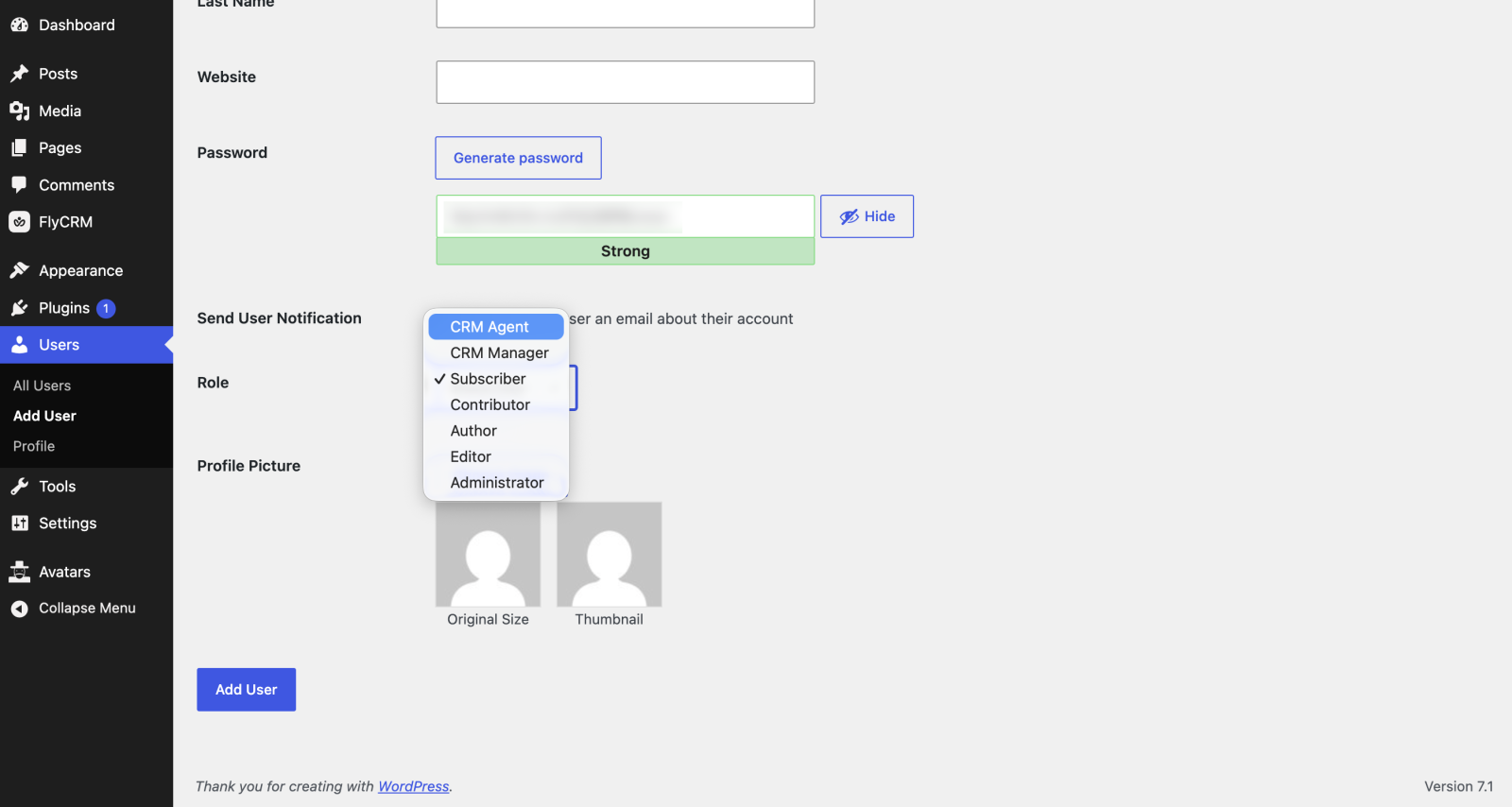
Assign a CRM role from the WordPress Users screen
You can also set the role on an existing WordPress user directly:
- Go to Users in the WordPress admin.
- Open the user, or add a new one.
- Set the Role to CRM Manager or CRM Agent.
- Select Update User.
Assign an owner to a record
- Open the contact, company, lead, or deal.
- Set the Owner field to a CRM user.
- The owner now sees the record in their own view.
Choose the right setup
- A solo user needs only the CRM Manager role.
- A small team gives one or two people CRM Manager and the reps CRM Agent (who manages deals pipeline and contacts).
- Assign owners as records arrive, so every record has a responsible person from the start.