
GETTING STARTED
CONTACTS
COMPANIES
DEALS
Activities
Other Features
DEALS
How to link a deal to a company
You can link a deal to a company. The link connects the deal to the company record. You then see the deal on the company page. This guide shows how to link a deal to a company.
Link a company when you create the deal
- In the admin menu, click FlyCRM, then click Deals.
- Click Add New.
- In the Company field, search a company. Then select it.
- Fill the other fields, then click Create Deal.
Change the company on an existing deal
- Open the deal from the board or the list.
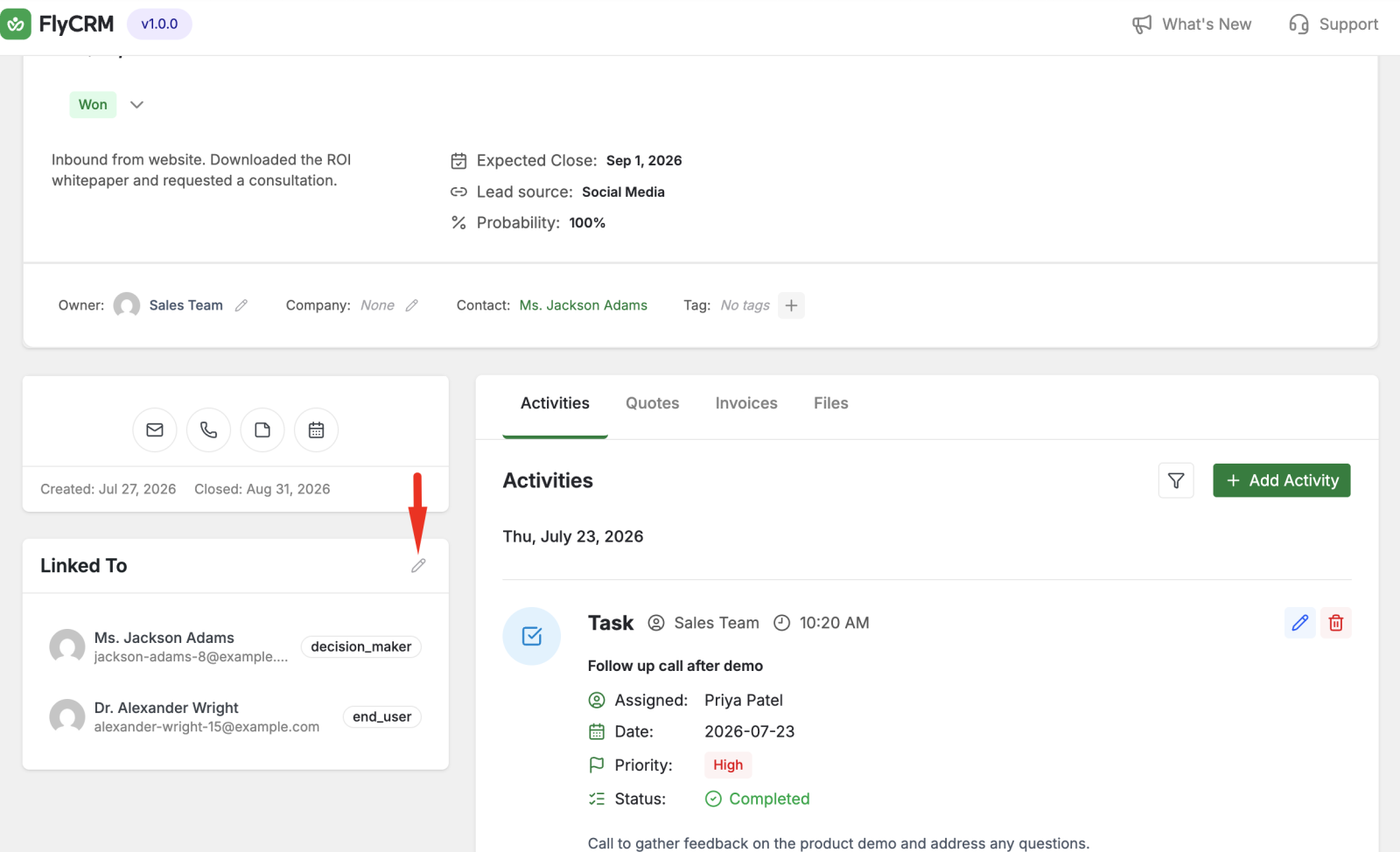
- Find the Linked To panel on the left of the deal page.
- Click the Edit associations button.
- In the Company field, search a company. Then select it.
- Click Done.
FlyCRM links the deal to the company. The company name shows in the Linked To panel and in the deal header.
Remove the company
To remove the company, open Edit associations. Click the x next to the company name. This removes the link only. It does not erase the company record.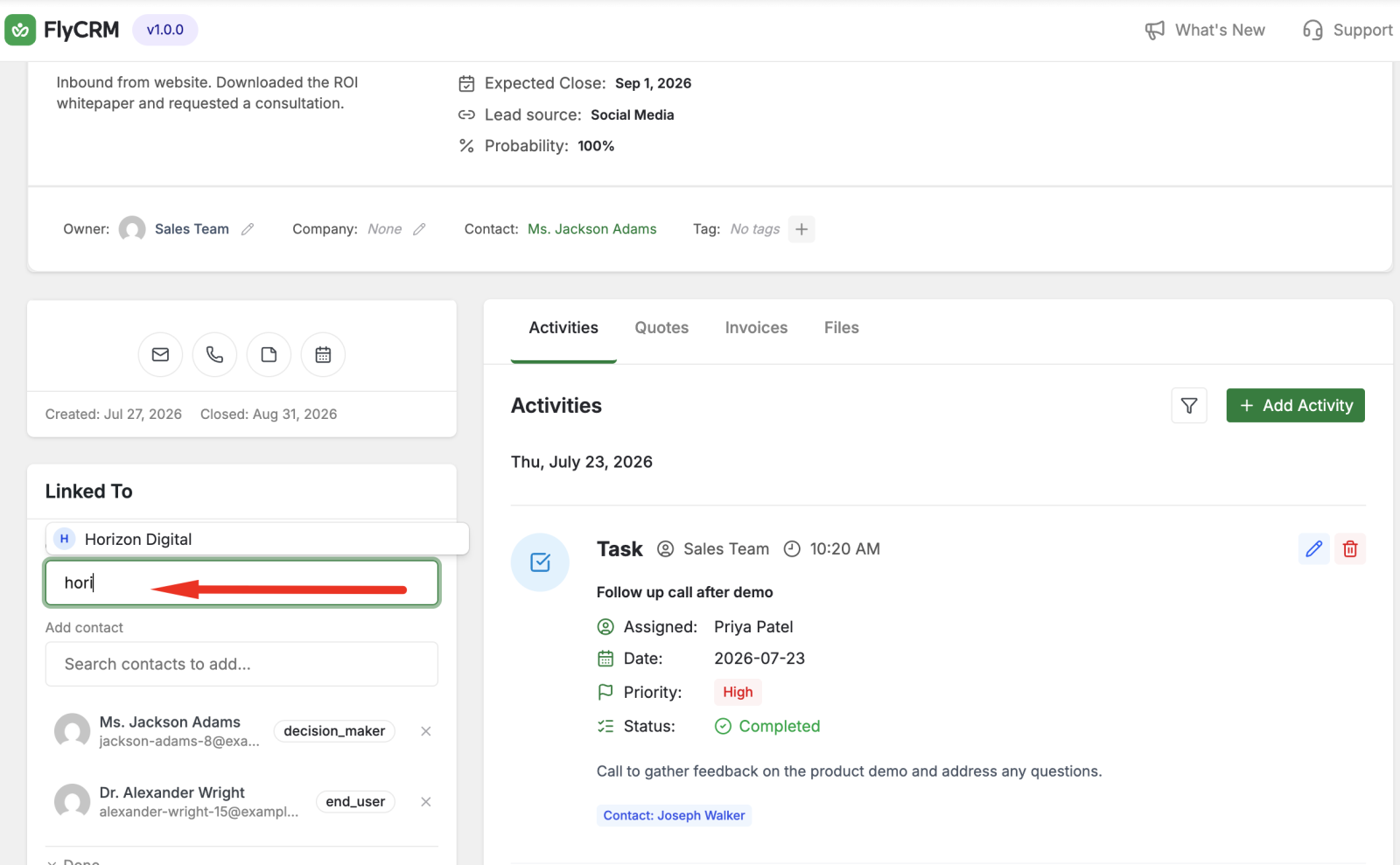
Was this page helpful?