
GETTING STARTED
CONTACTS
COMPANIES
DEALS
Activities
Other Features
LEAD
Converting a Lead
CRM concept: Conversion is the moment a possible customer becomes a real one. Before this point you have a lead. After it you have a contact, and — when the sale is real — a deal you track through the pipeline.
What conversion creates
Conversion does not always create the same records. It creates:
- A contact — always. Every conversion produces one contact from the lead.
- A company — only when the lead names one. If the lead has a company name, FlyCRM creates the company and links the contact to it. A lead with no company name produces no company.
- A deal — only when you choose to open one. Turn on the deal option in the conversion panel to create a deal. Leave it off to convert the person without starting a sale.
Note: This means a lone individual with no business becomes a single contact. A buyer at a named company, ready to purchase, becomes a contact, a company, and a deal.
Nurture the lead first
A lead is rarely ready to convert the moment it arrives. You nurture it — you build interest and trust with steady, relevant contact — until the lead is qualified.
A nurture example
A lead named Sara fills in your contact form. Her lead source is Website. She is interested, but not ready to buy. You nurture her:
- Log a call to introduce yourself and learn what she needs.
- Send a helpful email with a case study, logged as an activity.
- Set a task to follow up in one week.
- After the follow-up, Sara asks for a price. Raise her lead score.
- Sara is now qualified. You convert her.
Every call, email, and task you logged stays with the lead and carries into the new contact. See Logging activities.
Know when a lead is qualified
Convert a lead only when it is qualified. A qualified lead has:
- A real name and a way to reach the person
- A clear fit for what you sell
- Interest in buying now, not "someday"
If the lead is not ready, keep nurturing it.
Run the conversion
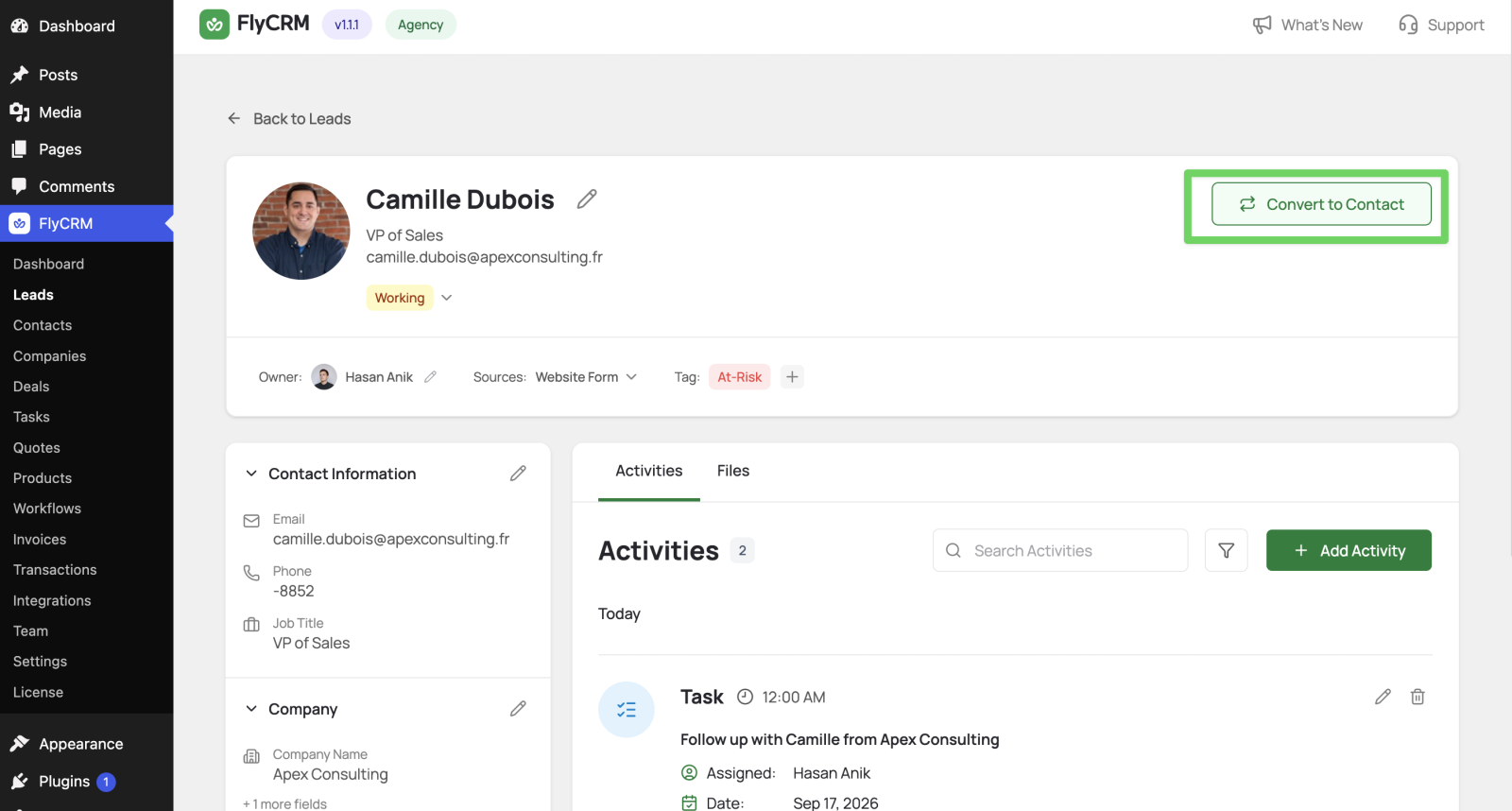
- Go to FlyCRM > Leads and open the qualified lead.
- Select Convert to Contact.
- In the conversion panel, choose what to create:
- Contact Status: Choose a contact status like qualified, or you can edit this in settings. Default is Converted.
- The company — creates one from the lead's existing company name.
- The deal — turn the deal option toggle on to open a sale. Set a deal name, a value, and a pipeline stage. Leave it off to convert without a deal.
- Review the mapped fields.
- Select Convert Lead.
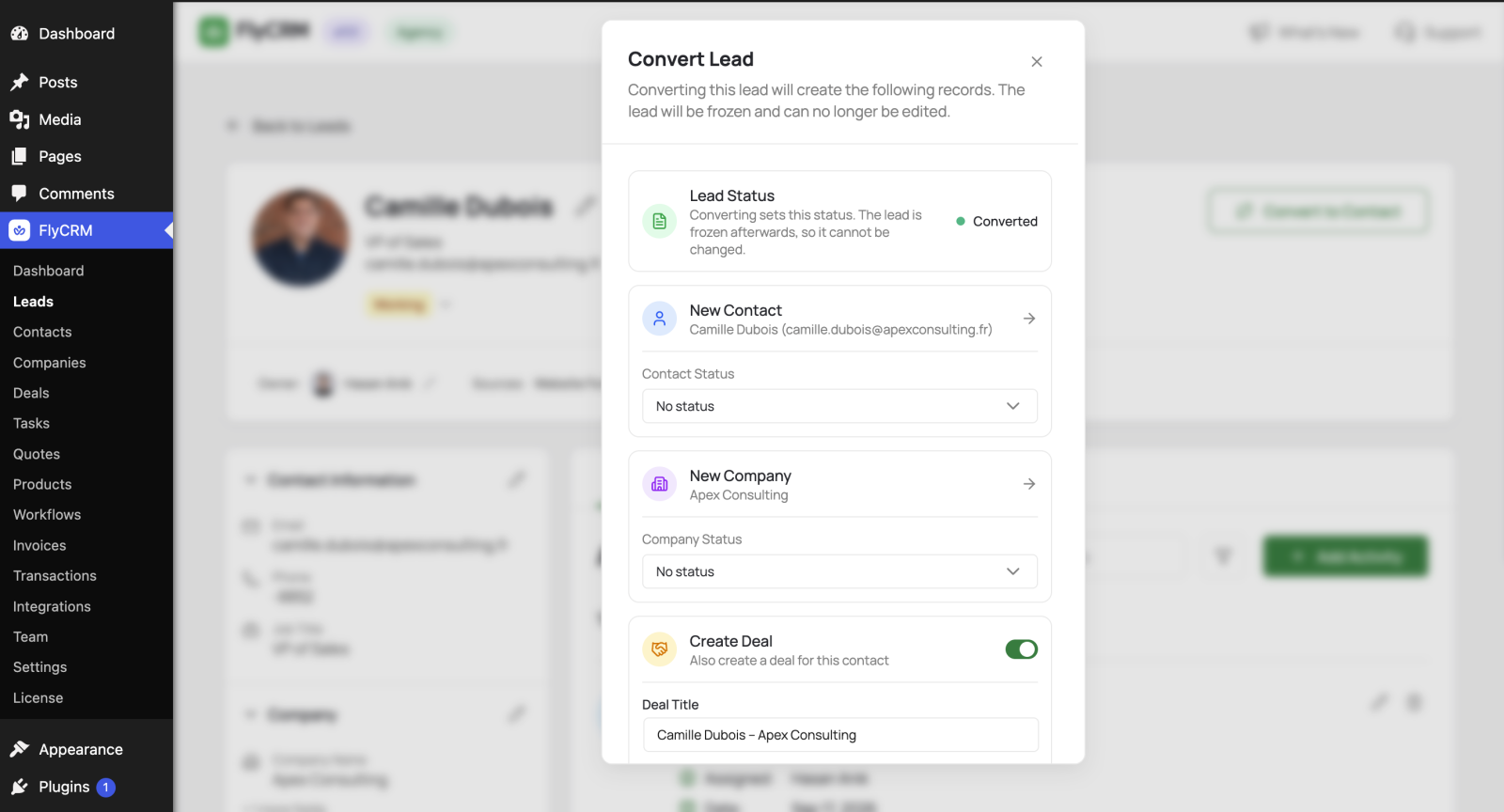
FlyCRM creates the records you chose and links them together. The lead is marked as converted.
What happens to the data
Conversion carries the lead data forward:
- The name, email, and phone move to the new contact.
- The activities logged on the lead link to the new contact, and to the deal when you create one.
Convert without a deal
You do not need a deal every time. Convert without a deal when you want the person in your CRM but have no active sale yet. For example, convert a newsletter signup into a contact to nurture later. You can open a deal for that contact at any time. See Deals and sales pipelines.
Avoid duplicates
If a contact or company with the same email or name already exists, link to it instead of creating a new one. Choose the existing record in the conversion panel. This keeps one profile per person and per business.
After conversion
You now have a contact, and a deal if you created one. Work the sale through the pipeline.