
GETTING STARTED
CONTACTS
COMPANIES
DEALS
Activities
Other Features
Integrations
Dokan Integration
Connect FlyCRM to your Dokan marketplace. Each approved vendor becomes a contact, and each store can become a company. Tags show where each vendor stands.
The integration is in free FlyCRM and works with the free Dokan plugin. You do not need Dokan Pro. FlyCRM Pro adds one feature: quiet vendors.
| What FlyCRM does | Free | Pro |
|---|---|---|
| Creates a contact for each approved vendor, with name, email, phone, and store URL | ✓ | ✓ |
| Creates a company for each store (optional) | ✓ | ✓ |
| Imports the vendors already on your marketplace when you turn the integration on | ✓ | ✓ |
| Records the first sale and the last sale date. Order totals, commission, and payouts stay in Dokan. | ✓ | ✓ |
| Moves the Vendor: Live, Vendor: First Sale, and Vendor: Closed tags | ✓ | ✓ |
| Logs vendor events on the contact timeline | ✓ | ✓ |
| Tags vendors who stopped selling with Vendor: Quiet, and can create a call task for their owner. See Quiet vendors. | — | ✓ |
Before you start
- WooCommerce and Dokan are active.
- FlyCRM is active. For quiet vendors, FlyCRM Pro is also active.
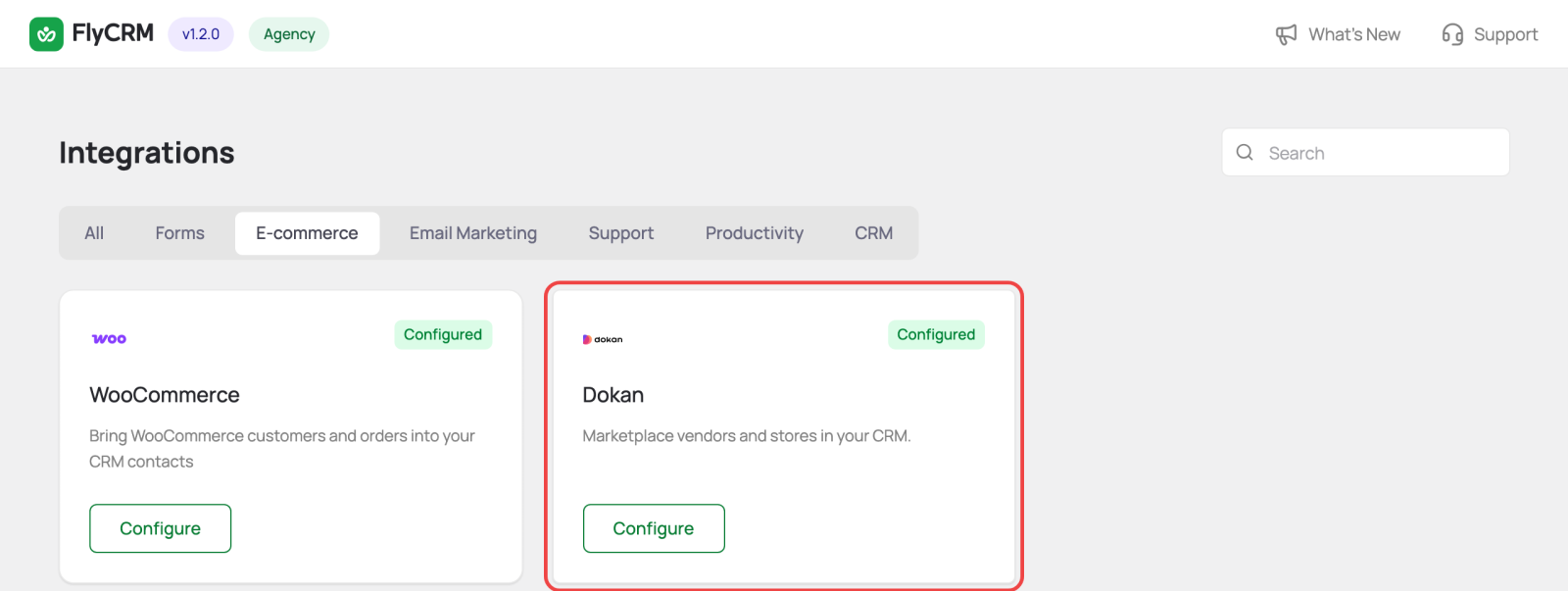
Step 1: Turn on the integration
- Go to FlyCRM > Integrations.
- Select the E-commerce tab, or search for "Dokan".
- Open Dokan and turn on the switch at the top right.
FlyCRM saves immediately, creates the vendor tags, and starts importing your vendors.
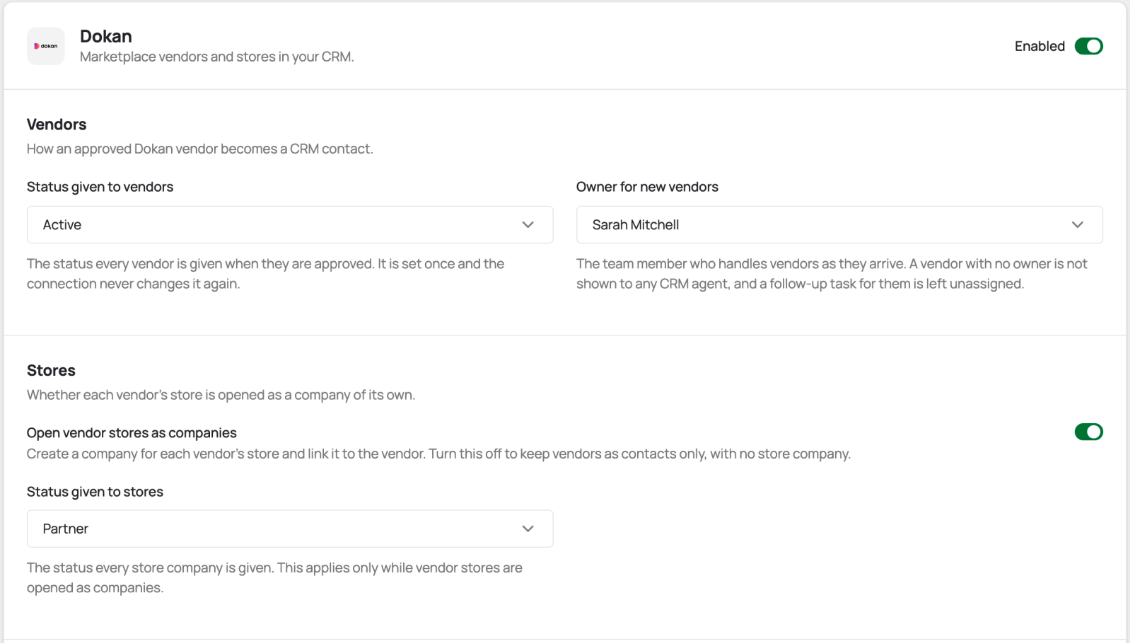
Step 2: Set up the settings
Select Save Changes after you change a setting.
Vendors and stores
| Setting | What it does |
|---|---|
| Status given to vendors | Status (New, Active, Inactive etc.) for new vendor contacts. Set once, then your team owns it. |
| Owner for new vendors | Team member who handles new vendors. Set this: CRM agents cannot see vendors with no owner. |
| Open vendor stores as companies | Creates a company for each store. On by default. |
| Status given to stores | Status for new store companies. |
Lifecycle tags
FlyCRM moves these tags on its own. You can pick other tags, or rename them in Settings > Tags.
| Tag | Added when |
|---|---|
| Vendor: Live | The vendor is approved |
| Vendor: First Sale | The first paid order arrives (Processing, Completed, or On hold) |
| Vendor: Closed | The vendor is disabled or removed in Dokan. FlyCRM removes the live tag and keeps the contact, company, and history. If the vendor comes back, FlyCRM removes the closed tag and adds the live tag again. |
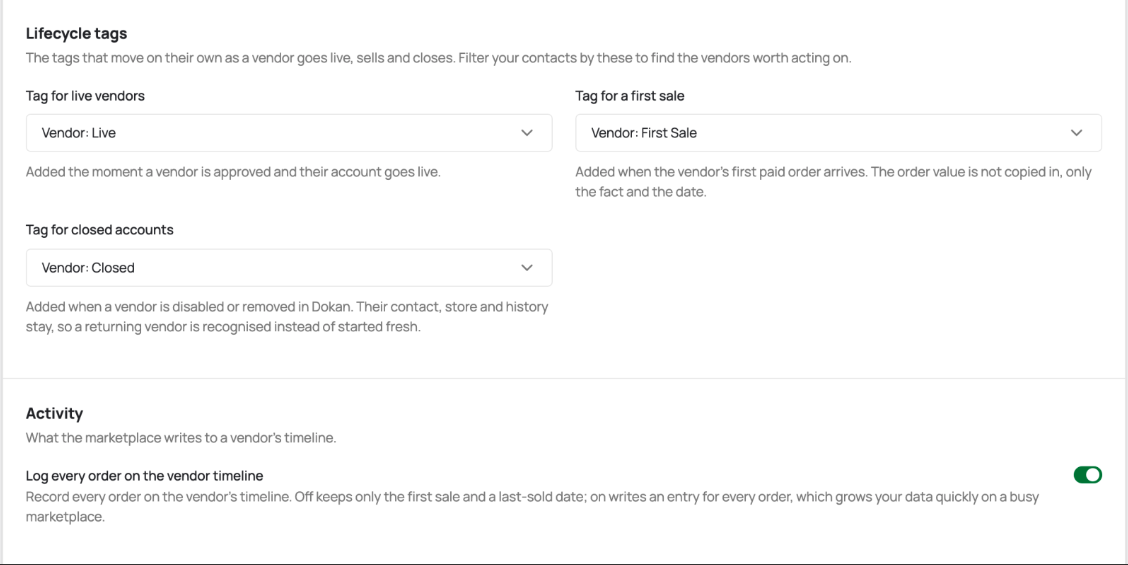
Activity
Log every order on the vendor timeline adds a timeline entry for each order. Off by default, because busy marketplaces create many entries.
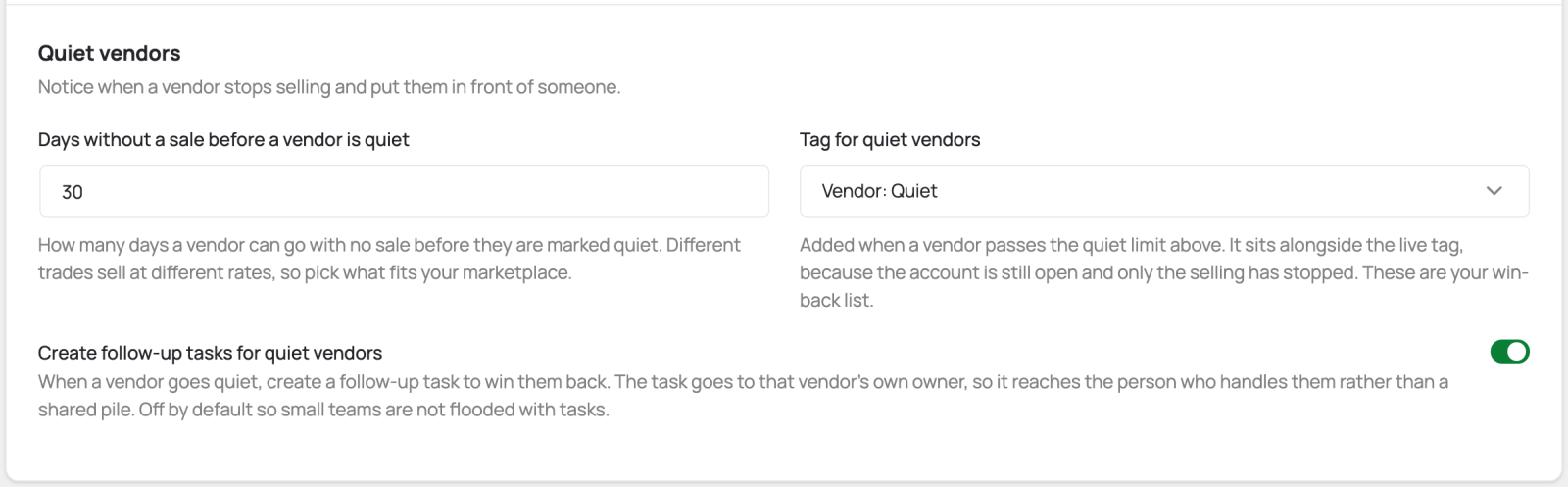
Quiet vendors (Pro)
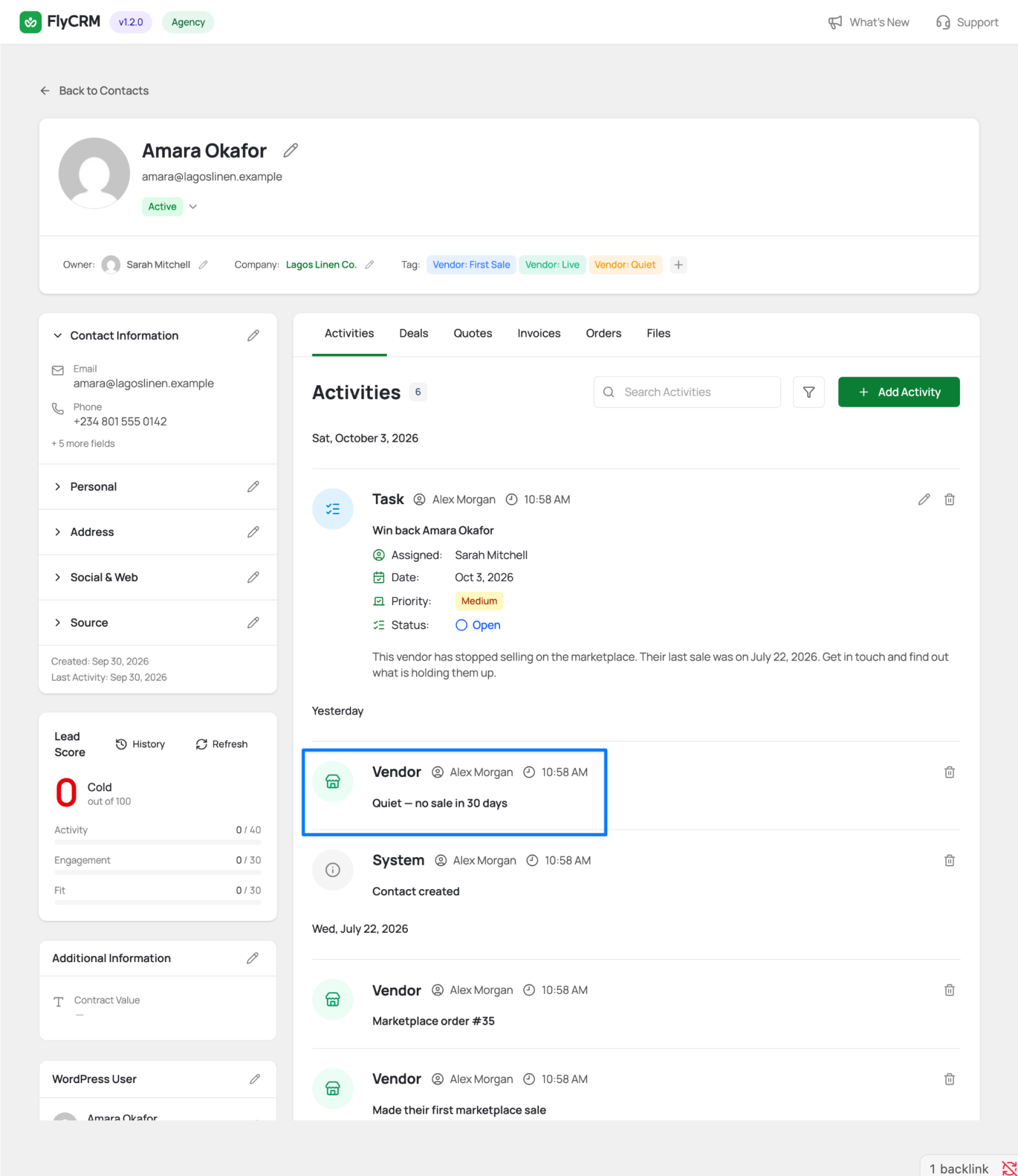
A quiet vendor has an open account but has stopped selling. FlyCRM Pro checks once a day and adds the Vendor: Quiet tag to these vendors. Filter your contacts by this tag to get a list of vendors to contact.
| Setting | What it does |
|---|---|
| Days without a sale before a vendor is quiet | Default 30. |
| Tag for quiet vendors | Default Vendor: Quiet. The vendor keeps the live tag. |
| Create follow-up tasks for quiet vendors | When a vendor goes quiet, FlyCRM creates a task of the type Call, named "Win back" and the vendor's name. The task goes to the vendor's owner, is due in three days, and shows the date of the last sale. Off by default. |
Vendors who never sold and closed vendors are not marked quiet. A quiet vendor who sells again loses the quiet tag.
Find your vendors
- Go to FlyCRM > Contacts.
- Select the filter button, then pick a vendor tag in All Tags.
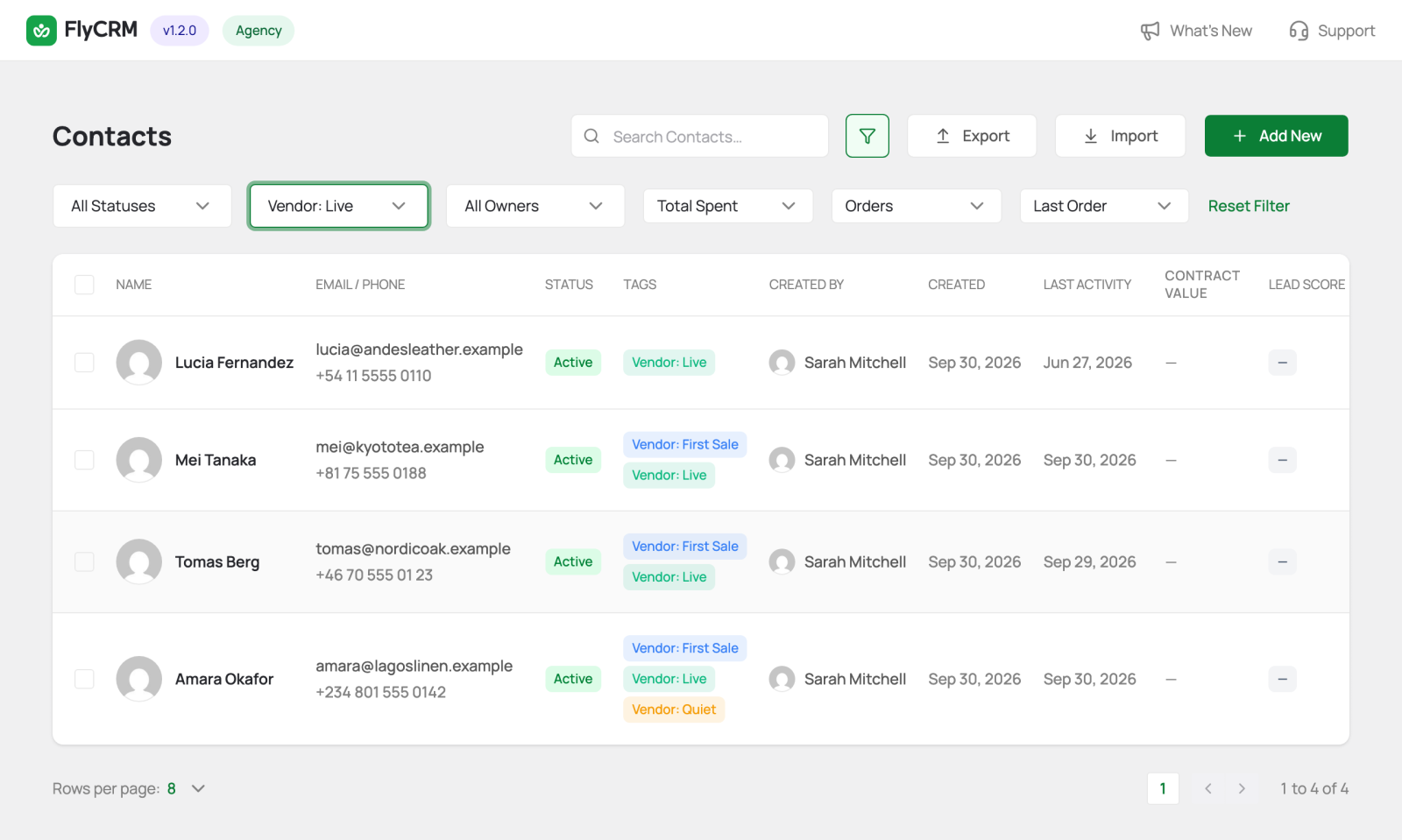
Open a vendor to see marketplace events on the Activities tab: approved, first sale, orders (if logged), quiet (Pro), closed, and reopened.
Troubleshooting
| Problem | What to do |
|---|---|
| The Dokan card shows Not Installed or Inactive | Install or activate Dokan from the card. |
| A vendor is missing | Vendors appear only after you approve them in Dokan. |
| Agents cannot see vendors | Set Owner for new vendors, or assign owners to existing vendor contacts. |
| A vendor's profile change did not reach FlyCRM | FlyCRM fills only empty fields, so your team's edits stay. Only the store name always follows Dokan. |